CSS Borders
4 min read · Free · No login needed
A border is a line drawn around an element, between its padding and its margin. Borders make cards, buttons, and boxes visible — without a border, a white card on a white page is invisible. CSS gives you full control: the style of the line, its thickness, its colour, and each side separately.
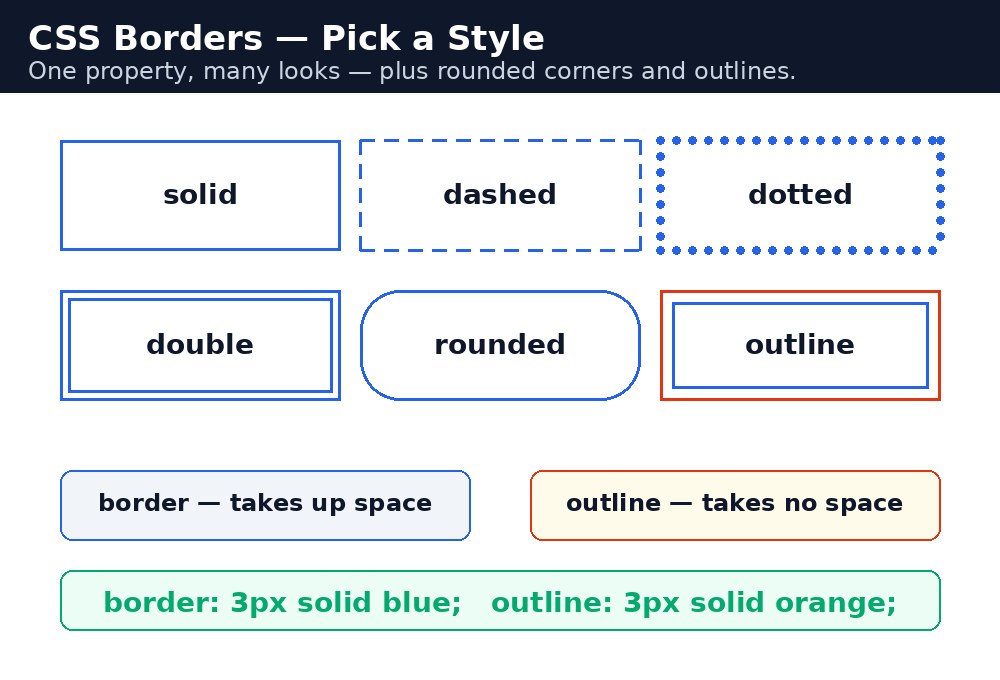
Syntax — the three parts of a border
A border needs three things: a style (what kind of line), a width (how thick), and a colour. You can write them as three properties, or all at once in the shorthand.
.card {
  border-style: solid;
  border-width: 2px;
  border-color: #f59e0b;
}
/* The same border, in one line: */
.card {
  border: 2px solid #f59e0b;
}
border-width: 2px; border-color: red; but no style, nothing appears — the default style is none. This is the single most common border mistake: the border is "there" in the code but invisible on the page.Border styles
| Style | What it looks like |
|---|---|
solid | One straight line — the everyday choice. |
dashed | A line of dashes, like a coupon edge. |
dotted | A line of dots. |
double | Two thin lines side by side. |
groove / ridge | A carved-in or raised 3D look. |
none | No border at all — the default. |
Each side separately
You can style one side at a time — useful for an underline effect or a coloured left edge on a notice box.
.notice {
  border-left: 5px solid green;
  border-top: 1px solid #ccc;
}
.box {
  border-radius: 12px;
}
border-left, border-right, border-top, and border-bottom each take the same three values as the shorthand. And border-radius rounds the corners: a small value like 12px gives soft corners, and 50% turns a square into a perfect circle — the trick behind round profile photos.
Outline — the border's cousin
An outline looks like a border, but it is drawn outside the border, and it does not take up any space — it never pushes other elements away. That makes it perfect for focus rings: the coloured ring you see around a button or a form field when you press Tab.
button:focus {
  outline: 3px solid blue;
}
Box shadow — depth without a border
box-shadow adds a soft shadow behind an element, which makes it look raised off the page — the classic card look. The values are: horizontal offset, vertical offset, blur, and colour.
.card {
  box-shadow: 0 4px 12px rgba(0, 0, 0, 0.2);
}
Read it as: no sideways shift, 4 pixels down, 12 pixels of blur, in a soft black that is 20% opaque. Shadows cost nothing in layout — like outlines, they do not push anything around.
Common mistakes
- Setting width and colour but no style — the border stays invisible, because the default style is
none. - Writing
border: solid;and expecting a colour — without a colour, the border uses the text colour, which is often not what you wanted. - Using
border-radius: 50%on a rectangle — you get an oval, not a circle. A circle needs a square element first. - Removing outlines with
outline: none;and giving keyboard users nothing in return. - Forgetting that a border adds to the element's size — a 300px box with a 2px border is 304px wide, unless
box-sizing: border-boxis set.
Remember
- A border is style + width + colour — and style is the one you must never forget.
- Shorthand:
border: 2px solid red;sets all three at once. border-left/right/top/bottomstyle one side only.border-radiusrounds corners;50%on a square makes a circle.- Outline sits outside the border and takes no space; box-shadow adds depth without affecting layout.
Example explained
.profile { border: 3px solid #2563eb; border-radius: 12px; }— the profile card gets a solid blue border and softly rounded corners..avatar { border-radius: 50%; }— the photo is a square, so a 50% radius turns it into a perfect circle..coupon { border: 2px dashed #dc2626; }— a dashed red border, like the torn edge of a paper coupon..card { box-shadow: 0 4px 12px rgba(0, 0, 0, 0.2); }— a soft shadow under the card, so it looks raised off the page.button:focus { outline: 3px solid #2563eb; }— when the button is focused with the keyboard, a blue ring appears around it.
Example
<!DOCTYPE html>
<html>
<head>
<title>Student Profile Card</title>
<style>
body { font-family: Verdana, sans-serif; background-color: #f1f5f9; }
.profile { border: 3px solid #2563eb; border-radius: 12px; background-color: white; width: 300px; padding: 20px; margin: 20px auto; text-align: center; box-shadow: 0 4px 12px rgba(0, 0, 0, 0.2); }
.avatar { border-radius: 50%; border: 2px solid #2563eb; width: 100px; height: 100px; background-color: #dbeafe; line-height: 100px; margin: 0 auto; }
.coupon { border: 2px dashed #dc2626; padding: 10px; margin-top: 16px; color: #dc2626; }
button { padding: 10px 20px; margin-top: 16px; }
button:focus { outline: 3px solid #2563eb; }
</style>
</head>
<body>

<div class="profile">
<div class="avatar">RK</div>
<h2>Raj Kamal</h2>
<p>Student — Diploma in CSE</p>
<div class="coupon">50% OFF on summer training</div>
<button>Enrol Now</button>
</div>

</body>
</html>
Output
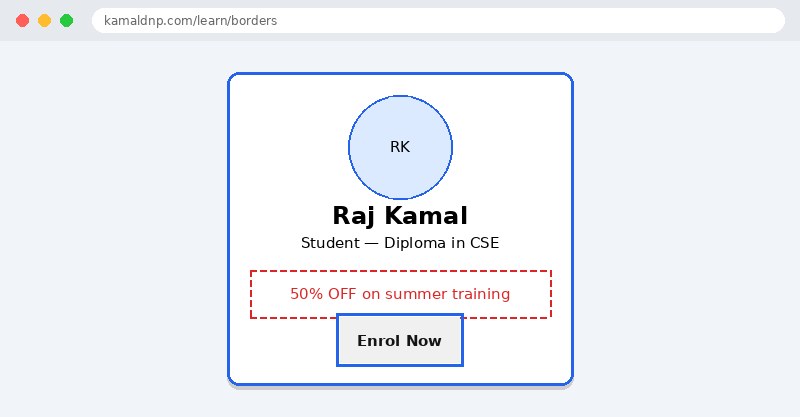
Try it yourself — live editor
Change the code below and press Run to see the result instantly. No file to save, no login needed.
Why learn this yourself — and not just ask AI?
AI can write code for you, but it cannot think for you. When you learn HTML yourself, your brain builds the real skill: you understand why a page looks the way it does, you can fix it when it breaks, and you can answer it in an exam or an interview without help. That is the skill that gets you a job — not a copied answer.
Get certified — just ₹10
Finish all 30 lessons, pass the test (80%), pay ₹10 and get your certificate.
Take the testPrefer watching? Video courses teach the same topics step by step.
Go further with a full course
Free tutorials teach you the basics. Our paid courses add live projects, mentorship and a certificate.
Browse all courses