CSS Display
5 min read · Free · No login needed
Every HTML element has a display value. It decides how the element shows up on the page: does it take a whole line for itself, or does it sit beside other elements? Does it take up space at all? The display property lets you change that behaviour.
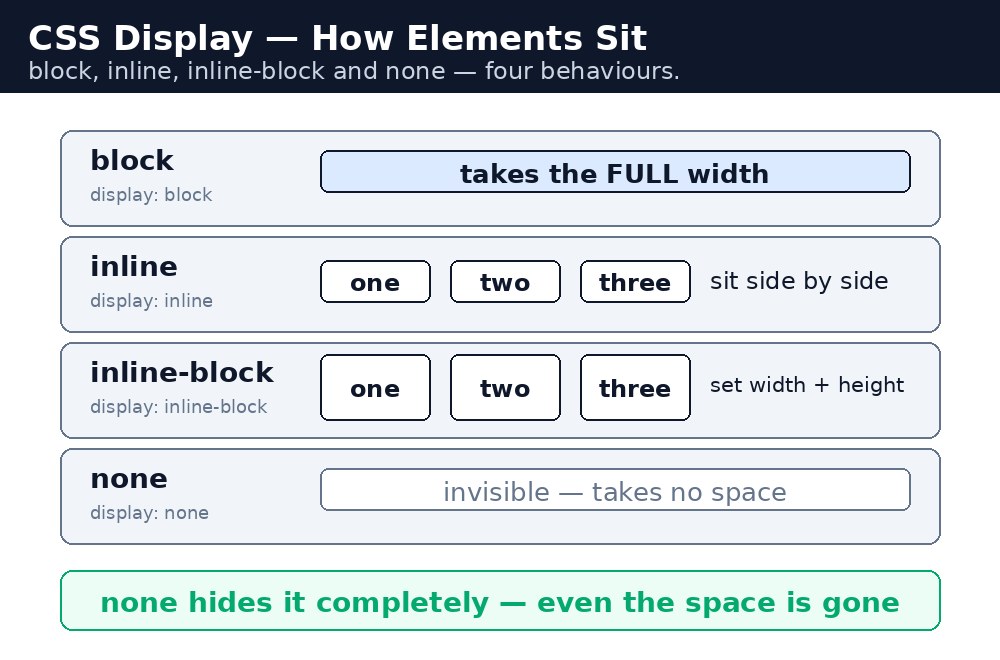
Two elements you already know show the difference clearly. A <div> is a block — it stretches across the full width and pushes the next thing onto a new line. A <span> is inline — it is only as wide as its own text and sits inside a line. Same page, same CSS, completely different behaviour.
Block — a full line of its own
A block element starts on a new line and takes the full width of its parent. Headings, paragraphs, lists and divs are block by default. You can set their width and height, and add margins on all four sides. This is the normal behaviour for the big building blocks of a page.
Inline — part of a line
An inline element does not start a new line. It sits inside the flow of text, only as wide as its content. Links and spans are inline by default. Here is the catch beginners hit most: width and height do not work on inline elements, and top and bottom margins are ignored. If you set a width on a <span> and nothing happens, this is why.
Inline-block — the best of both
inline-block is the middle ground. The element sits in a line beside others, like an inline element — but width, height and margins all work, like a block element. This is the classic way to build a horizontal menu: each link is a small block, and the blocks sit side by side.
None — gone completely
display: none removes the element from the page entirely. It is not just invisible — it takes up no space at all, and the other elements close up around it. This is how menus, popups and extra sections are hidden until they are needed.
Visibility — hidden, but the space stays
visibility: hidden also hides an element, but with one big difference: the empty space stays exactly where the element was. The layout does not shift. Use display: none when you want the element gone, and visibility: hidden when you want it hidden but the page to keep its shape.
Syntax — the display values
.menu-link {
  display: inline-block;
  width: 120px;
  padding: 10px;
  text-align: center;
}
.hidden-box {
  display: none;
}
.kept-space {
  visibility: hidden;
}
display does not change what an element means — a <div> set to inline is still a div. It only changes how the browser draws it. The HTML stays the same; only the presentation changes.display: inline-block on the links is the easiest route. It needs no floats and no flexbox, and each link can still have its own width, padding and background colour.Common mistakes
- Setting
widthorheighton an inline<span>or<a>and wondering why nothing changes. - Using
display: nonewhen you meantvisibility: hidden, so the whole layout jumps when the element disappears. - Forgetting that a block element always starts on a new line, even if there is room beside it.
- Hiding something with
display: noneand expecting it to still be clickable or readable. - Adding
display: blockto a link to make the whole box clickable, then forgetting to also give it padding.
Remember
- Block takes a full line and accepts width and height; inline sits inside a line and does not.
- Inline-block sits in a line but still accepts width, height and margins.
display: noneremoves the element and its space;visibility: hiddenhides it but keeps the space.- Use inline-block for simple horizontal menus and button rows.
- If a width or height seems to do nothing, check the element's display value first.
Example explained
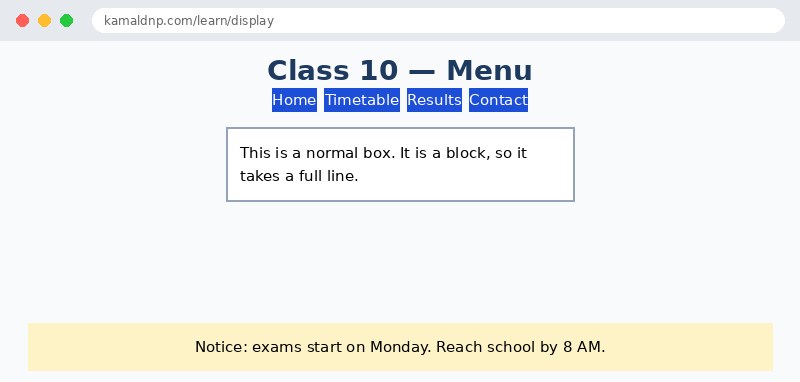
.menu a { display: inline-block; }— each menu link becomes a small block that still sits in a line, so the four links sit side by side..menu a { width: 110px; padding: 10px; }— width and padding work here only because the links are inline-block; on plain inline links they would be ignored..menu a:hover { background-color: #1d4ed8; color: white; }— the link under the mouse turns blue, so the visitor can see what they are about to click..hidden-note { display: none; }— this box is removed from the page completely; the text below moves up to fill the gap..kept-space { visibility: hidden; }— this box is invisible, but its empty space stays exactly where it was, so the layout does not shift..notice { display: block; }— the notice is a block, so it starts on a new line and stretches across the full width of the page.
Example
<!DOCTYPE html>
<html>
<head>
<title>Display Values — Class Menu</title>
<style>
body {
  font-family: Arial, sans-serif;
  background-color: #f8fafc;
}
h1 {
  text-align: center;
  color: #1e3a5f;
}
.menu {
  text-align: center;
}
.menu a {
  display: inline-block;
  width: 110px;
  padding: 10px;
  margin: 4px;
  background-color: #dbeafe;
  color: #1e3a5f;
  text-align: center;
  text-decoration: none;
  border-radius: 6px;
}
.menu a:hover {
  background-color: #1d4ed8;
  color: white;
}
.box {
  border: 2px solid #94a3b8;
  padding: 12px;
  margin: 16px auto;
  width: 320px;
  background-color: white;
}
.hidden-note {
  display: none;
}
.kept-space {
  visibility: hidden;
}
.notice {
  display: block;
  background-color: #fef3c7;
  padding: 12px;
  text-align: center;
}
</style>
</head>
<body>

<h1>Class 10 — Menu</h1>
<div class="menu">
<a href="#">Home</a>
<a href="#">Timetable</a>
<a href="#">Results</a>
<a href="#">Contact</a>
</div>

<div class="box">
<p>This is a normal box. It is a block, so it takes a full line.</p>
</div>

<div class="box hidden-note">
<p>You cannot see this box. display: none removed it completely.</p>
</div>

<div class="box kept-space">
<p>You cannot see this box either, but its empty space is still here.</p>
</div>

<div class="notice">Notice: exams start on Monday. Reach school by 8 AM.</div>

</body>
</html>
Output
Try it yourself — live editor
Change the code below and press Run to see the result instantly. No file to save, no login needed.
Why learn this yourself — and not just ask AI?
AI can write code for you, but it cannot think for you. When you learn HTML yourself, your brain builds the real skill: you understand why a page looks the way it does, you can fix it when it breaks, and you can answer it in an exam or an interview without help. That is the skill that gets you a job — not a copied answer.
Get certified — just ₹10
Finish all 30 lessons, pass the test (80%), pay ₹10 and get your certificate.
Take the testPrefer watching? Video courses teach the same topics step by step.
Go further with a full course
Free tutorials teach you the basics. Our paid courses add live projects, mentorship and a certificate.
Browse all courses