CSS Filters Tutorial — Blur, Grayscale, Sepia & More
4 min read · Free · No login needed
Open any photo app and tap a filter: one tap makes the photo black-and-white, another makes it warm and old-looking, another softens it into a blur. CSS gives you the same power in a single line of code. The filter property applies a visual effect to a whole element — an image, a box, even a block of text — without changing the element itself or anything around it.
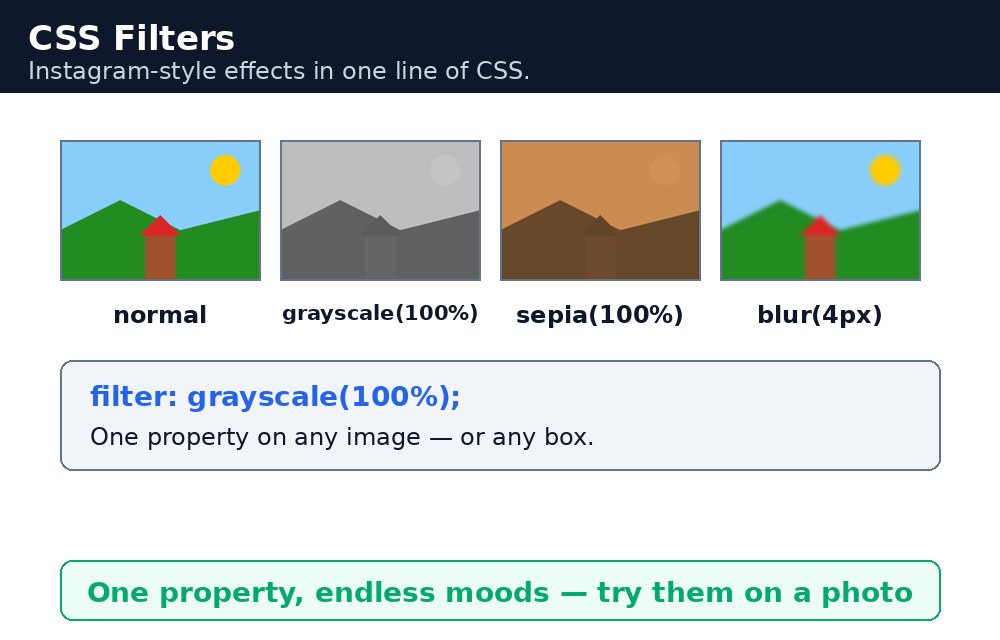
What a filter does
A filter changes the pixels of an element after it has been drawn. The element keeps its size and position; only its appearance changes. This is why filters are so easy to use: you do not rearrange the page, you just restyle what is already there. One important rule — a filter on a parent affects everything inside it too, and a child cannot undo its parent's filter.
The filter functions
Each filter is a function with a value. The most useful ones are:
.soft    { filter: blur(3px); }
.bright  { filter: brightness(1.5); }
.old     { filter: sepia(80%); }
.grey    { filter: grayscale(100%); }
.strong  { filter: contrast(150%); }
blur() softens the edges, measured in pixels. brightness() takes a number — 1 is normal, 1.5 is brighter, 0.5 is darker. sepia(), grayscale() and contrast() take percentages. There are more — saturate() for colour intensity, hue-rotate() for shifting colours around the wheel, and invert() for a photo negative — but the five above cover most real designs.
Combining filters and the hover trick
Filters combine in one line, separated by spaces: filter: grayscale(100%) contrast(120%); gives a punchy black-and-white photo. The classic portfolio trick is a photo that starts in grayscale and returns to colour on hover: img { filter: grayscale(100%); } and img:hover { filter: grayscale(0%); }. Add a transition and the colour fades in smoothly instead of snapping. There is also backdrop-filter, which blurs whatever is behind an element — the frosted-glass effect you see on modern menus and cards.
Common mistakes
- Writing two
filterlines in one rule — the second one wins; combine them into a single line instead. - Forgetting the unit —
blur(3)withoutpxandsepia(80)without%are both invalid. - Using
brightness(150%)— brightness takes a plain number like1.5, not a percentage. - Trying to un-filter a child of a filtered parent — the child is already inside the filtered picture and cannot escape it.
- Overdoing blur on large areas — a heavy blur on a big image is slow to draw on cheap phones, so keep blurs small.
Remember
filterchanges an element's pixels, not its size or position.blur()softens,brightness()lightens or darkens,grayscale()removes colour,sepia()ages a photo.- Combine filters in one line, separated by spaces.
- A parent's filter covers all its children, and a child cannot undo it.
- Grayscale-to-colour on hover is the classic portfolio trick — add a transition for a smooth fade.
Example explained
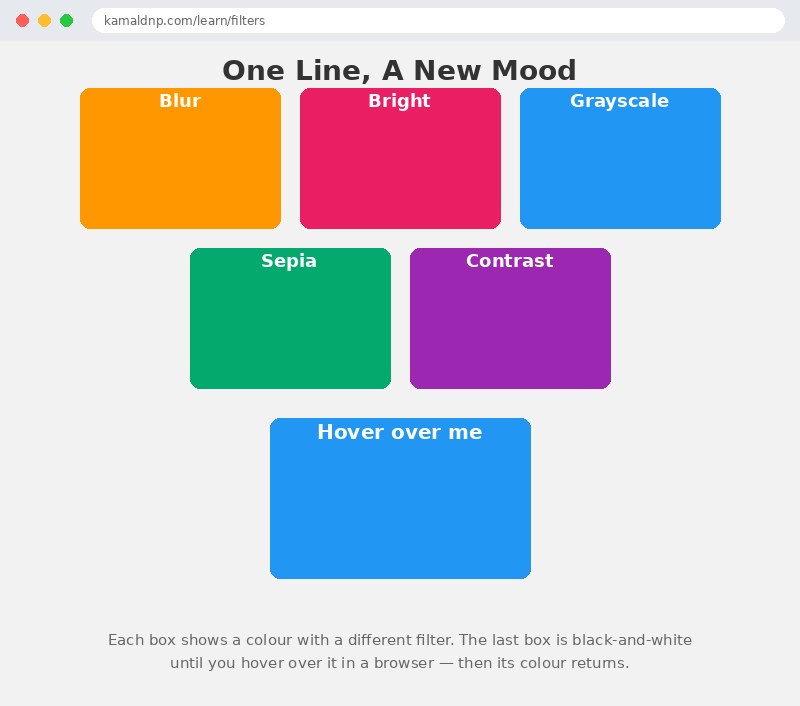
.blur { filter: blur(3px); }— the first box is softly blurred, like a photo taken slightly out of focus..bright { filter: brightness(1.5); }— the second box is half as bright again, so its colour looks washed towards white..gray { filter: grayscale(100%); }— the third box loses all colour and becomes pure black-and-white..sepia { filter: sepia(80%); }— the fourth box turns warm and brownish, like an old photograph..portrait:hover { filter: grayscale(0%); }— the big box starts black-and-white and returns to full colour when you hover over it in a browser.
Example
<!DOCTYPE html>
<html>
<head>
<title>Photo Filters in CSS</title>
<style>
* { box-sizing: border-box; }
body { font-family: Arial, sans-serif; margin: 0; padding: 20px; background-color: #f2f2f2; }
h1 { text-align: center; color: #333; }
.row { display: flex; flex-wrap: wrap; gap: 20px; justify-content: center; max-width: 900px; margin: auto; }
.photo {
  width: 200px; height: 140px; border-radius: 10px;
  display: flex; align-items: center; justify-content: center;
  color: white; font-size: 18px; font-weight: bold;
  background-color: #ff9800;
}
.blur { filter: blur(3px); }
.bright { filter: brightness(1.5); background-color: #e91e63; }
.gray { filter: grayscale(100%); background-color: #2196f3; }
.sepia { filter: sepia(80%); background-color: #04aa6d; }
.contrast { filter: contrast(150%); background-color: #9c27b0; }
.portrait {
  width: 260px; height: 160px; margin: 30px auto; border-radius: 10px;
  display: flex; align-items: center; justify-content: center;
  color: white; font-size: 20px; font-weight: bold;
  background-color: #2196f3;
  filter: grayscale(100%);
}
.portrait:hover { filter: grayscale(0%); }
p.note { text-align: center; color: #666; max-width: 600px; margin: 20px auto; }
</style>
</head>
<body>

<h1>One Line, A New Mood</h1>

<div class="row">
<div class="photo blur">Blur</div>
<div class="photo bright">Bright</div>
<div class="photo gray">Grayscale</div>
<div class="photo sepia">Sepia</div>
<div class="photo contrast">Contrast</div>
</div>

<div class="portrait">Hover over me</div>

<p class="note">Each box shows a colour with a different filter. The last box is black-and-white until you hover over it in a browser — then its colour returns.</p>

</body>
</html>
Output
Try it yourself — live editor
Change the code below and press Run to see the result instantly. No file to save, no login needed.
Related lessons
Frequently asked questions
The questions learners ask most about this lesson — read the question, then open it to see the answer.
1. What does the filter property do?
It applies a visual effect to a whole element — an image, a box, even a block of text — changing its pixels, not its size or position.
2. What do grayscale and sepia do?
grayscale() removes colour for a black-and-white look, and sepia() gives a photo a warm, old look.
3. Can a child undo its parent's filter?
No. A parent's filter covers all its children, and a child cannot escape it.
Why learn this yourself — and not just ask AI?
AI can write code for you, but it cannot think for you. When you learn HTML yourself, your brain builds the real skill: you understand why a page looks the way it does, you can fix it when it breaks, and you can answer it in an exam or an interview without help. That is the skill that gets you a job — not a copied answer.
Get certified — just ₹10
Finish all 35 lessons, pass the test (80%), pay ₹10 and get your certificate.
Take the testPrefer watching? Video courses teach the same topics step by step.
Go further with a full course
Free tutorials teach you the basics. Our paid courses add live projects, mentorship and a certificate.
Browse all courses