CSS Float
4 min read · Free · No login needed
Before flexbox and grid existed, float was how whole page layouts were built. Today it has a smaller job, but it is still the right tool for one thing: letting text wrap around an image, like in a newspaper. A photo on the left, the article text flowing around it on the right.
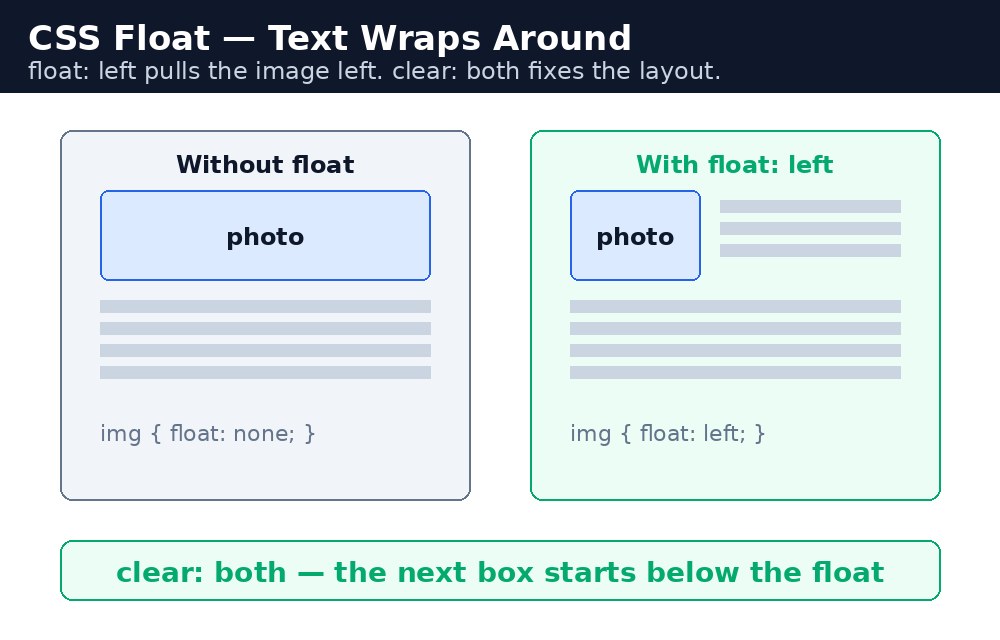
When you float an element, it moves to one side of its container and the following content flows around it. The element is taken out of the normal flow — and that causes one famous problem, which this lesson also fixes.
Float left and float right
float: left pushes the element to the left side of its container, and the text wraps around its right side. float: right does the mirror image. The classic example is a picture in an article: float it left, and the paragraph text sits neatly beside it.
.photo {
  float: left;
  width: 140px;
  margin: 0 16px 8px 0;
}
Clear — push below the floats
A floated element keeps pulling the next content up beside it. When you want something to stop wrapping and go back to a full line — a footer, for example — you give it clear: both. It moves down below every floated element, left and right, and starts on a fresh line.
.footer {
  clear: both;
}
The collapsing parent problem
Here is the famous problem. A parent box that contains only floated children collapses to zero height — it acts as if the children are not there at all, because floated elements are out of the normal flow. The parent's background and border shrink to nothing, and the next section slides up underneath the floats.
Clearfix — the standard fix
The standard fix is called a clearfix. You add a tiny invisible element after the floats, using the ::after pseudo-element, and clear it. The parent then stretches to wrap its floated children again. It is three lines of CSS, and you will use it on every float layout.
.clearfix::after {
  content: "";
  display: table;
  clear: both;
}
Float layout — two columns
With float and clear you can build a simple two-column layout: one column floats left, the other floats right, and the footer clears both. It is the oldest layout trick on the web, and it still works. For new layouts, flexbox and grid are easier — you will meet them later in this course — but float is the tool for wrapping text around images.
margin: 0 16px 8px 0 for a left-floated image. Without it, the text touches the picture and the page looks cramped.Common mistakes
- Forgetting to clear floats, so the footer or the next section slides up beside them.
- Letting the parent collapse to zero height and wondering where its background colour went.
- Floating every element on the page instead of using flexbox or grid for real layouts.
- Forgetting the margin between a floated image and the text wrapping around it.
- Using
clear: leftwhen there are also right-floated elements — useclear: bothto be safe.
Remember
float: leftandfloat: rightmove an element to one side; text wraps around the other side.clear: bothpushes an element below all floated elements.- A parent with only floated children collapses to zero height — fix it with the clearfix.
- The clearfix is
::afterwithcontent: "",display: tableandclear: both. - Float is best for wrapping text around images; use flexbox or grid for page layouts.
Example explained
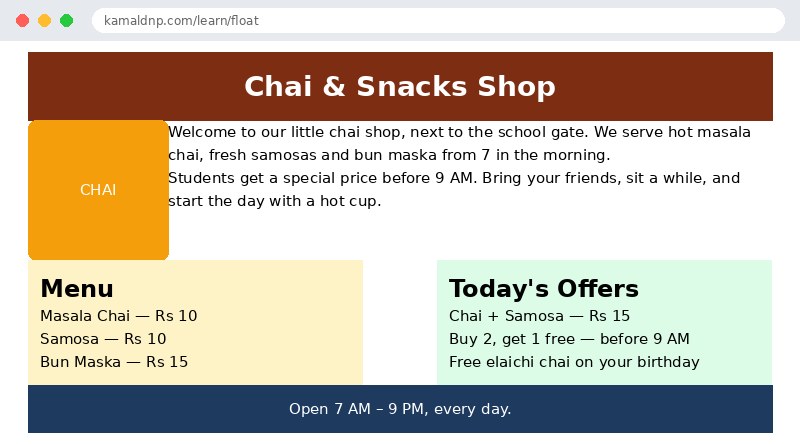
.photo { float: left; width: 140px; margin: 0 16px 8px 0; }— the orange CHAI box floats to the left, and the welcome text wraps around its right side with a 16px gap..clearfix::after { content: ""; display: table; clear: both; }— the clearfix makes the wrapper stretch around its floated children instead of collapsing..menu { float: left; width: 45%; }— the menu column floats to the left side of the page..offers { float: right; width: 45%; }— the offers column floats to the right, so the two columns sit side by side..menu, .offers { box-sizing: border-box; }— the padding is counted inside the 45% width, so the two columns really do fit on one line..footer { clear: both; }— the footer moves below both floated columns and starts on a fresh full-width line.
Example
<!DOCTYPE html>
<html>
<head>
<title>Float Layout — Chai Shop</title>
<style>
body {
font-family: Arial, sans-serif;
margin: 0;
}
.header {
background-color: #7c2d12;
color: white;
padding: 16px;
text-align: center;
}
.photo {
float: left;
width: 140px;
height: 140px;
background-color: #f59e0b;
color: white;
text-align: center;
line-height: 140px;
margin: 0 16px 8px 0;
border-radius: 8px;
}
.clearfix::after {
content: "";
display: table;
clear: both;
}
.menu {
float: left;
width: 45%;
box-sizing: border-box;
background-color: #fef3c7;
padding: 12px;
}
.offers {
float: right;
width: 45%;
box-sizing: border-box;
background-color: #dcfce7;
padding: 12px;
}
.footer {
clear: both;
background-color: #1e3a5f;
color: white;
text-align: center;
padding: 12px;
}
</style>
</head>
<body>
<div class="header"><h1>Chai & Snacks Shop</h1></div>
<div class="clearfix">
<div class="photo">CHAI</div>
<p>Welcome to our little chai shop, next to the school gate. We serve hot masala chai, fresh samosas and bun maska from 7 in the morning.</p>
<p>Students get a special price before 9 AM. Bring your friends, sit a while, and start the day with a hot cup.</p>
</div>
<div class="clearfix">
<div class="menu">
<h2>Menu</h2>
<p>Masala Chai — Rs 10</p>
<p>Samosa — Rs 10</p>
<p>Bun Maska — Rs 15</p>
</div>
<div class="offers">
<h2>Today's Offers</h2>
<p>Chai + Samosa — Rs 15</p>
<p>Buy 2, get 1 free — before 9 AM</p>
<p>Free elaichi chai on your birthday</p>
</div>
</div>
<div class="footer">Open 7 AM – 9 PM, every day.</div>
</body>
</html>Output
Try it yourself — live editor
Change the code below and press Run to see the result instantly. No file to save, no login needed.
Why learn this yourself — and not just ask AI?
AI can write code for you, but it cannot think for you. When you learn HTML yourself, your brain builds the real skill: you understand why a page looks the way it does, you can fix it when it breaks, and you can answer it in an exam or an interview without help. That is the skill that gets you a job — not a copied answer.
Get certified — just ₹10
Finish all 30 lessons, pass the test (80%), pay ₹10 and get your certificate.
Take the testPrefer watching? Video courses teach the same topics step by step.
Go further with a full course
Free tutorials teach you the basics. Our paid courses add live projects, mentorship and a certificate.
Browse all courses