CSS Fonts
4 min read · Free · No login needed
A font is the design of the letters. The same sentence looks serious in one font and playful in another, so choosing fonts is one of the fastest ways to change the feel of a page. CSS gives you five font properties, and one of them — font-family — does most of the work.
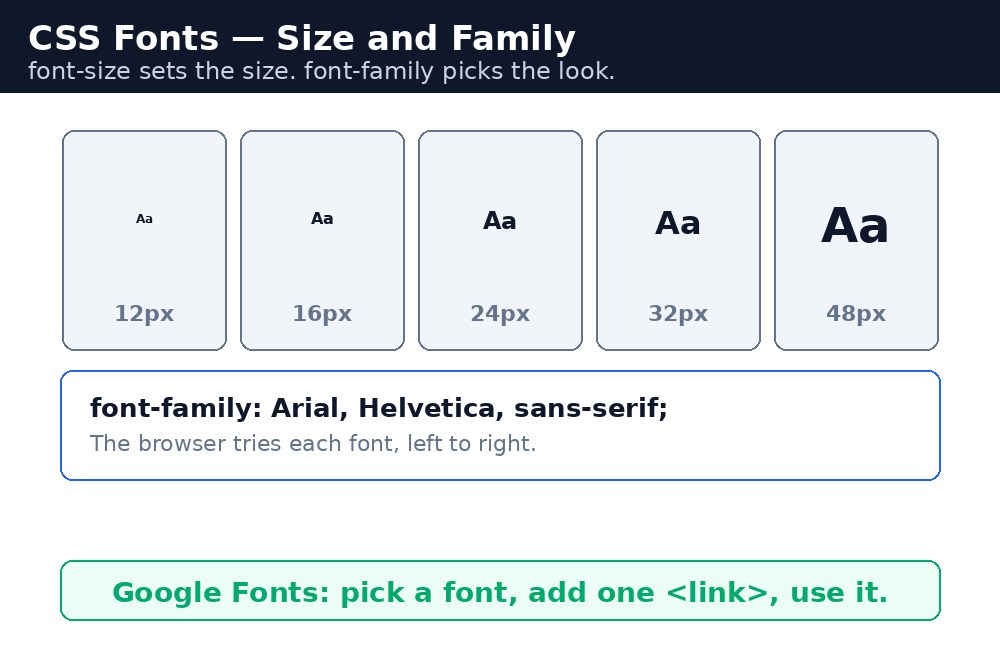
font-family — which font
font-family takes a list of fonts, in order of preference: font-family: Georgia, 'Times New Roman', serif;. The browser tries Georgia first; if the visitor's computer does not have it, it tries Times New Roman; if that is missing too, it uses any serif font. Always end the list with a generic family — serif, sans-serif, monospace, cursive or fantasy — so there is always a fallback.
Web-safe fonts
Some fonts are on almost every computer, so they are safe to use: Arial, Verdana, Georgia, Times New Roman and Courier New. They are called web-safe fonts. If you want a font nobody has installed, you can load it from Google Fonts instead — see below.
font-size — how big
Size can be set in px (fixed), em (relative to the element's font size) or rem (relative to the root font size, usually 16px). Beginners often use px everywhere, but rem is the better habit: if a visitor enlarges the text in their browser, rem sizes grow with it and px sizes do not.
font-style and font-weight
font-style is usually normal or italic. font-weight sets how bold the letters are: normal, bold, or a number from 100 (thin) to 900 (very bold).
Google Fonts
Google Fonts offers hundreds of free fonts. Pick one on fonts.google.com, copy the <link> it gives you into the <head> of your page, then use the font's name in font-family:
<link href="https://fonts.googleapis.com/css2?family=Poppins&display=swap" rel="stylesheet">
h1 {
  font-family: 'Poppins', sans-serif;
}
The font shorthand
All five properties fit in one line with the font shorthand — style, weight, size, line-height, family, in that order:
p {
  font: italic bold 20px/1.5 Georgia, serif;
}
The size and the family are required; the rest are optional. The line-height sits after the size, joined by a slash: 20px/1.5.
Icons
Icons are fonts too. Libraries like Font Awesome give you hundreds of icons as a font: you add one <link> and write <i class="fa fa-phone"></i> where you want a phone icon. Small pictures like this are crisper than images and cost almost nothing to load. (This website itself uses Font Awesome for its icons.)
font-family: 'Times New Roman', serif;. One-word names like Georgia need no quotes.Common mistakes
- Writing the
fontshorthand without a size and a family — the whole rule is then ignored, and nothing changes. - Forgetting the generic family at the end of
font-family— if none of the named fonts exist, the browser falls back to its own default. - Using only
pxfor font sizes — visitors who enlarge text in their browser settings get no benefit. Useremfor body text. - Loading five or six Google Fonts — each one is another file to download. Pick one or two.
Remember
font-familyis a list with a generic family at the end: serif, sans-serif or monospace.remsizes grow when the visitor enlarges text;pxsizes do not.font-weight: boldis the same asfont-weight: 700.- The
fontshorthand needs size and family at minimum, in the order style, weight, size/line-height, family. - Quote font names that contain a space.
Example explained
h1 { font-family: Georgia, 'Times New Roman', serif; }— the heading tries Georgia first, then Times New Roman, then any serif font, so it looks right on every computer.h1 { font-size: 32px; }— the heading is a fixed 32px, twice the usual body size, which is what makes it stand out..quote { font-style: italic; }— the welcome line leans to the side, the classic look for a quote..note { font: bold 18px/1.5 Arial, sans-serif; }— the shorthand in one line: bold weight, 18px size, 1.5 line-height, Arial with a sans-serif fallback..small { font-size: 0.9rem; }— the footer text is 0.9 times the root font size, a touch smaller than the body text.
Example
<!DOCTYPE html>
<html>
<head>
<title>Fonts - Welcome Card</title>
<style>
h1 { font-family: Georgia, 'Times New Roman', serif; font-size: 32px; }
.quote { font-family: Georgia, serif; font-style: italic; }
.note { font: bold 18px/1.5 Arial, sans-serif; }
.small { font-size: 0.9rem; color: grey; }
</style>
</head>
<body>

<h1>Welcome to KAMALDNP Academy</h1>
<p class="quote">Learn by doing - every lesson ends with something you build yourself.</p>
<p class="note">New batch starts 1st June. Limited seats.</p>
<p class="small">Varanasi, Uttar Pradesh</p>

</body>
</html>
Output

Try it yourself — live editor
Change the code below and press Run to see the result instantly. No file to save, no login needed.
Why learn this yourself — and not just ask AI?
AI can write code for you, but it cannot think for you. When you learn HTML yourself, your brain builds the real skill: you understand why a page looks the way it does, you can fix it when it breaks, and you can answer it in an exam or an interview without help. That is the skill that gets you a job — not a copied answer.
Get certified — just ₹10
Finish all 30 lessons, pass the test (80%), pay ₹10 and get your certificate.
Take the testPrefer watching? Video courses teach the same topics step by step.
Go further with a full course
Free tutorials teach you the basics. Our paid courses add live projects, mentorship and a certificate.
Browse all courses