CSS Forms
4 min read · Free · No login needed
A form is how a visitor sends information to a website — a name, an email address, a course choice, a message. Plain HTML forms work, but they look dull and cramped: thin grey boxes, small text, and a button that looks like it came from the 1990s. CSS turns that same form into something clear, comfortable, and easy to fill in.
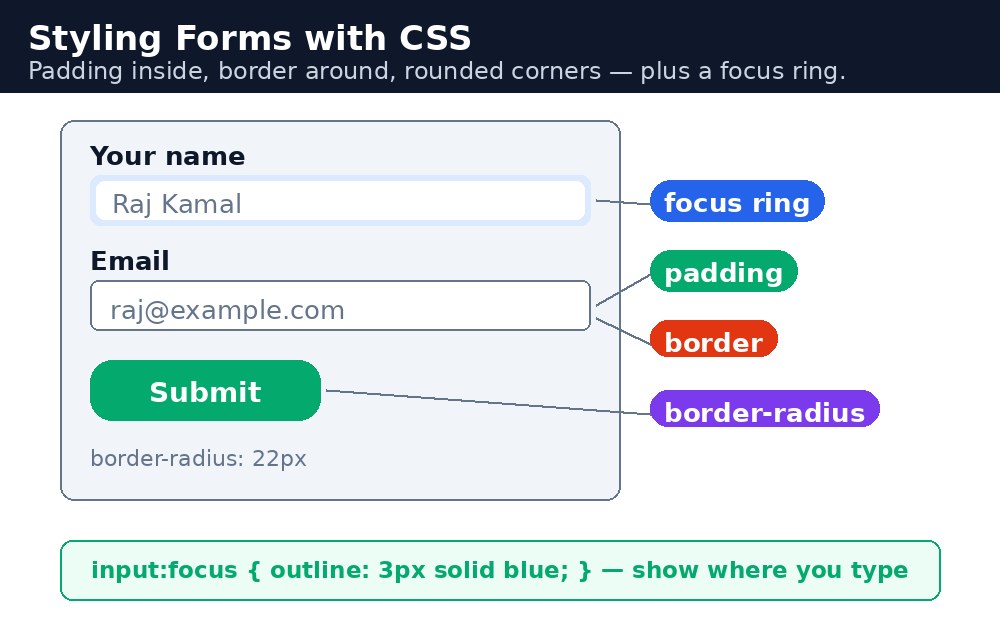
Styling a form is mostly about three things: space (padding inside each field so the text can breathe), borders (a clear edge so the visitor can see where to type), and feedback (the field changes when you click into it, so you always know where you are).
Styling an input field
Every text field, email field, and text area can be styled like any other box. The most useful properties are width, padding, border, border-radius, and font-size. Setting width: 100% makes the field stretch to fill its container, which is what most real forms do. A little border-radius rounds the corners and instantly makes the form feel modern.
Syntax — a styled text field
input[type="text"] {
  width: 100%;
  padding: 12px;
  border: 2px solid #ccc;
  border-radius: 6px;
  font-size: 16px;
}
The selector input[type="text"] picks only text fields, so a checkbox or a submit button is not affected. You can write similar rules for input[type="email"], select, and textarea — or group them in one rule with commas.
Focus states — show where you are typing
When a visitor clicks into a field, the browser gives it focus. The :focus pseudo-class lets you style that moment. A common trick is to change the border colour and add a soft glow with box-shadow. It costs two lines of CSS and makes the form feel alive.
input[type="text"]:focus {
  border-color: #04aa6d;
  outline: none;
  box-shadow: 0 0 5px #04aa6d;
}
outline, always replace it with something visible, like a coloured border or a glow. Keyboard users rely on that highlight to see which field they are on — a form with no focus sign at all is hard for them to use.Placeholder text
The placeholder attribute shows a faint hint inside an empty field, like "Your full name". You can style that hint with the ::placeholder pseudo-element — usually a soft grey colour so it is clearly different from real typed text.
::placeholder {
  color: #999;
}
Labels and buttons
A label should sit above its field, in bold, so the visitor can scan the form quickly. The submit button deserves the most attention: give it a strong background colour, white text, generous padding, and a cursor: pointer so the hand cursor appears on hover. A hover colour change tells the visitor the button is ready to click.
box-sizing: border-box to your form fields. Without it, width: 100% plus padding makes the field wider than its container and it overflows. With it, padding is counted inside the width and everything lines up neatly.Common mistakes
- Forgetting
box-sizing: border-box— fields withwidth: 100%and padding stick out of the form. - Removing the
outlineon:focuswithout adding any replacement — keyboard users can no longer see where they are. - Using the placeholder as the only label — once the visitor starts typing, the hint disappears and they forget what the field was for.
- Making the button tiny or the same colour as the background — the visitor should spot the submit button in one glance.
- Setting a very small
font-sizeon inputs — on phones, a font smaller than 16px makes the browser zoom in when the field is tapped.
Remember
- Style inputs with
width,padding,border, andborder-radius. - Use
:focusto highlight the field the visitor is typing in. - Style placeholder hints with
::placeholder, in a soft grey. - Keep labels visible above each field — a placeholder is a hint, not a label.
box-sizing: border-boxkeeps padded fields inside their container.
Example explained
box-sizing: border-boxon everything — padding and borders are counted inside each element's width, so the form fields never overflow their box.input[type="text"], input[type="email"], select, textarea— one grouped rule styles every field the same way: full width, 12px of padding, a soft grey border, and rounded corners.input:focus, select:focus, textarea:focus— when a visitor clicks into a field, its border turns green and a soft glow appears, so it is obvious where they are typing.::placeholder— the grey hint text inside empty fields, like "Your full name", is shown in a lighter colour than real typed text.input[type="submit"]— the button is green with white text and wide padding; on:hoverit turns a darker green, so the visitor knows it can be clicked.
Example
<!DOCTYPE html>
<html>
<head>
<title>Admission Form</title>
<style>
* { box-sizing: border-box; }
body { font-family: Arial, sans-serif; background-color: #f2f2f2; margin: 0; padding: 20px; }
form { background-color: white; max-width: 500px; margin: auto; padding: 25px; border-radius: 10px; }
h2 { color: #04aa6d; text-align: center; }
label { display: block; font-weight: bold; margin-top: 15px; margin-bottom: 5px; }
input[type="text"], input[type="email"], input[type="tel"], select, textarea {
  width: 100%;
  padding: 12px;
  border: 2px solid #ccc;
  border-radius: 6px;
  font-size: 16px;
}
input:focus, select:focus, textarea:focus {
  border-color: #04aa6d;
  outline: none;
  box-shadow: 0 0 5px #04aa6d;
}
::placeholder { color: #999; }
textarea { height: 100px; }
input[type="submit"] {
  width: 100%;
  background-color: #04aa6d;
  color: white;
  padding: 14px;
  margin-top: 20px;
  border: none;
  border-radius: 6px;
  font-size: 18px;
  cursor: pointer;
}
input[type="submit"]:hover { background-color: #038857; }
</style>
</head>
<body>

<form>
<h2>Join KAMALDNP Summer Training</h2>

<label for="name">Full Name</label>
<input type="text" id="name" placeholder="Your full name">

<label for="email">Email</label>
<input type="email" id="email" placeholder="you@example.com">

<label for="phone">Mobile Number</label>
<input type="tel" id="phone" placeholder="10-digit mobile number">

<label for="course">Choose a Course</label>
<select id="course">
<option>HTML and CSS</option>
<option>Python</option>
<option>Java</option>
<option>Web Development</option>
</select>

<label for="msg">Why do you want to join?</label>
<textarea id="msg" placeholder="Write two lines about your goal"></textarea>

<input type="submit" value="Submit Application">
</form>

</body>
</html>
Output
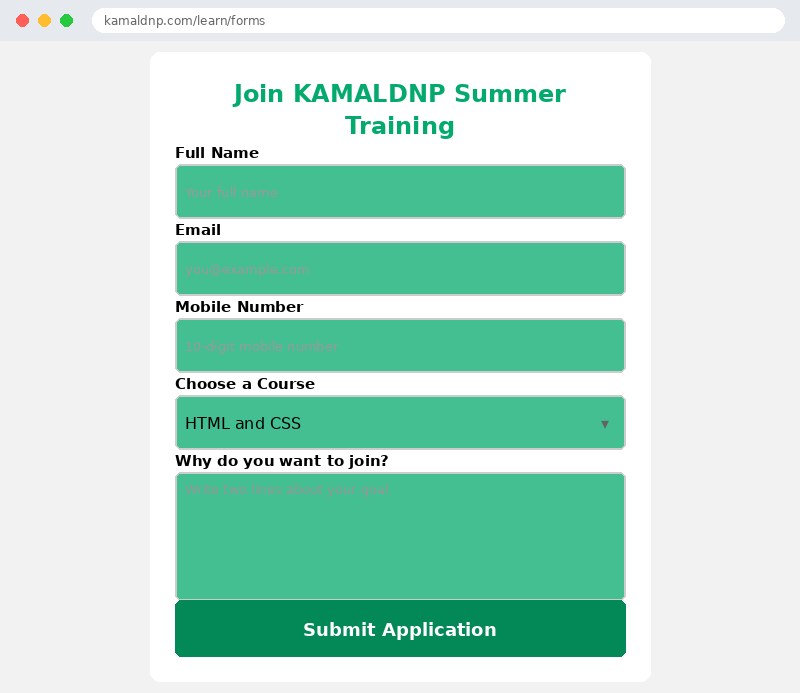
Try it yourself — live editor
Change the code below and press Run to see the result instantly. No file to save, no login needed.
Why learn this yourself — and not just ask AI?
AI can write code for you, but it cannot think for you. When you learn HTML yourself, your brain builds the real skill: you understand why a page looks the way it does, you can fix it when it breaks, and you can answer it in an exam or an interview without help. That is the skill that gets you a job — not a copied answer.
Get certified — just ₹10
Finish all 30 lessons, pass the test (80%), pay ₹10 and get your certificate.
Take the testPrefer watching? Video courses teach the same topics step by step.
Go further with a full course
Free tutorials teach you the basics. Our paid courses add live projects, mentorship and a certificate.
Browse all courses

