CSS Grid Template Areas — Layout in Words, Not Numbers
4 min read · Free · No login needed
Imagine a house floor plan. One way to describe it is with numbers: room 1 is 3 metres wide, room 2 is 4 metres wide, and so on. The other way is with names: kitchen here, bedroom there, hall in the middle. Names are far easier to read — and far easier to rearrange. Grid template areas work the names way. You draw your page layout in words, give each zone a name, and the browser builds the layout from your drawing.
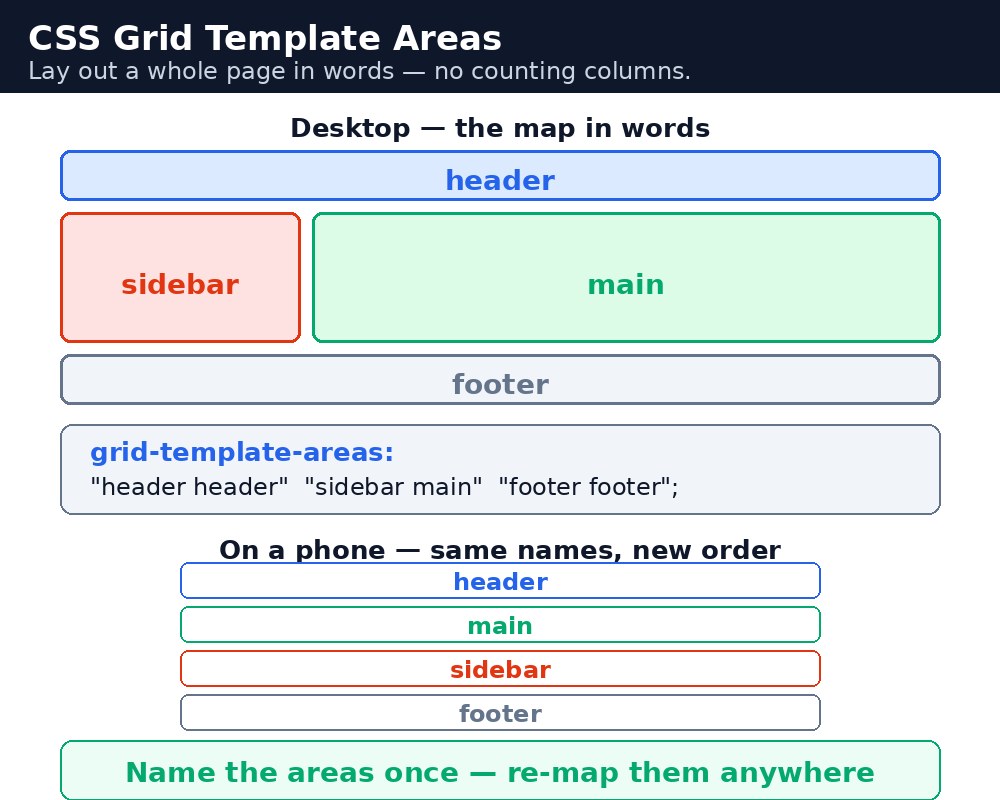
Drawing the map
The map is written in grid-template-areas on the grid container. Each quoted string is one row of the layout, and each word in the string is one cell. Repeating a word across cells merges them into one bigger zone:
.page {
  display: grid;
  grid-template-areas:
    "header header"
    "sidebar main"
    "footer footer";
  grid-template-columns: 200px 1fr;
  grid-template-rows: 80px 1fr 60px;
}
Here the header spans both columns, the sidebar and main share the middle row, and the footer spans both columns again. A dot (.) marks an empty cell that nothing fills. Every row string must list the same number of cells, or the whole map is invalid and the browser ignores it.
Placing items by name
Each child of the grid gets its zone with the grid-area property: .header { grid-area: header; }, .sidebar { grid-area: sidebar; }, and so on. The item does not need to know which row or column it sits in — its name does all the work. The sizes still come from grid-template-columns and grid-template-rows: the sidebar column is 200px wide, the main column takes the rest, and the rows are 80px, flexible, and 60px tall.
Rearranging for mobile
This is where named areas shine. On a phone, the sidebar should move below the main content instead of beside it. With numbered columns you would rewrite every item's placement; with areas you just rewrite the map inside a media query, using the same names in a new arrangement:
@media (max-width: 600px) {
  .page {
    grid-template-areas:
      "header"
      "main"
      "sidebar"
      "footer";
    grid-template-columns: 1fr;
  }
}
Nothing else changes — the items keep their grid-area names, and the browser reflows the whole page from the new map.
main-content is fine, 2nd-column is not — the browser will drop the whole grid-template-areas declaration if any name is invalid.Common mistakes
- Writing rows with different cell counts — every row string must have the same number of words, or the map is invalid.
- Forgetting to give an item a
grid-area— an unnamed item is auto-placed by the browser, which usually puts it somewhere you did not intend. - Using an area name that starts with a digit, like
2nd-column— the whole declaration is dropped. - Expecting the map alone to size the zones — the map only places them;
grid-template-columnsandgrid-template-rowsstill set the sizes. - Rewriting every item's placement in the mobile media query — with areas you only rewrite the map, the items keep their names.
Remember
grid-template-areasdraws the layout in words: one quoted string per row, one word per cell.- Repeating a word across cells merges them into one bigger zone; a dot marks an empty cell.
- Children take their zone with
grid-area: name;— they never count rows or columns. - Every row string must have the same number of cells, and names cannot start with a digit.
- For mobile, rewrite only the map in a media query — the items keep their names.
Example explained
grid-template-areas: "header header" "sidebar main" "footer footer";— the map: header across the top, sidebar beside main in the middle, footer across the bottom.grid-template-columns: 200px 1fr;— the sidebar column is fixed at 200px and the main column takes whatever space is left..header { grid-area: header; }— the header takes the header zone, which spans both columns because the word repeats in the map..main { grid-area: main; }— the main content takes the main zone, beside the sidebar on wide screens.@media (max-width: 600px)— on a narrow screen the map is rewritten as a single column: header, main, sidebar, footer, stacked in that order.
Example
<!DOCTYPE html>
<html>
<head>
<title>Page Layout in Words</title>
<style>
* { box-sizing: border-box; }
body { font-family: Arial, sans-serif; margin: 0; background-color: #f2f2f2; }
.page {
  display: grid;
  grid-template-areas:
    "header header"
    "sidebar main"
    "footer footer";
  grid-template-columns: 200px 1fr;
  grid-template-rows: 80px 1fr 60px;
  gap: 15px;
  max-width: 900px;
  min-height: 500px;
  margin: 20px auto;
  padding: 15px;
}
.page > div { border-radius: 10px; padding: 20px; color: white; font-size: 20px; font-weight: bold; }
.header { grid-area: header; background-color: #333; }
.sidebar { grid-area: sidebar; background-color: #2196f3; }
.main { grid-area: main; background-color: white; color: #333; }
.footer { grid-area: footer; background-color: #04aa6d; }
@media (max-width: 600px) {
  .page {
    grid-template-areas:
      "header"
      "main"
      "sidebar"
      "footer";
    grid-template-columns: 1fr;
  }
}
</style>
</head>
<body>

<div class="page">
<div class="header">Header — KAMALDNP Academy</div>
<div class="sidebar">Sidebar — Menu</div>
<div class="main">Main — Welcome! This is the main content area. On a wide screen it sits beside the sidebar; on a phone it moves below the header.</div>
<div class="footer">Footer — kamaldnp.com</div>
</div>

</body>
</html>
Output
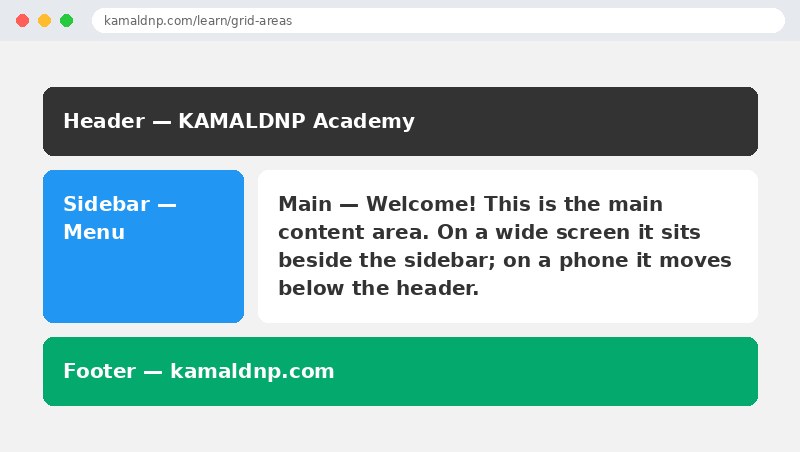
Try it yourself — live editor
Change the code below and press Run to see the result instantly. No file to save, no login needed.
Related lessons
Frequently asked questions
The questions learners ask most about this lesson — read the question, then open it to see the answer.
1. What does grid-template-areas do?
It draws the layout in words: one quoted string per row, one word per cell. Repeating a word merges cells into one bigger zone.
2. How does an item take its zone?
With grid-area: name. Items never count rows or columns — they just use their name.
3. How do you rearrange a grid-areas layout for mobile?
Rewrite only the map in a media query. The items keep their names, so nothing else changes.
Why learn this yourself — and not just ask AI?
AI can write code for you, but it cannot think for you. When you learn HTML yourself, your brain builds the real skill: you understand why a page looks the way it does, you can fix it when it breaks, and you can answer it in an exam or an interview without help. That is the skill that gets you a job — not a copied answer.
Get certified — just ₹10
Finish all 35 lessons, pass the test (80%), pay ₹10 and get your certificate.
Take the testPrefer watching? Video courses teach the same topics step by step.
Go further with a full course
Free tutorials teach you the basics. Our paid courses add live projects, mentorship and a certificate.
Browse all courses