CSS Grid
4 min read · Free · No login needed
Flexbox is brilliant for a row or a column. But a whole page is not a row or a column — it is both at once. A page has a header across the top, a sidebar and main content side by side, and a footer across the bottom. That is a two-dimensional layout, and that is exactly what CSS Grid is for.
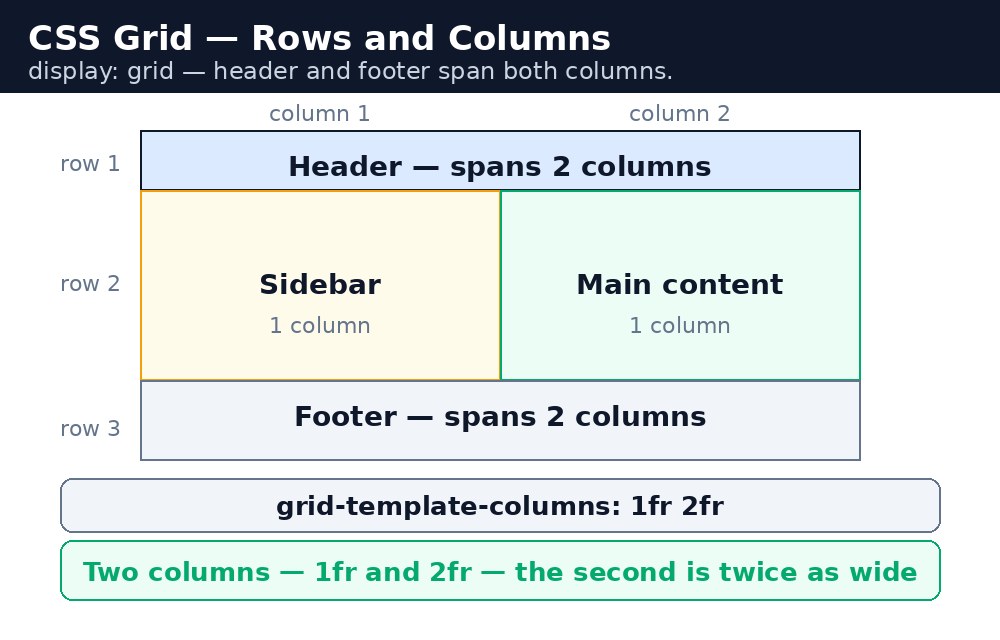
Grid works like a table drawn with CSS: you tell the container how many columns and rows it has, and each item drops into a cell. You can make an item span two columns, or place it by name using grid areas — which is how most modern page layouts are built.
The grid container
Like Flexbox, Grid starts with display: grid on the container. Then grid-template-columns defines the columns. The fr unit means "one share of the free space": 1fr 1fr 1fr gives three equal columns, and 2fr 1fr gives a wide column and a narrow one. gap puts even space between all the cells.
Syntax — three equal columns
.gallery {
  display: grid;
  grid-template-columns: 1fr 1fr 1fr;
  gap: 15px;
}
There is no need to set widths on the items at all. The grid decides the columns, and each item takes the next free cell automatically, left to right, row by row.
Grid areas — a whole page in five lines
For a page layout, named areas are the clearest way to work. You draw a little map with grid-template-areas, giving each part a name — header, sidebar, main, footer — and then each element says which area it belongs to with grid-area. The map itself shows the layout at a glance.
.page {
  display: grid;
  grid-template-columns: 200px 1fr;
  grid-template-areas:
    "header header"
    "sidebar main"
    "footer footer";
}
header { grid-area: header; }
aside { grid-area: sidebar; }
Each row of the map is one line of text in quotes, and each word is one cell. Writing "header header" means the header spans both columns. The number of words in each row must match the number of columns.
repeat(3, 1fr) is a shortcut for 1fr 1fr 1fr. It is handy for galleries: grid-template-columns: repeat(3, 1fr) makes three equal columns, and changing the 3 to a 4 changes the whole gallery at once.Common mistakes
- Setting
display: gridon the items instead of the container — like Flexbox, Grid only works from the parent. - Writing a different number of words in each
grid-template-areasrow — every row must have exactly as many words as there are columns. - Using fixed pixel columns like
200px 200px 200pxfor a gallery — on a phone the grid overflows. Use1frorrepeat()so the columns shrink. - Forgetting
grid-areaon an element — the element lands in the next free cell instead of the area you drew for it. - Choosing Grid for a single row of links — Flexbox is simpler there; save Grid for layouts that need rows and columns together.
Remember
- Grid is two-dimensional: rows and columns together.
- The container gets
display: grid;grid-template-columnsdefines the columns. 1frmeans one share of the free space;repeat(3, 1fr)makes three equal columns.grid-template-areasdraws a map of the layout;grid-areaplaces each element on it.- Use Grid for page layouts and galleries, Flexbox for single rows.
Example explained
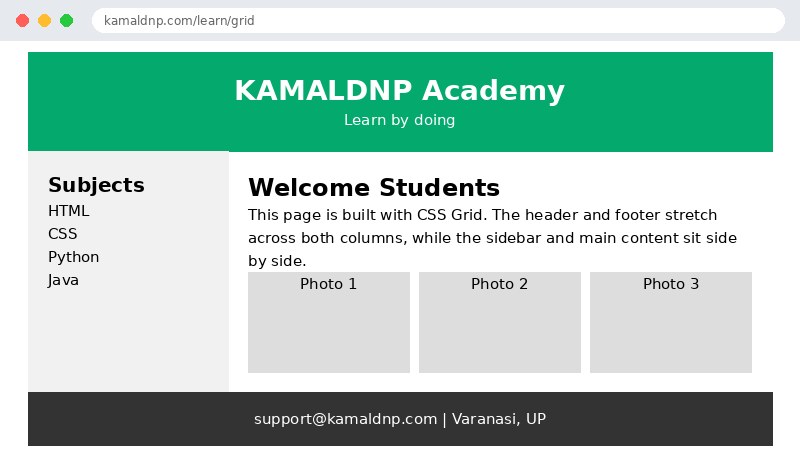
.page { display: grid; }— the whole page becomes a grid container, so its four parts can be placed on a map instead of stacking one after another.grid-template-columns: 200px 1fr— the sidebar gets a fixed 200px column and the main content takes whatever space is left.grid-template-areas— the three-row map: the header spans both columns, then sidebar and main sit side by side, then the footer spans both columns again.header { grid-area: header; }and the matching rules for the sidebar, main, and footer — each element is told which named area on the map it belongs to..gallery { grid-template-columns: repeat(3, 1fr); }— inside the main area, a second smaller grid makes three equal photo boxes with a 10px gap between them.
Example
<!DOCTYPE html>
<html>
<head>
<title>School Page with CSS Grid</title>
<style>
* { box-sizing: border-box; }
body { font-family: Arial, sans-serif; margin: 0; }
.page {
  display: grid;
  grid-template-columns: 200px 1fr;
  grid-template-areas:
    "header header"
    "sidebar main"
    "footer footer";
}
header { grid-area: header; background-color: #04aa6d; color: white; padding: 20px; text-align: center; }
aside { grid-area: sidebar; background-color: #f1f1f1; padding: 20px; }
main { grid-area: main; padding: 20px; }
footer { grid-area: footer; background-color: #333; color: white; padding: 15px; text-align: center; }
.gallery {
  display: grid;
  grid-template-columns: repeat(3, 1fr);
  gap: 10px;
}
.gallery div {
  background-color: #ddd;
  height: 100px;
  display: flex;
  align-items: center;
  justify-content: center;
}
</style>
</head>
<body>

<div class="page">

<header>
<h1>KAMALDNP Academy</h1>
<p>Learn by doing</p>
</header>

<aside>
<h3>Subjects</h3>
<p>HTML</p>
<p>CSS</p>
<p>Python</p>
<p>Java</p>
</aside>

<main>
<h2>Welcome Students</h2>
<p>This page is built with CSS Grid. The header and footer stretch across both columns, while the sidebar and main content sit side by side.</p>
<div class="gallery">
<div>Photo 1</div>
<div>Photo 2</div>
<div>Photo 3</div>
</div>
</main>

<footer>
<p>support@kamaldnp.com | Varanasi, UP</p>
</footer>

</div>

</body>
</html>
Output
Try it yourself — live editor
Change the code below and press Run to see the result instantly. No file to save, no login needed.
Why learn this yourself — and not just ask AI?
AI can write code for you, but it cannot think for you. When you learn HTML yourself, your brain builds the real skill: you understand why a page looks the way it does, you can fix it when it breaks, and you can answer it in an exam or an interview without help. That is the skill that gets you a job — not a copied answer.
Get certified — just ₹10
Finish all 30 lessons, pass the test (80%), pay ₹10 and get your certificate.
Take the testPrefer watching? Video courses teach the same topics step by step.
Go further with a full course
Free tutorials teach you the basics. Our paid courses add live projects, mentorship and a certificate.
Browse all courses