CSS Height and Width
4 min read · Free · No login needed
Every element has a size. width sets how wide it is, height sets how tall it is. By default both are auto — the browser decides: a block element stretches to fill its parent's width, and its height grows to fit its content.
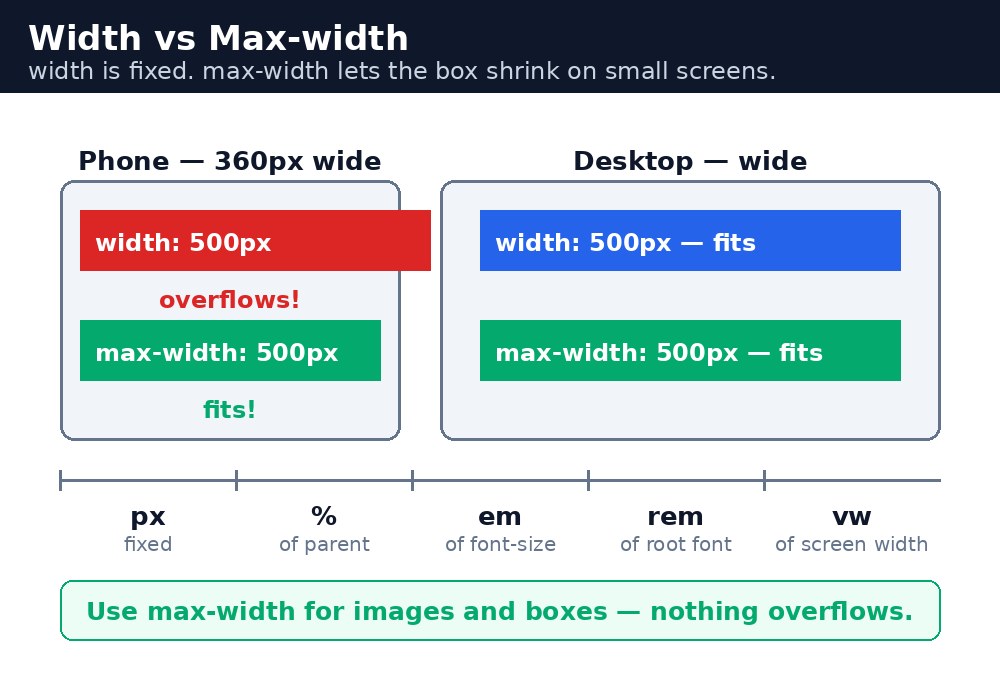
The size you set with width and height applies to the content box by default. Padding and border are added on top of it (unless you use box-sizing: border-box, which you will meet in the Box Model lesson).
Units — how to say a size
px— pixels. Fixed and exact.width: 300px;is always 300 pixels wide.%— a percentage of the parent element.width: 50%;means half as wide as its parent.em— relative to the element's own font size. If the font is 16px,2emis 32px.rem— relative to the root (<html>) font size, usually 16px.2remis 32px anywhere on the page.vwandvh— a percentage of the viewport (the browser window).width: 50vw;is half the window width;height: 100vh;is the full window height.
Minimum and maximum sizes
Sometimes you want a size with limits. min-width and min-height set the smallest an element may shrink to; max-width and max-height set the largest it may grow to. A card with width: 80%; max-width: 600px; grows with the screen but never gets wider than 600px. Images use this trick a lot: max-width: 100%; stops a big photo from overflowing a small phone screen.
Syntax — sizes in action
.card {
  width: 320px;
  min-height: 120px;
}
.hero {
  width: 100%;
  height: 100vh;
}
img {
  max-width: 100%;
  height: auto;
}
.box {
  width: calc(100% - 40px);
}
height: 100%; only works if the parent has a set height. A percentage height looks up the chain — if no parent has a height, the browser treats it as auto. That is why height: 100vh; is often easier: the viewport always has a height.auto — the browser keeps the photo's proportions, so it never looks stretched or squashed.calc() — maths in CSS
calc() lets you mix units: width: calc(100% - 40px); means "the full width minus 40 pixels". It is handy for a content area next to a fixed sidebar. Remember the spaces: calc(100%-40px) without spaces around the minus sign does not work.
Common mistakes
- Setting a fixed
heightin pixels on a box full of text — on a small screen the text overflows. Usemin-heightinstead, so the box can grow. - Using
width: 100%together with padding — the padding is added on top, so the box overflows its parent. Usebox-sizing: border-boxorcalc(). - Forgetting the spaces inside
calc()—calc(100% - 40px)works,calc(100%-40px)does not. - Setting
height: 100%on an element whose parent has no height — the percentage has nothing to measure against.
Remember
widthandheightset the size of the content box by default.pxis fixed,%is relative to the parent,remis relative to the root font size,vw/vhare relative to the window.max-width: 100%keeps images inside small screens.- Use
min-heightfor boxes with text, so they can grow. calc()needs spaces around+and-.
Example explained
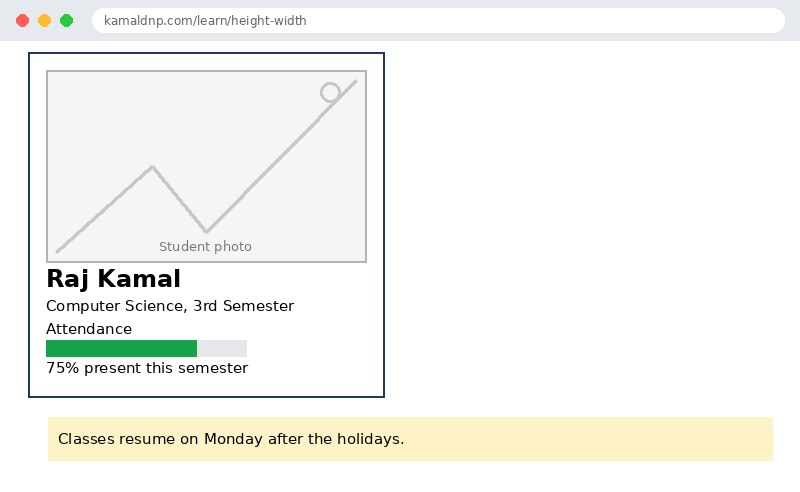
.profile { width: 320px; max-width: 90%; }— the card is 320px wide on a big screen, but on a small phone it shrinks to 90% of the screen instead of overflowing..profile img { width: 100%; height: auto; }— the photo fills the card's width, andheight: autokeeps its shape, so the face never looks stretched..bar { width: 200px; }— the outer bar is a fixed 200px, so the inner fill can be measured against it in percentages..fill { width: 75%; }— the green fill is 75% of the 200px bar, which is how the 75% attendance score is drawn..notice { width: calc(100% - 40px); margin: 20px; }— the notice strip takes the full width minus 40px, leaving exactly the 20px margin on each side.
Example
<!DOCTYPE html>
<html>
<head>
<title>Height and Width - Student Profile</title>
<style>
.profile { width: 320px; max-width: 90%; border: 2px solid #1e3a5f; padding: 16px; }
.profile img { width: 100%; height: auto; }
.bar { width: 200px; height: 16px; background: #e5e7eb; }
.fill { width: 75%; height: 16px; background: #16a34a; }
.notice { width: calc(100% - 40px); margin: 20px; background: #fef3c7; padding: 10px; }
</style>
</head>
<body>

<div class="profile">
<img src="photo.jpg" alt="Student photo">
<h2>Raj Kamal</h2>
<p>Computer Science, 3rd Semester</p>
<p>Attendance</p>
<div class="bar"><div class="fill"></div></div>
<p>75% present this semester</p>
</div>
<p class="notice">Classes resume on Monday after the holidays.</p>

</body>
</html>
Output
Try it yourself — live editor
Change the code below and press Run to see the result instantly. No file to save, no login needed.
Why learn this yourself — and not just ask AI?
AI can write code for you, but it cannot think for you. When you learn HTML yourself, your brain builds the real skill: you understand why a page looks the way it does, you can fix it when it breaks, and you can answer it in an exam or an interview without help. That is the skill that gets you a job — not a copied answer.
Get certified — just ₹10
Finish all 30 lessons, pass the test (80%), pay ₹10 and get your certificate.
Take the testPrefer watching? Video courses teach the same topics step by step.
Go further with a full course
Free tutorials teach you the basics. Our paid courses add live projects, mentorship and a certificate.
Browse all courses