CSS Lists
4 min read · Free · No login needed
HTML gives you two kinds of lists — <ul> with bullets and <ol> with numbers. CSS decides what those bullets and numbers look like, where they sit, and whether they appear at all. A navigation menu is really just a list with its bullets removed.
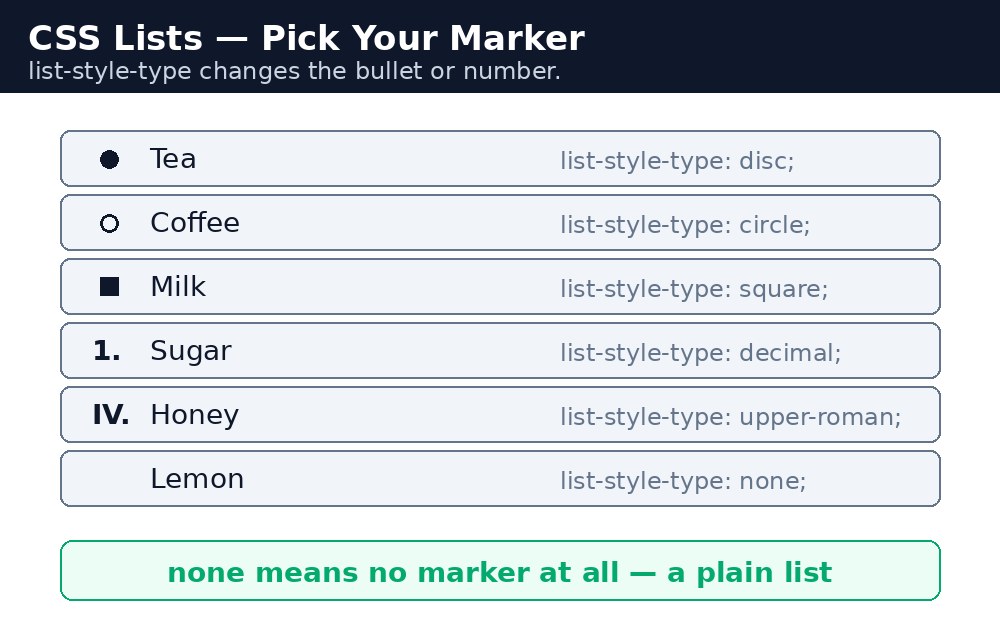
list-style-type — which marker
list-style-type chooses the marker. For unordered lists: disc (a filled circle, the default), circle (an empty circle), square, or none (no marker at all). For ordered lists: decimal (1, 2, 3), lower-alpha (a, b, c), upper-alpha (A, B, C), lower-roman (i, ii, iii) or upper-roman (I, II, III).
list-style-position — inside or outside
list-style-position: outside; (the default) puts the marker outside the text, so wrapped lines line up under the text, not under the marker. inside pulls the marker into the text flow, so wrapped lines start under the marker. Outside looks tidier for most lists; inside is handy for narrow boxes.
list-style-image — a picture marker
list-style-image: url("tick.png"); replaces the bullet with a picture. It sounds fun, but the picture cannot be resized and its position is hard to control, so most developers use a background image or the ::marker pseudo-element instead.
Syntax — lists in action
ul.tasks {
  list-style-type: square;
  list-style-position: inside;
}
ol.toppers {
  list-style-type: upper-roman;
}
ul.menu {
  list-style: none;
  padding: 0;
}
The last rule is the shorthand: list-style sets type, position and image in one line — list-style: square inside url("tick.png");. Any value you leave out simply stays at its default.
Counters — your own numbers
CSS counters let you number things yourself, in your own style. Reset a counter on the list, add one on each item, and print it with content:
ol.steps {
  list-style: none;
  counter-reset: step;
}
ol.steps li::before {
  counter-increment: step;
  content: "Step " counter(step) ": ";
  font-weight: bold;
}
Each item now begins with "Step 1:", "Step 2:" and so on — and if you reorder the items, the numbers follow automatically.
list-style-type on the <ul> or <ol>, not on the <li>. It works on both, but setting it once on the list keeps the whole list consistent.<ul> with list-style: none; and padding: 0; — remove the bullets and the default left padding, and the list becomes a clean row of links.Common mistakes
- Removing the bullets with
list-style: none;but forgetting the default left padding — the list still sits indented. Addpadding: 0;. - Setting
list-style-typeon every<li>instead of once on the list. - Using a big picture as a
list-style-image— it cannot be resized and often looks huge next to the text. - Using an ordered list when the order does not matter — if the sequence is meaningless, use
<ul>.
Remember
list-style-typepicks the marker: disc, circle, square, none, decimal, lower-alpha, upper-roman.outside(default) keeps wrapped lines lined up under the text;insidepulls the marker in.list-style: none; padding: 0;turns a list into a clean menu.- The
list-styleshorthand is type, position, image — in any order. - CSS counters (
counter-reset,counter-increment,content) print your own numbers.
Example explained
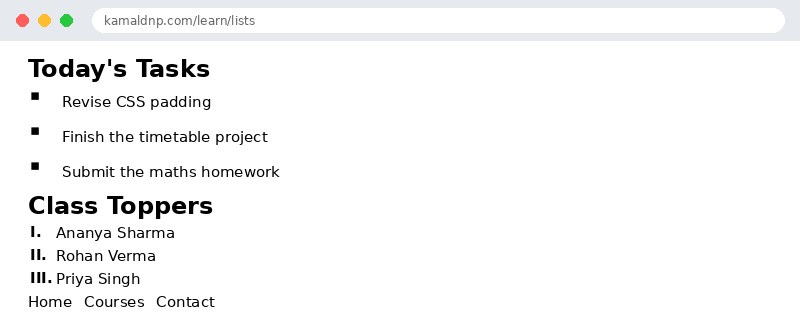
ul.tasks { list-style-type: square; }— today's tasks get square bullets instead of round ones, so they look like a checklist.ul.tasks { list-style-position: inside; }— the squares sit inside the text flow, so a long task that wraps to a second line starts under the square.ol.toppers { list-style-type: upper-roman; }— the top three students are numbered I, II, III in Roman numerals, which suits a merit list.ul.menu { list-style: none; padding: 0; }— the menu list loses its bullets and its default left padding, leaving a clean row of links..tasks li { padding: 6px; }— a little space inside each task item, so the list does not look cramped..menu li { display: inline; }— each menu item sits on the same line as the next, turning the vertical list into a horizontal menu.
Example
<!DOCTYPE html>
<html>
<head>
<title>Lists - School Day</title>
<style>
ul.tasks { list-style-type: square; list-style-position: inside; }
ol.toppers { list-style-type: upper-roman; }
ul.menu { list-style: none; padding: 0; }
.tasks li { padding: 6px; }
.menu li { display: inline; margin-right: 12px; }
</style>
</head>
<body>

<h2>Today's Tasks</h2>
<ul class="tasks">
<li>Revise CSS padding</li>
<li>Finish the timetable project</li>
<li>Submit the maths homework</li>
</ul>
<h2>Class Toppers</h2>
<ol class="toppers">
<li>Ananya Sharma</li>
<li>Rohan Verma</li>
<li>Priya Singh</li>
</ol>
<ul class="menu">
<li>Home</li>
<li>Courses</li>
<li>Contact</li>
</ul>

</body>
</html>
Output
Try it yourself — live editor
Change the code below and press Run to see the result instantly. No file to save, no login needed.
Why learn this yourself — and not just ask AI?
AI can write code for you, but it cannot think for you. When you learn HTML yourself, your brain builds the real skill: you understand why a page looks the way it does, you can fix it when it breaks, and you can answer it in an exam or an interview without help. That is the skill that gets you a job — not a copied answer.
Get certified — just ₹10
Finish all 30 lessons, pass the test (80%), pay ₹10 and get your certificate.
Take the testPrefer watching? Video courses teach the same topics step by step.
Go further with a full course
Free tutorials teach you the basics. Our paid courses add live projects, mentorship and a certificate.
Browse all courses