CSS Margins
5 min read · Free · No login needed
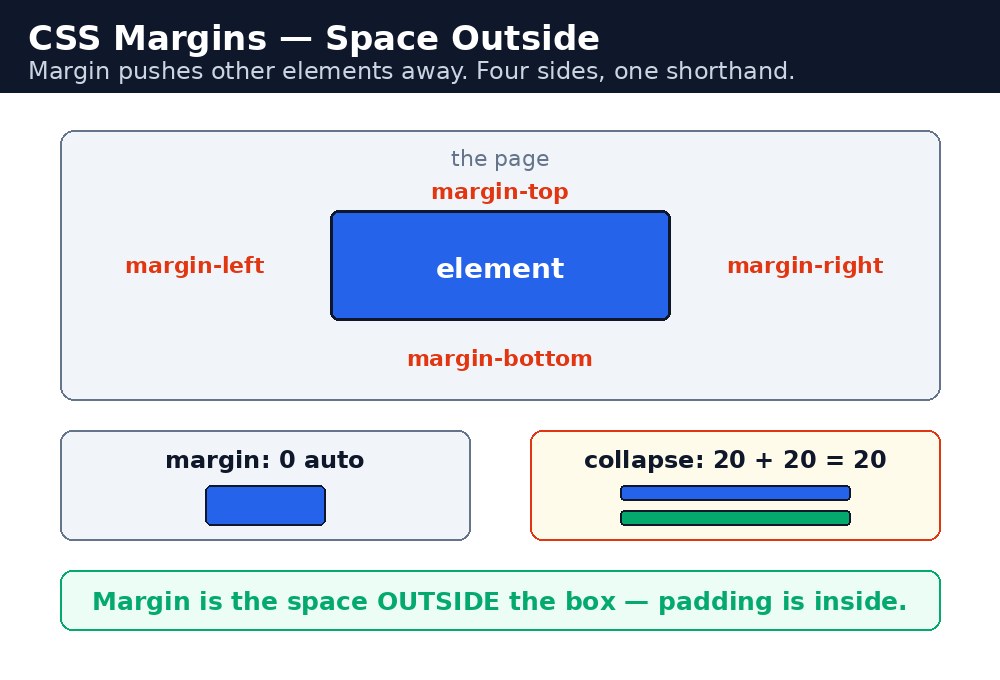
A margin is the empty space outside an element — the gap between one box and the next. It is what keeps a page from looking crowded. Margins are transparent: you never see them, you only see the space they create. If two cards look too close together, the fix is almost always a margin.
Margin sides
Every element has four margins, one on each side. You can set them one at a time, or all at once.
.card {
  margin-top: 20px;
  margin-right: 10px;
  margin-bottom: 20px;
  margin-left: 10px;
}
That is the long form. The shorthand does the same thing in one line, and the values run clockwise from the top: top, right, bottom, left. Think of a clock — 12, 3, 6, 9.
Syntax — the shorthand, four ways
.a { margin: 20px; }              /* all four sides: 20px */
.b { margin: 10px 30px; }          /* top/bottom 10px, left/right 30px */
.c { margin: 10px 20px 30px; }     /* top 10px, left/right 20px, bottom 30px */
.d { margin: 10px 20px 30px 40px; } /* top 10, right 20, bottom 30, left 40 */
With one value, all four sides get it. With two values, the first is top and bottom, the second is left and right. With three, the first is top, the second is left and right, the third is bottom. With four, they go clockwise: top, right, bottom, left. This "one to four values" pattern is used by margin, padding, and border-width alike — learn it once, use it everywhere.
margin-top: -10px; pulls an element 10 pixels upward, overlapping whatever is above it. It is a useful trick for overlapping a badge over a card — but use it sparingly, because overlapping elements can hide each other on small screens.Centring with margin: auto
The most famous margin trick is centring a box. Give the box a fixed width, then set its left and right margins to auto — the browser splits the leftover space equally on both sides, and the box sits in the middle.
.card {
  width: 400px;
  margin: 20px auto;
}
Read it as: 20 pixels of space above and below, and automatic equal margins left and right. The width is essential — without it, the box stretches to fill the whole line, there is no leftover space to split, and auto does nothing. This is the single most common "why won't it centre?" question in CSS, and the answer is almost always "you forgot the width".
Margin collapse — the surprise
Here is the one margin behaviour that confuses everyone. When two block elements stack vertically, their margins do not add up. Instead, they collapse: the bigger margin wins, and the smaller one disappears.
/* Two paragraphs, each with margin-bottom: 20px */
p { margin: 0 0 20px 0; }
If the first paragraph has a bottom margin of 20px and the second has a top margin of 30px, the gap between them is 30px — not 50px. The margins collapse into the larger one. The same happens between a parent and its first child: a child's top margin can "leak out" and push the parent down instead. The usual fixes are to give the parent a little padding, a border, or to use flexbox — all of which stop the collapse.
Common mistakes
- Expecting vertical margins to add up — they collapse to the larger one. A 20px bottom margin plus a 30px top margin makes a 30px gap, not 50px.
- Using
margin: autowithout a width — the box fills the whole line, so there is nothing to centre. - Using
margin: autoto centre vertically — it only works horizontally. Vertical centring needs flexbox or grid. - Forgetting the clockwise order —
margin: 10px 20px 30px 40px;is top, right, bottom, left, not top, left, bottom, right. - Putting a top margin on the first element of the page and wondering why the whole page moves down — that is the child's margin collapsing through the parent.
Remember
- Margin is the space outside the border; padding is the space inside it.
- Shorthand values run clockwise from the top: top, right, bottom, left.
margin: 0 auto;centres a block — but only if it has a set width.- Vertical margins collapse: the bigger one wins, they never add up.
- Margins can be negative; padding cannot.
Example explained
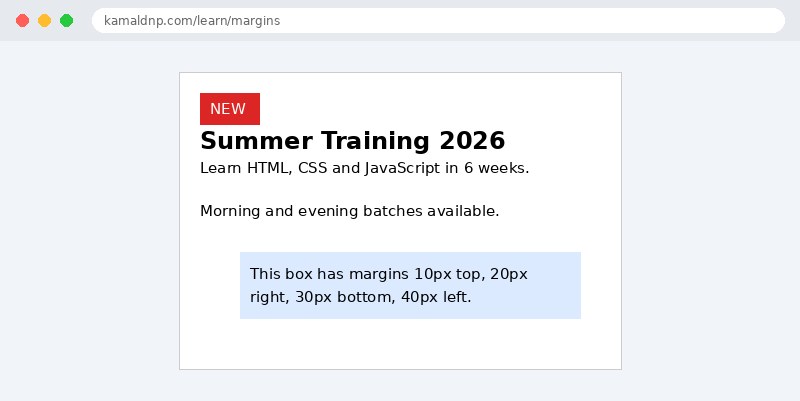
.card { width: 400px; margin: 20px auto; }— the card is 400 pixels wide, andautoleft and right margins split the leftover space equally, so it sits in the centre of the page..row { margin: 10px 20px 30px 40px; }— the four-value shorthand, clockwise: 10px top, 20px right, 30px bottom, 40px left.p { margin: 0 0 20px 0; }— each paragraph has no top margin and a 20px bottom margin, so the gap between two paragraphs is 20px — not 40px, because margins collapse..badge { margin-top: -12px; }— a negative top margin pulls the badge 12 pixels upward, so it overlaps the top edge of the card like a sticker.
Example
<!DOCTYPE html>
<html>
<head>
<title>CSS Margins</title>
<style>
body { font-family: Verdana, sans-serif; background-color: #f1f5f9; }
.card { width: 400px; margin: 20px auto; background-color: white; border: 1px solid #ccc; padding: 20px; position: relative; }
.row { margin: 10px 20px 30px 40px; background-color: #dbeafe; padding: 10px; }
p { margin: 0 0 20px 0; }
.badge { background-color: #dc2626; color: white; display: inline-block; padding: 4px 10px; margin-top: -12px; }
</style>
</head>
<body>

<div class="card">
<span class="badge">NEW</span>
<h2>Summer Training 2026</h2>
<p>Learn HTML, CSS and JavaScript in 6 weeks.</p>
<p>Morning and evening batches available.</p>
<div class="row">This box has margins 10px top, 20px right, 30px bottom, 40px left.</div>
</div>

</body>
</html>
Output
Try it yourself — live editor
Change the code below and press Run to see the result instantly. No file to save, no login needed.
Why learn this yourself — and not just ask AI?
AI can write code for you, but it cannot think for you. When you learn HTML yourself, your brain builds the real skill: you understand why a page looks the way it does, you can fix it when it breaks, and you can answer it in an exam or an interview without help. That is the skill that gets you a job — not a copied answer.
Get certified — just ₹10
Finish all 30 lessons, pass the test (80%), pay ₹10 and get your certificate.
Take the testPrefer watching? Video courses teach the same topics step by step.
Go further with a full course
Free tutorials teach you the basics. Our paid courses add live projects, mentorship and a certificate.
Browse all courses