CSS Pseudo-elements
4 min read · Free · No login needed
A pseudo-class styles an element in a special state. A pseudo-element goes one step further: it styles a part of an element — the first letter, the first line, or a piece of content that does not even exist in your HTML. It is written with two colons, like ::before, to tell it apart from a pseudo-class.
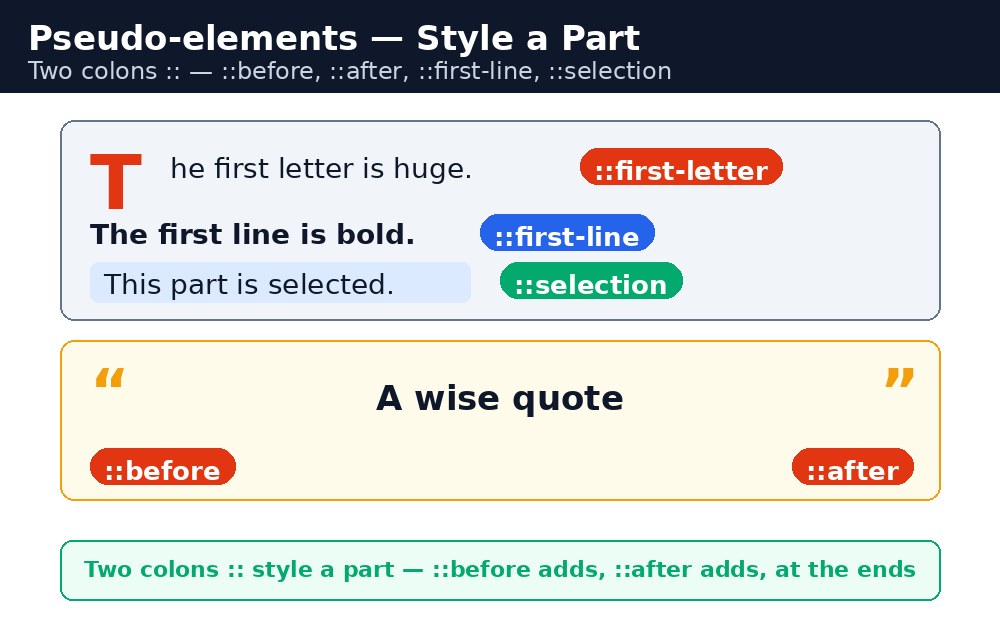
Pseudo-elements are how designers add small decorations without extra empty tags: a big opening quote before a quote, a coloured first letter at the start of a story, a custom bullet in front of a list item. The HTML stays clean, and the CSS does the decorating.
Before and after — add content with CSS
::before inserts something at the very start of an element, and ::after inserts something at the very end. The one rule you must never forget: they do nothing without the content property. Even an empty content: "" is needed, or the pseudo-element simply does not appear.
.quote::before {
  content: "\201C";
  color: orange;
  font-size: 40px;
}
.quote::after {
  content: "\201D";
  color: orange;
  font-size: 40px;
}
First-line and first-letter — the start of a story
::first-line styles only the first line of a paragraph — a classic way to open an article in bold. ::first-letter styles only the first letter, which is how books and newspapers make a big decorative drop cap. Both work only on block-level elements, like a paragraph.
.story::first-letter {
  font-size: 48px;
  color: red;
  font-weight: bold;
}
.story::first-line {
  font-weight: bold;
}
Selection — the highlight colour
When a visitor drags the mouse over text to select it, the browser highlights it — usually in blue. ::selection lets you choose that highlight colour yourself, so the selection matches your site's colours.
::selection {
  background-color: yellow;
}
Marker — style the list bullet
::marker styles the bullet or number in front of a list item. You can change its colour and size without changing the text at all. It is a small detail, but coloured markers make a plain list look designed.
.points li::marker {
  color: green;
  font-size: 20px;
}
::before and ::after create boxes that are inside the element, as its first and last child. They are not real HTML — you cannot click them in the page source — but you can style them like any other box: colour, size, background, even a border.::before for small decorations — a star before a heading, a quote mark before a quote — instead of adding an empty <span> to your HTML. Fewer tags means cleaner HTML and easier maintenance.Common mistakes
- Writing
::beforewithout thecontentproperty — the pseudo-element then never appears at all. - Using one colon (
:before) — it still works in old browsers, but the correct modern form uses two colons. - Putting real content, like an important image, in
::before— it has no alternative text, so screen readers and search engines cannot see it. - Using
::first-letteron an inline element like a<span>— it only works on block-level elements. - Forgetting that
::selectionstyles the highlight itself, not the text colour — setcolorinside it too if the text becomes hard to read.
Remember
- Pseudo-elements use two colons; pseudo-classes use one.
::beforeand::afterneed thecontentproperty, or they do not appear.::first-linestyles the first line;::first-lettermakes a drop cap — both need a block element.::selectionchanges the colour of highlighted text;::markerstyles list bullets.- Use pseudo-elements for decoration; keep real content in the HTML.
Example explained
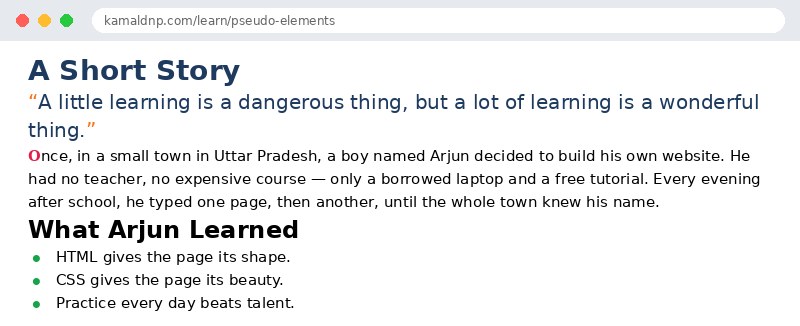
.quote::before { content: "\201C"; }— a big opening quote mark is added before the quote text. The code\201Cis the opening double quote character..quote::after { content: "\201D"; }— the matching closing quote mark is added after the quote text..story::first-letter { font-size: 48px; color: #e11d48; }— the first letter of the story becomes a large red drop cap, like in a printed book..story::first-line { font-weight: bold; }— the whole first line of the story is bold, so the opening sentence stands out.::selection { background-color: #fde047; }— when the visitor selects any text on the page, the highlight is yellow instead of the browser's default blue..points li::marker { color: #16a34a; font-size: 20px; }— the bullets in front of the list items turn green and a little bigger, without touching the list text.
Example
<!DOCTYPE html>
<html>
<head>
<title>Pseudo-elements — A Short Story</title>
<style>
body {
  font-family: Georgia, serif;
}
h1 {
  color: #1e3a5f;
}
.quote {
  font-size: 20px;
  color: #1e3a5f;
}
.quote::before {
  content: "\201C";
  color: #f97316;
  font-size: 40px;
}
.quote::after {
  content: "\201D";
  color: #f97316;
  font-size: 40px;
}
.story::first-letter {
  font-size: 48px;
  color: #e11d48;
  font-weight: bold;
}
.story::first-line {
  font-weight: bold;
}
::selection {
  background-color: #fde047;
}
.points li::marker {
  color: #16a34a;
  font-size: 20px;
}
</style>
</head>
<body>

<h1>A Short Story</h1>

<p class="quote">A little learning is a dangerous thing, but a lot of learning is a wonderful thing.</p>

<p class="story">Once, in a small town in Uttar Pradesh, a boy named Arjun decided to build his own website. He had no teacher, no expensive course — only a borrowed laptop and a free tutorial. Every evening after school, he typed one page, then another, until the whole town knew his name.</p>

<h2>What Arjun Learned</h2>
<ul class="points">
<li>HTML gives the page its shape.</li>
<li>CSS gives the page its beauty.</li>
<li>Practice every day beats talent.</li>
</ul>

</body>
</html>
Output
Try it yourself — live editor
Change the code below and press Run to see the result instantly. No file to save, no login needed.
Why learn this yourself — and not just ask AI?
AI can write code for you, but it cannot think for you. When you learn HTML yourself, your brain builds the real skill: you understand why a page looks the way it does, you can fix it when it breaks, and you can answer it in an exam or an interview without help. That is the skill that gets you a job — not a copied answer.
Get certified — just ₹10
Finish all 30 lessons, pass the test (80%), pay ₹10 and get your certificate.
Take the testPrefer watching? Video courses teach the same topics step by step.
Go further with a full course
Free tutorials teach you the basics. Our paid courses add live projects, mentorship and a certificate.
Browse all courses