CSS Responsive
4 min read · Free · No login needed
Your visitors will not all use the same screen. Some will open your site on a wide desktop monitor, some on a laptop, and many on a phone held in one hand. A responsive page is one that looks good on all of them — the same page, the same content, but the layout bends to fit the screen it is on.
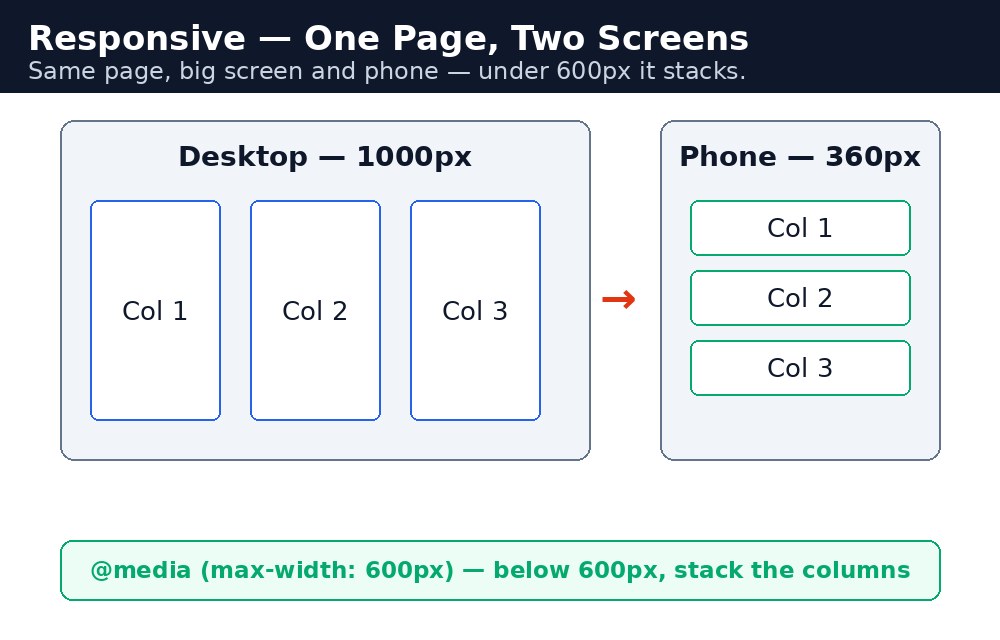
The main tool for this is the media query: a rule that says "only apply this CSS when the screen is this wide or narrower". With a few media queries, three columns on a desktop become one column on a phone, and a big heading becomes a smaller one.
The viewport tag — the first step
Before any media query works properly on a phone, the page needs one line in its <head>. Without it, a phone pretends to be a wide desktop screen and shrinks the whole page down, leaving tiny unreadable text that the visitor has to pinch and zoom. The viewport tag tells the phone to use its real width instead.
<meta name="viewport" content="width=device-width, initial-scale=1.0">
<head>, not in your CSS. It is easy to forget, and without it your media queries will not behave on a real phone even though they look fine when you resize a desktop browser.Media queries — different rules for different screens
A media query starts with @media and a condition, usually max-width. The CSS inside it only applies when the screen is that width or smaller. The usual pattern is to write the desktop layout first, then add a media query that changes it for small screens.
Syntax — three columns become one
.columns { display: flex; gap: 20px; }
.column { flex: 1; padding: 15px; }

@media (max-width: 600px) {
  .columns { flex-direction: column; }
}
On a wide screen the three columns sit side by side. When the screen is 600px wide or less, the media query flips the flex direction to column and the same three boxes stack on top of each other — no sideways scrolling, no tiny text.
Flexible images and text
Two more habits make a page responsive. First, images should never be wider than their container: max-width: 100% with height: auto lets a big photo shrink to fit a phone screen while keeping its shape. Second, use flexible widths — percentages and fr units — instead of fixed pixel widths, so the layout can breathe.
min-width to improve it on larger screens. It is easier to add space as the screen grows than to squeeze a desktop design down onto a phone.Common mistakes
- Forgetting the viewport tag — the phone shrinks the whole desktop page and nothing looks right.
- Using fixed pixel widths like
width: 900pxfor the main container — the page overflows on phones. Usemax-widthinstead. - Forgetting
max-width: 100%on images — a wide photo pushes the page wider than the screen and causes sideways scrolling. - Writing a media query but testing it only on a desktop browser — always check on a real phone too, where the viewport tag matters.
- Picking a breakpoint like 600px and never checking the in-between sizes — test at a few widths, not just one.
Remember
- Responsive means the same page fits every screen — desktop, laptop, and phone.
- Add the viewport tag to the
<head>or phones will shrink the whole page. - A media query applies CSS only when its condition is true, like
@media (max-width: 600px). - Images need
max-width: 100%andheight: autoto shrink safely. - Mobile-first means designing for the small screen first, then adding rules for bigger ones.
Example explained
<meta name="viewport" ...>— in the head, this tells a phone to use its real screen width, so the media query works properly on a real device..columns { display: flex; }— on a wide screen the three boxes sit side by side in a row, each withflex: 1for an equal share.@media (max-width: 600px)— when the screen is 600px wide or less, the rules inside this block take over.flex-direction: column— inside the media query, the row becomes a column, so the three boxes stack on top of each other on a phone.img { max-width: 100%; height: auto; }— the photo shrinks to fit its box on a small screen instead of overflowing it.
Example
<!DOCTYPE html>
<html>
<head>
<title>Responsive Cricket Page</title>
<meta name="viewport" content="width=device-width, initial-scale=1.0">
<style>
* { box-sizing: border-box; }
body { font-family: Arial, sans-serif; margin: 0; padding: 20px; }
h1 { text-align: center; color: #333; }
.columns { display: flex; gap: 20px; max-width: 900px; margin: auto; }
.column { flex: 1; padding: 15px; background-color: #f2f2f2; border-radius: 8px; }
.column h2 { color: #04aa6d; }
.photo { height: 150px; background-color: #ddd; border-radius: 8px; margin-bottom: 10px; }
img { max-width: 100%; height: auto; }
@media (max-width: 600px) {
  .columns { flex-direction: column; }
  h1 { font-size: 24px; }
}
</style>
</head>
<body>

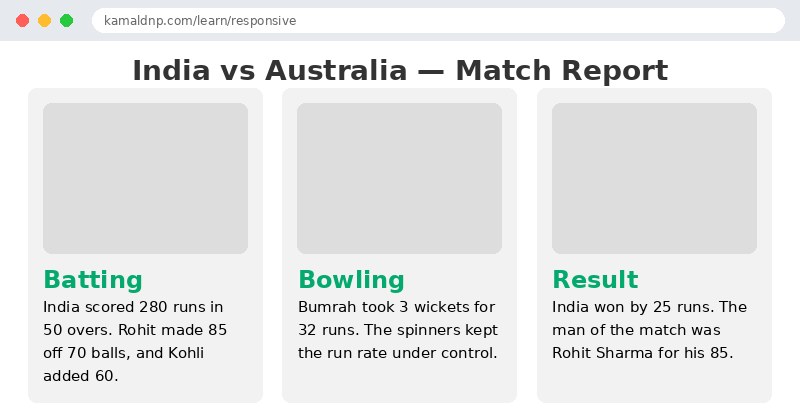
<h1>India vs Australia — Match Report</h1>

<div class="columns">
<div class="column">
<div class="photo"></div>
<h2>Batting</h2>
<p>India scored 280 runs in 50 overs. Rohit made 85 off 70 balls, and Kohli added 60.</p>
</div>

<div class="column">
<div class="photo"></div>
<h2>Bowling</h2>
<p>Bumrah took 3 wickets for 32 runs. The spinners kept the run rate under control.</p>
</div>

<div class="column">
<div class="photo"></div>
<h2>Result</h2>
<p>India won by 25 runs. The man of the match was Rohit Sharma for his 85.</p>
</div>
</div>

</body>
</html>
Output
Try it yourself — live editor
Change the code below and press Run to see the result instantly. No file to save, no login needed.
Why learn this yourself — and not just ask AI?
AI can write code for you, but it cannot think for you. When you learn HTML yourself, your brain builds the real skill: you understand why a page looks the way it does, you can fix it when it breaks, and you can answer it in an exam or an interview without help. That is the skill that gets you a job — not a copied answer.
Get certified — just ₹10
Finish all 30 lessons, pass the test (80%), pay ₹10 and get your certificate.
Take the testPrefer watching? Video courses teach the same topics step by step.
Go further with a full course
Free tutorials teach you the basics. Our paid courses add live projects, mentorship and a certificate.
Browse all courses