CSS Tables
4 min read · Free · No login needed
A plain HTML table works, but it looks bare — thin grey lines, cramped text, no colour at all. CSS turns that same table into a clean menu, a neat timetable, or a readable marksheet. You do not change the HTML. You only add style.
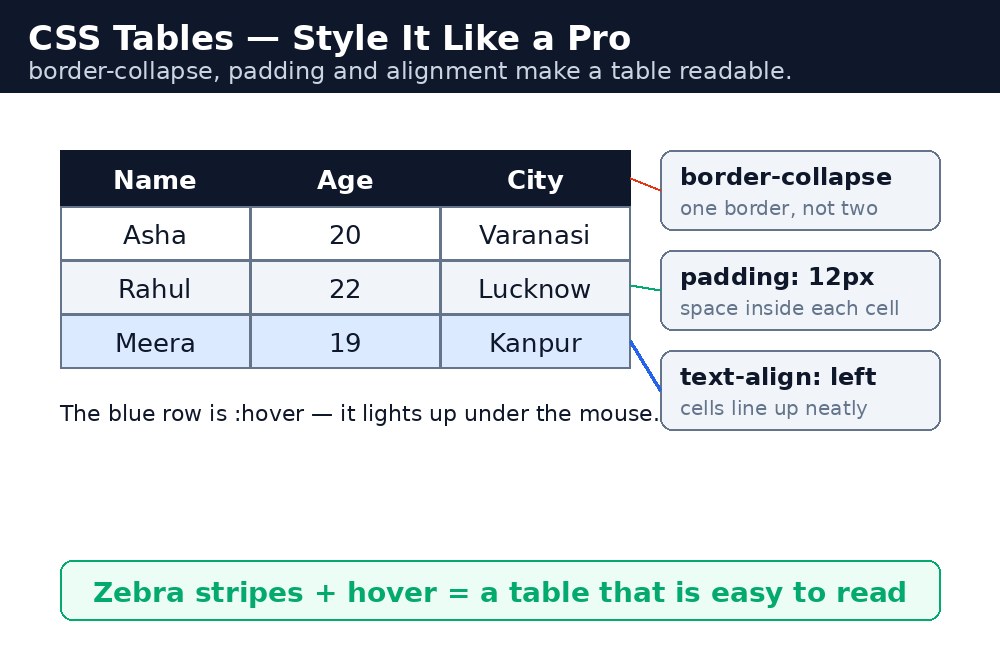
Tables are used everywhere: a chai shop menu, a school timetable, a cricket scorecard, an exam result list. If people must read rows of data, the table has to be easy on the eyes. That is the whole job of CSS tables.
Borders — the first step
Give the table, the headings and the cells a border with the border property. Without one more property, you get a strange result: every cell draws its own border, so you see double lines between cells. The fix is border-collapse: collapse on the table. It merges the touching borders into a single clean line.
table {
  border-collapse: collapse;
  width: 100%;
}
th, td {
  border: 1px solid #999;
  padding: 10px;
}
Width, padding and alignment
Three small properties do most of the work. width decides how wide the table is — 100% makes it fill its container. padding puts breathing space inside each cell, so the text does not touch the border. text-align lines the text up: headings and names on the left, numbers and prices on the right.
th, td {
  padding: 12px;
  text-align: left;
}
.price {
  text-align: right;
}
Zebra stripes — colour every second row
When a table has many rows, the eye slips to the wrong line. Zebra stripes fix that: give every even row a light background colour. The selector tr:nth-child(even) picks rows 2, 4, 6 and so on. You will meet :nth-child properly in the pseudo-classes lesson.
tr:nth-child(even) {
  background-color: #f2f2f2;
}
Hover rows
A hover row lights up the row under the mouse. It is a small touch, but it makes a long table much easier to read — the reader always knows which row they are on.
tr:hover {
  background-color: #ddd;
}
Responsive tables — small screens
A wide table breaks a phone screen: it either squeezes the text or pushes the page sideways. The simple fix is to wrap the table in a <div> with overflow-x: auto. On a small screen the table scrolls sideways inside its own box, and the rest of the page stays still.
<div style="overflow-x: auto;">
  <table> ... </table>
</div>
border-collapse: collapse is the property beginners forget most. Without it, your table shows double borders — two thin lines with a tiny gap between them — and no amount of border styling will make it look right.Common mistakes
- Forgetting
border-collapse: collapseand wondering why the borders look doubled. - Putting a border only on the table and forgetting the cells — then only the outside edge shows.
- Using
<br>or extra spaces for spacing inside cells instead ofpadding. - Making the table a fixed pixel width, so it overflows on a phone screen.
- Colouring every row the same dark shade, so the zebra stripes and the hover effect disappear.
Remember
border-collapse: collapseturns double borders into single clean lines.paddinggives the text room inside each cell;text-alignlines it up.tr:nth-child(even)makes zebra stripes;tr:hoverlights up the row under the mouse.- Wrap a wide table in a div with
overflow-x: autoso it scrolls on small screens. - Style the heading row (
th) differently from the data rows (td).
Example explained
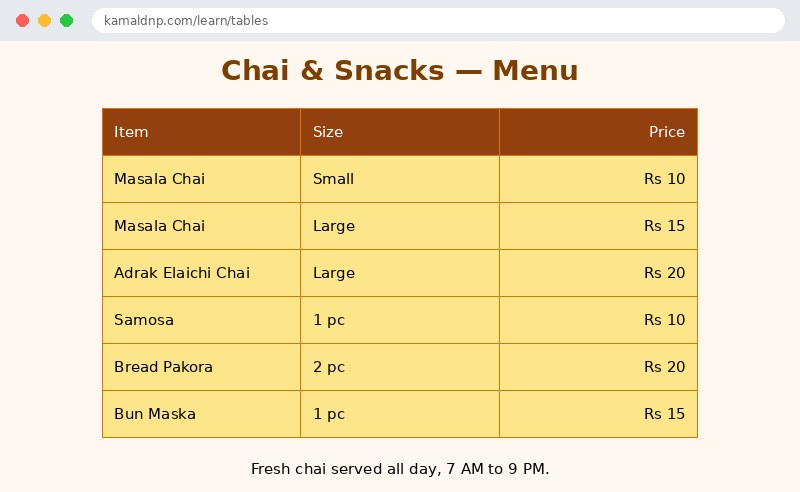
table { width: 80%; margin: 20px auto; border-collapse: collapse; }— the table takes 80% of the page width, sits in the centre, and its borders merge into single lines.th, td { border: 1px solid #d97706; padding: 12px; text-align: left; }— every heading cell and data cell gets the same warm brown border, roomy padding, and left-aligned text.th { background-color: #92400e; color: white; }— the heading row gets a dark brown background with white text, so the column names stand out.tr:nth-child(even) { background-color: #fef3c7; }— every even row gets a pale yellow background, giving the menu its zebra stripes.tr:hover { background-color: #fde68a; }— the row under the mouse turns a deeper yellow, so the reader never loses their place..price { text-align: right; }— the price column lines up on the right, which is how prices are normally read.
Example
<!DOCTYPE html>
<html>
<head>
<title>Chai Shop Menu</title>
<style>
body {
font-family: Arial, sans-serif;
background-color: #fff8f0;
}
h1 {
text-align: center;
color: #7b3f00;
}
table {
width: 80%;
margin: 20px auto;
border-collapse: collapse;
}
th, td {
border: 1px solid #d97706;
padding: 12px;
text-align: left;
}
th {
background-color: #92400e;
color: white;
}
tr:nth-child(even) {
background-color: #fef3c7;
}
tr:hover {
background-color: #fde68a;
}
.price {
text-align: right;
}
</style>
</head>
<body>
<h1>Chai & Snacks — Menu</h1>
<div style="overflow-x: auto;">
<table>
<tr>
<th>Item</th>
<th>Size</th>
<th class="price">Price</th>
</tr>
<tr>
<td>Masala Chai</td>
<td>Small</td>
<td class="price">Rs 10</td>
</tr>
<tr>
<td>Masala Chai</td>
<td>Large</td>
<td class="price">Rs 15</td>
</tr>
<tr>
<td>Adrak Elaichi Chai</td>
<td>Large</td>
<td class="price">Rs 20</td>
</tr>
<tr>
<td>Samosa</td>
<td>1 pc</td>
<td class="price">Rs 10</td>
</tr>
<tr>
<td>Bread Pakora</td>
<td>2 pc</td>
<td class="price">Rs 20</td>
</tr>
<tr>
<td>Bun Maska</td>
<td>1 pc</td>
<td class="price">Rs 15</td>
</tr>
</table>
</div>
<p style="text-align: center;">Fresh chai served all day, 7 AM to 9 PM.</p>
</body>
</html>Output
Try it yourself — live editor
Change the code below and press Run to see the result instantly. No file to save, no login needed.
Why learn this yourself — and not just ask AI?
AI can write code for you, but it cannot think for you. When you learn HTML yourself, your brain builds the real skill: you understand why a page looks the way it does, you can fix it when it breaks, and you can answer it in an exam or an interview without help. That is the skill that gets you a job — not a copied answer.
Get certified — just ₹10
Finish all 30 lessons, pass the test (80%), pay ₹10 and get your certificate.
Take the testPrefer watching? Video courses teach the same topics step by step.
Go further with a full course
Free tutorials teach you the basics. Our paid courses add live projects, mentorship and a certificate.
Browse all courses

