CSS Transforms Explained — Rotate, Scale, Translate
4 min read · Free · No login needed
Pick up a photo from a table and turn it a little. The other photos do not move, the table does not get bigger, and the photo still sits in the same spot — it just looks turned. CSS transforms work exactly like that. They change how a box looks — its angle, its size, its position on screen — without changing where it lives in the layout. Every other element stays exactly where it was.
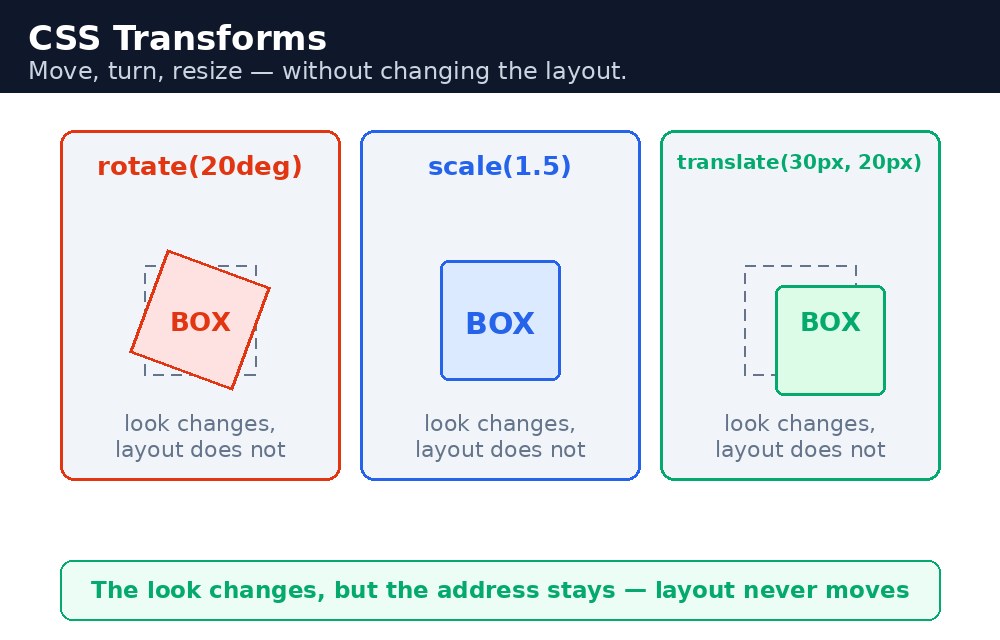
What a transform does
A transform is a visual effect, not a layout change. When you rotate a box by 20 degrees, the browser still reserves the box's original, unrotated space on the page, and the neighbours do not shift to make room. This is the big difference from changing margin or width, which push other elements around. Transforms are also cheap for the browser to draw, which is why they are the right tool for hover effects and small animations.
The four transforms
There are four transform functions, and you write them inside the transform property:
.tilted  { transform: rotate(20deg); }
.bigger  { transform: scale(1.5); }
.moved   { transform: translate(30px, 10px); }
.slanted { transform: skewX(-15deg); }
rotate() turns the box by an angle in degrees. scale() grows or shrinks it — scale(2) doubles the size, scale(0.5) halves it. translate() moves it right and down by the two values you give. skewX() and skewY() slant it sideways, like pushing the top of a rectangle while the bottom stays put.
Combining transforms and the pivot point
You can put several functions in one transform property, separated by spaces: transform: translate(50px, 0) rotate(20deg);. But the order matters — translate-then-rotate gives a different result from rotate-then-translate, because each step happens in the coordinate system left by the previous one. The pivot point is controlled by transform-origin: the default is the centre of the box, but transform-origin: top left; makes the box turn around its top-left corner, like a door turning on its hinge.
z-index. This is rarely a problem, but it explains why a rotated card sometimes overlaps a neighbour that it did not overlap before.transform: scale() over changing width or padding. Growing with transform does not reflow the page, so nothing jumps around — the card just grows smoothly in place.Common mistakes
- Writing two
transformlines in one rule — the second one wins and the first is ignored; combine them into a single line instead. - Thinking
translate()moves other elements — it does not; only the box itself moves visually, and its original space stays reserved. - Forgetting the unit on
rotate()—rotate(20)withoutdegis invalid and the browser ignores it. - Writing
scale(150%)— scale takes a plain number, soscale(1.5)is correct and a percentage is not. - Applying a transform to a plain inline element like a
span— transforms do not apply to non-replaced inline elements; give itdisplay: inline-blockfirst.
Remember
- A transform changes how a box looks, not where it lives in the layout.
rotate()turns,scale()grows or shrinks,translate()moves,skew()slants.- Combine functions in one
transformline; the order changes the result. transform-originsets the pivot point — centre by default, or a corner like a door hinge.- Use transforms for hover effects: they never push other elements around.
Example explained
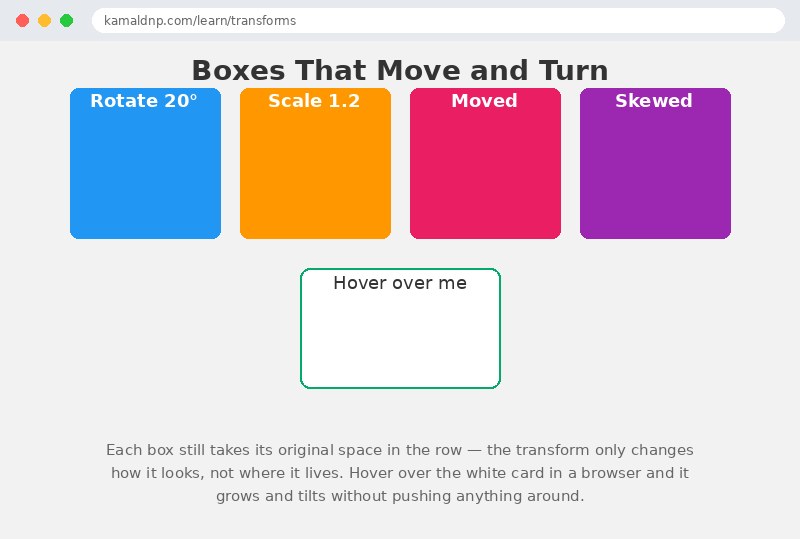
.rotate { transform: rotate(20deg); }— the blue box turns 20 degrees clockwise, while the row keeps its original spacing..scale { transform: scale(1.2); }— the orange box grows to 1.2 times its size, but its neighbours do not move to make room..translate { transform: translate(20px, 10px); }— the pink box shifts 20px right and 10px down from where it would normally sit..skew { transform: skewX(-15deg); }— the purple box slants sideways, like a rectangle pushed at the top..hover-card:hover { transform: scale(1.1) rotate(-2deg); }— hovering grows the white card slightly and tilts it, combining two transforms in one line.
Example
<!DOCTYPE html>
<html>
<head>
<title>Boxes That Move and Turn</title>
<style>
* { box-sizing: border-box; }
body { font-family: Arial, sans-serif; margin: 0; padding: 20px; background-color: #f2f2f2; }
h1 { text-align: center; color: #333; }
.row { display: flex; flex-wrap: wrap; gap: 20px; justify-content: center; max-width: 900px; margin: auto; }
.box {
  width: 150px; height: 150px;
  background-color: #04aa6d; color: white;
  display: flex; align-items: center; justify-content: center;
  font-size: 18px; font-weight: bold; border-radius: 8px;
}
.rotate { transform: rotate(20deg); background-color: #2196f3; }
.scale { transform: scale(1.2); background-color: #ff9800; }
.translate { transform: translate(20px, 10px); background-color: #e91e63; }
.skew { transform: skewX(-15deg); background-color: #9c27b0; }
.hover-card {
  width: 200px; height: 120px; background-color: white;
  border: 2px solid #04aa6d; border-radius: 10px;
  display: flex; align-items: center; justify-content: center;
  font-size: 18px; color: #333; margin: 30px auto;
}
.hover-card:hover { transform: scale(1.1) rotate(-2deg); }
p.note { text-align: center; color: #666; max-width: 600px; margin: 20px auto; }
</style>
</head>
<body>

<h1>Boxes That Move and Turn</h1>

<div class="row">
<div class="box rotate">Rotate 20°</div>
<div class="box scale">Scale 1.2</div>
<div class="box translate">Moved</div>
<div class="box skew">Skewed</div>
</div>

<div class="hover-card">Hover over me</div>

<p class="note">Each box still takes its original space in the row — the transform only changes how it looks, not where it lives. Hover over the white card in a browser and it grows and tilts without pushing anything around.</p>

</body>
</html>
Output
Try it yourself — live editor
Change the code below and press Run to see the result instantly. No file to save, no login needed.
Related lessons
Frequently asked questions
The questions learners ask most about this lesson — read the question, then open it to see the answer.
1. What does a CSS transform do?
It changes how a box looks — its angle, size, or position on screen — without changing where it lives in the layout.
2. What do rotate, scale, and translate do?
rotate() turns a box, scale() grows or shrinks it, and translate() moves it visually.
3. Why do two transform lines not work together?
Because the second one wins and the first is ignored. Combine all functions into a single transform line.
Why learn this yourself — and not just ask AI?
AI can write code for you, but it cannot think for you. When you learn HTML yourself, your brain builds the real skill: you understand why a page looks the way it does, you can fix it when it breaks, and you can answer it in an exam or an interview without help. That is the skill that gets you a job — not a copied answer.
Get certified — just ₹10
Finish all 35 lessons, pass the test (80%), pay ₹10 and get your certificate.
Take the testPrefer watching? Video courses teach the same topics step by step.
Go further with a full course
Free tutorials teach you the basics. Our paid courses add live projects, mentorship and a certificate.
Browse all courses