CSS Website Layout
4 min read · Free · No login needed
Every website you visit has the same skeleton: a header at the top with the site name, a navigation bar with the links, a main content area in the middle, often a sidebar on the side, and a footer at the bottom with contact details and copyright. Once you can build this skeleton, you can build almost any page — a blog, a school site, a shop, or a news page.
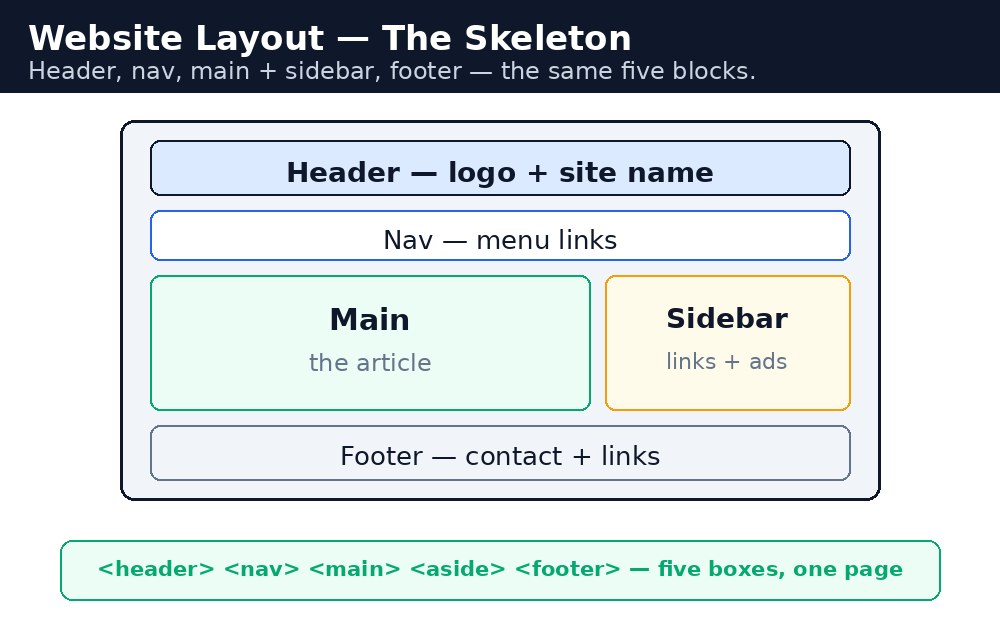
HTML gives you special tags for each part: <header>, <nav>, <main>, <aside> for the sidebar, and <footer>. CSS then decides how wide each part is, where it sits, and what colour it gets. The layout itself is just boxes stacked and placed next to each other.
A two-column layout
The most common layout is two columns: a wide main column for the article and a narrow sidebar for extra links or news. The easy modern way is to wrap both in a container with display: flex. The main column gets flex: 3 and the sidebar gets flex: 1 — the numbers are just shares of the available space, so main takes three quarters and the sidebar takes one quarter.
Syntax — header, columns, footer
header {
  background-color: #04aa6d;
  color: white;
  padding: 20px;
  text-align: center;
}
.container { display: flex; }
main { flex: 3; padding: 20px; }
aside { flex: 1; padding: 20px; background-color: #f1f1f1; }
footer {
  background-color: #333;
  color: white;
  padding: 15px;
  text-align: center;
}
The header and footer stretch across the full width because they are outside the flex container. Only the two columns inside the container sit side by side.
Centring the whole page
On a wide monitor, text stretched across the full screen is hard to read. Most sites limit the page width with max-width: 1000px and centre it with margin: auto. The page then sits in the middle with empty space on both sides, like a book on a table.
max-width, not width, for the page wrapper. With max-width the page can still shrink on a small phone screen; with a fixed width it would overflow and force sideways scrolling.An image gallery inside the layout
A gallery is a row of small boxes, each with an image and a caption underneath. The same flex idea works here: a display: flex container with a gap, and each gallery box given the same flex: 1. The images inside need width: 100% so they fill their box without overflowing it.
box-sizing: border-box at the top of your stylesheet when building layouts. It makes padding count inside the width, so a column set to 25% with 20px of padding stays at 25% instead of growing wider and breaking the row.Common mistakes
- Forgetting
box-sizing: border-box— padded columns grow wider than planned and the last column drops to the next line. - Using a fixed
widthfor the page wrapper — the page overflows on phones instead of shrinking. - Putting the header or footer inside the flex container — they get squeezed into a column instead of stretching across the full width.
- Forgetting
width: 100%on gallery images — a large image overflows its box and breaks the layout. - Using
<div>for everything — the semantic tags<header>,<main>,<aside>and<footer>make the page easier to read and better for search engines.
Remember
- A page has five parts: header, nav, main, sidebar (
<aside>), and footer. - A two-column layout is a flex container with
flex: 3for main andflex: 1for the sidebar. - Centre the page with
max-widthandmargin: auto. - Gallery boxes are flex items too, with images at
width: 100%. box-sizing: border-boxkeeps padding inside the width you set.
Example explained
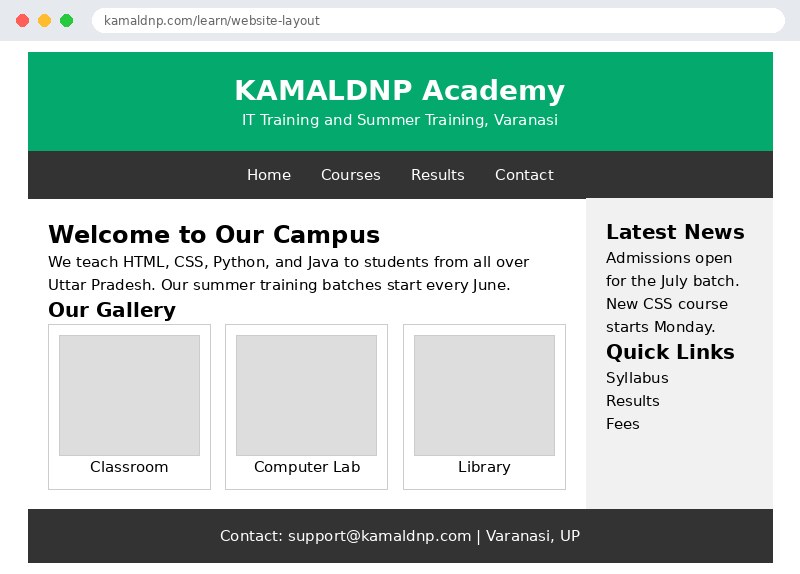
header— a green band across the top with the school name, centred white text, and 20px of padding..container { display: flex; }— the wrapper around the main column and the sidebar, which places them side by side in one row.main { flex: 3; }andaside { flex: 1; }— the article takes three parts of the width and the sidebar takes one part, so the split is roughly 75% and 25%..gallery { display: flex; gap: 15px; }— the three gallery boxes sit in a row with an even gap; each grey.photobox stands in for a real photo, which would usewidth: 100%to fill its box.footer— a dark band at the bottom, outside the flex container, so it stretches across the full width of the page.
Example
<!DOCTYPE html>
<html>
<head>
<title>School Website Layout</title>
<style>
* { box-sizing: border-box; }
body { font-family: Arial, sans-serif; margin: 0; }
header { background-color: #04aa6d; color: white; padding: 20px; text-align: center; }
nav { background-color: #333; padding: 12px; text-align: center; }
nav a { color: white; text-decoration: none; margin: 0 15px; }
.container { display: flex; max-width: 1000px; margin: auto; }
main { flex: 3; padding: 20px; }
aside { flex: 1; padding: 20px; background-color: #f1f1f1; }
.gallery { display: flex; gap: 15px; }
.gallery div { flex: 1; border: 1px solid #ccc; padding: 10px; text-align: center; }
.gallery .photo { height: 120px; background-color: #ddd; }
footer { background-color: #333; color: white; padding: 15px; text-align: center; }
</style>
</head>
<body>

<header>
<h1>KAMALDNP Academy</h1>
<p>IT Training and Summer Training, Varanasi</p>
</header>

<nav>
<a href="#">Home</a>
<a href="#">Courses</a>
<a href="#">Results</a>
<a href="#">Contact</a>
</nav>

<div class="container">
<main>
<h2>Welcome to Our Campus</h2>
<p>We teach HTML, CSS, Python, and Java to students from all over Uttar Pradesh. Our summer training batches start every June.</p>
<h3>Our Gallery</h3>
<div class="gallery">
<div><div class="photo"></div><p>Classroom</p></div>
<div><div class="photo"></div><p>Computer Lab</p></div>
<div><div class="photo"></div><p>Library</p></div>
</div>
</main>

<aside>
<h3>Latest News</h3>
<p>Admissions open for the July batch.</p>
<p>New CSS course starts Monday.</p>
<h3>Quick Links</h3>
<p>Syllabus</p>
<p>Results</p>
<p>Fees</p>
</aside>
</div>

<footer>
<p>Contact: support@kamaldnp.com | Varanasi, UP</p>
</footer>

</body>
</html>
Output
Try it yourself — live editor
Change the code below and press Run to see the result instantly. No file to save, no login needed.
Why learn this yourself — and not just ask AI?
AI can write code for you, but it cannot think for you. When you learn HTML yourself, your brain builds the real skill: you understand why a page looks the way it does, you can fix it when it breaks, and you can answer it in an exam or an interview without help. That is the skill that gets you a job — not a copied answer.
Get certified — just ₹10
Finish all 30 lessons, pass the test (80%), pay ₹10 and get your certificate.
Take the testPrefer watching? Video courses teach the same topics step by step.
Go further with a full course
Free tutorials teach you the basics. Our paid courses add live projects, mentorship and a certificate.
Browse all courses