JavaScript and the DOM
4 min read · Free · No login needed
HTML is text on a file. When the browser loads it, it builds something else: a tree of objects, one for every tag, every piece of text, every attribute. That tree is called the DOM — the Document Object Model. JavaScript can reach into that tree, find any part of the page, and change it while the page is open. That is how a button click changes a heading, a form shows an error, or a list grows by one item — without reloading the page.
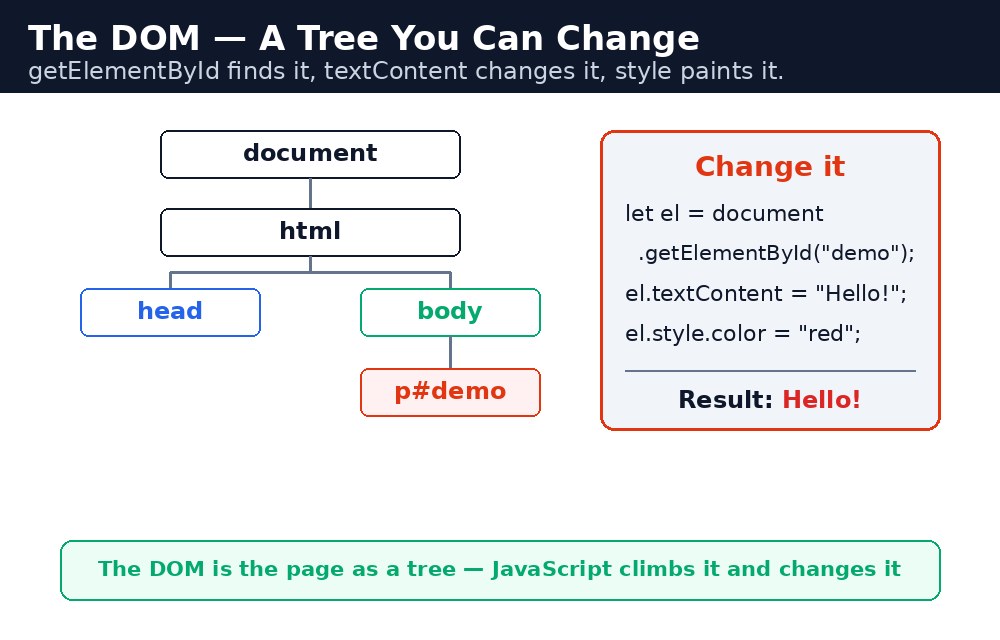
Think of the page as a family tree. <html> is the grandparent, <body> is a parent, and the headings, paragraphs and buttons are the children. JavaScript walks that tree, finds the person it wants, and changes their clothes. The tree never leaves the page — only what you see changes.
Finding elements — getElementById and querySelector
let title = document.getElementById("main-title");
let firstBtn = document.querySelector("button");
let allItems = document.querySelectorAll("li");
document.getElementById("main-title") finds the one element with that id — the fastest and most common way. document.querySelector("button") finds the first element that matches a CSS selector, so you can use classes, tags and combinations: ".card p", "#list li". querySelectorAll finds every match and gives you a list you can loop over. Remember: an id must be unique on the page, so getElementById always finds at most one element.
null — and trying to use null throws a TypeError (the error from the errors lesson). If your code says "Cannot read properties of null", check the id or selector spelling first, and check that your script runs after the HTML it touches — a script in the <head> runs before the body exists.Changing elements — text, HTML and style
title.textContent = "Welcome to KAMALDNP";
title.style.color = "orange";
title.style.fontSize = "32px";
textContent changes the plain text inside an element — safe, because it never treats the text as HTML. innerHTML changes the HTML inside it, so you can add tags — but never put user-typed text into innerHTML, because a typed <script> would actually run. style changes CSS one property at a time, and the property names use camelCase: backgroundColor, not background-color.
Adding and removing elements
let li = document.createElement("li");
li.textContent = "New student";
document.getElementById("list").appendChild(li);
createElement("li") makes a new element that is not on the page yet. You fill it with text, then appendChild attaches it to a parent — usually a <ul> or a <div>. To remove one, use element.remove(). This is how a to-do list, a student list or a comment section grows without reloading.
Common mistakes
- Running the script before the HTML exists — put your
<script>at the end of the<body>, or wait for the page to load. - Using
innerHTMLwith user input — a typed tag becomes real HTML. UsetextContentfor anything a user typed. - Forgetting that
querySelectorAllgives a list, not one element — you must loop over it or pick[0]. - Writing CSS property names with dashes in
style—style.background-coloris a syntax error. Use camelCase:style.backgroundColor.
Remember
- The DOM is the page as a tree of objects that JavaScript can change.
getElementByIdfinds one element by id;querySelectorfinds the first match for a CSS selector.textContentchanges plain text;innerHTMLchanges HTML — never use it with user input.createElement+appendChildadds new elements;remove()takes them away.- getElementById finds it, textContent changes it, style paints it.
Example explained
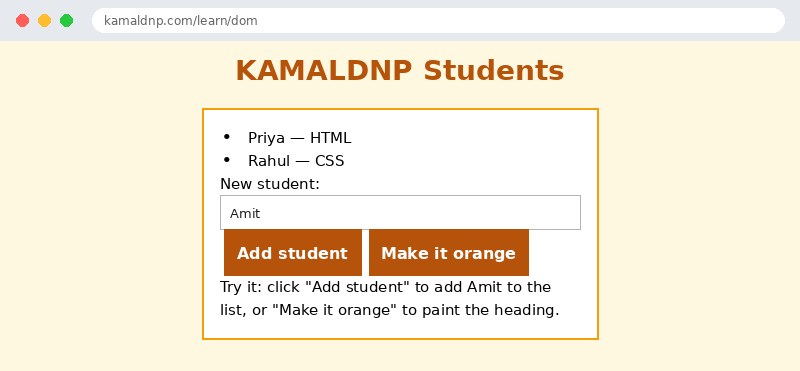
<ul id="list">— the student list on the page, with two students already in it so the page is not empty.let name = document.getElementById("name").value;— reads what the user typed in the name box.let li = document.createElement("li");— makes a brand-new list item that is not on the page yet.li.textContent = name;— puts the typed name inside it as plain text (safe — a typed tag stays text).document.getElementById("list").appendChild(li);— attaches the new item to the list, so it appears on the page at once.document.getElementById("title").style.color = "orange";— the "Make it orange" button paints the heading orange with one line.
Example
<!DOCTYPE html>
<html>
<head>
<title>Student List — DOM</title>
<style>
body { font-family: Verdana, sans-serif; background-color: #fff8e1; }
h1 { color: #b45309; text-align: center; }
.card { background-color: white; border: 2px solid #f59e0b; padding: 16px; width: 360px; margin: 20px auto; }
button { background-color: #b45309; color: white; border: none; padding: 10px 18px; font-size: 16px; margin: 4px; }
</style>
</head>
<body>

<h1 id="title">KAMALDNP Students</h1>
<div class="card">
<ul id="list">
<li>Priya — HTML</li>
<li>Rahul — CSS</li>
</ul>
<p>New student: <input id="name" type="text" value="Amit"></p>
<p>
<button onclick="addStudent()">Add student</button>
<button onclick="paintTitle()">Make it orange</button>
</p>
<p>Try it: click "Add student" to add Amit to the list, or "Make it orange" to paint the heading.</p>
</div>

<script>
function addStudent() {
  let name = document.getElementById("name").value;
  let li = document.createElement("li");
  li.textContent = name + " — JavaScript";
  document.getElementById("list").appendChild(li);
  document.getElementById("name").value = "";
}
function paintTitle() {
  document.getElementById("title").style.color = "orange";
}
</script>

</body>
</html>
Output
Try it yourself — live editor
Change the code below and press Run to see the result instantly. No file to save, no login needed.
Why learn this yourself — and not just ask AI?
AI can write code for you, but it cannot think for you. When you learn HTML yourself, your brain builds the real skill: you understand why a page looks the way it does, you can fix it when it breaks, and you can answer it in an exam or an interview without help. That is the skill that gets you a job — not a copied answer.
Get certified — just ₹10
Finish all 30 lessons, pass the test (80%), pay ₹10 and get your certificate.
Take the testPrefer watching? Video courses teach the same topics step by step.
Go further with a full course
Free tutorials teach you the basics. Our paid courses add live projects, mentorship and a certificate.
Browse all courses