JavaScript Form Validation
4 min read · Free · No login needed
A form is a door into your website. Whatever a visitor types — a name, a mobile number, an email — walks straight through that door. If you do not check it first, bad data gets in: an empty name, a nine-digit mobile number, an email with no @. Form validation is the guard at the door: it checks every value before the form is allowed through, and shows a clear error next to anything wrong.
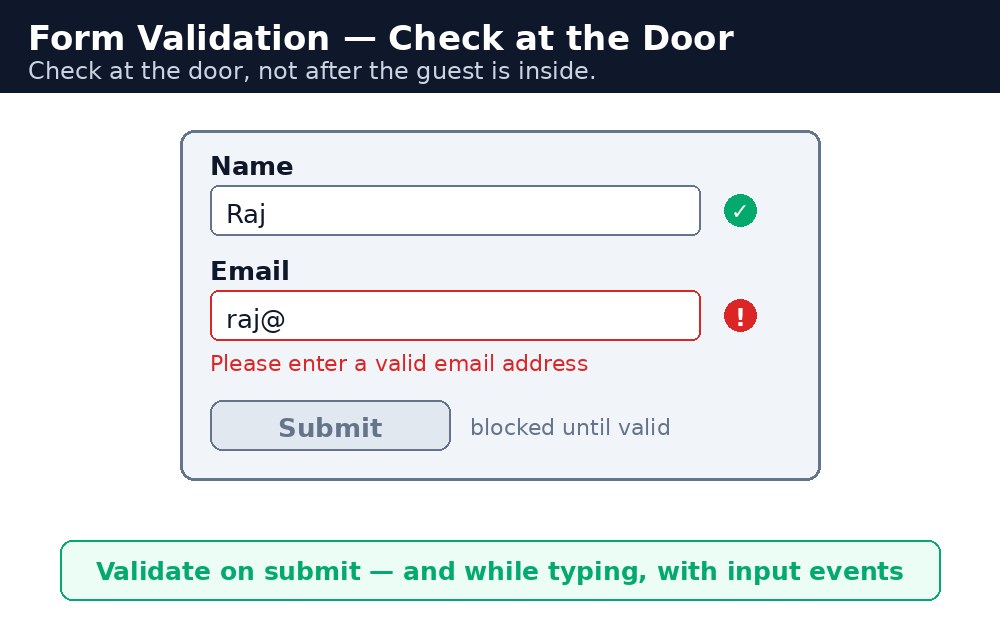
Think of an admission desk. The clerk does not send a half-filled form to the office — she checks it at the desk, points at the empty line, and asks the student to fill it in. JavaScript does the same job on the page, instantly, before anything is sent to the server. Checking at the door is faster and kinder than finding the mistake later.
Reading values — .value
let name = document.getElementById("name").value;
let mobile = document.getElementById("mobile").value;
let email = document.getElementById("email").value;
Every input has a .value — always a string, even for numbers (remember the type conversion lesson). For a checkbox, use .checked instead: it is true or false. For a dropdown (<select>), .value gives the value of the option the user picked.
Checking values — the common rules
- Empty:
if (name.trim() === "")—trim()removes spaces from both ends, so a box with only spaces still counts as empty. - Length:
if (mobile.length !== 10)— an Indian mobile number has exactly 10 digits. - Numbers only:
if (isNaN(Number(mobile)))— letters in a mobile number are not allowed. - Email:
if (!email.includes("@"))— a simple check that catches the most common mistake. A full email check uses a pattern, but@plus a dot is enough for a first version.
Showing errors and stopping the submit
function validate() {
  let error = document.getElementById("error");
  if (name.trim() === "") {
    error.textContent = "Please type your name.";
    return false;
  }
  error.textContent = "";
  return true;
}
Show the error in a red paragraph next to the form, and clear it when the problem is fixed. When the form uses a real submit button, the form's onsubmit must return false to stop the page from sending — or you can call event.preventDefault(). In our example the button is type="button", so it never submits by itself: the JavaScript decides what happens, and shows a green success message when everything is right.
Common mistakes
- Forgetting
trim()— a name of only spaces passes an empty check. Always trim first. - Checking length on a number —
mobile.lengthworks because the value is a string; if you converted it withNumber()first,.lengthisundefined. - Validating only on submit — also check when the user leaves a field, so the error appears while they are still looking at it.
- Showing five errors at once — fix the first one, then show the next. One message at a time is kinder.
- Trusting browser validation alone — the server must re-check everything, because JavaScript can be switched off.
Remember
- Read inputs with
.value(strings) and checkboxes with.checked. - Common checks: empty (
trim() === ""), length, numbers only, email has@. - Show errors in red next to the form; clear them when fixed.
- Stop a bad submit with
return falseorevent.preventDefault(). - Check at the door, not after the guest is inside.
Example explained
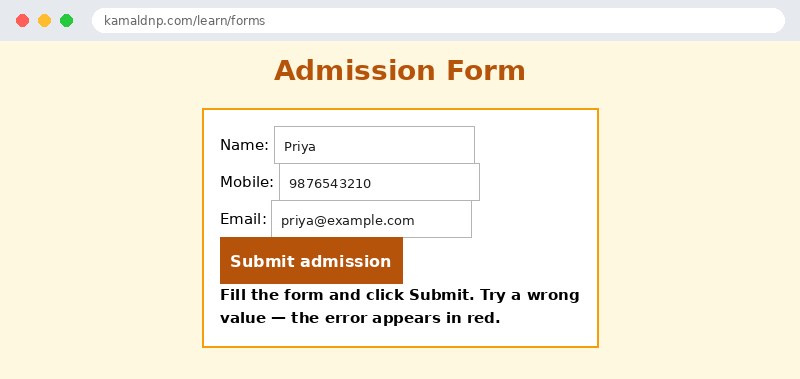
let name = document.getElementById("name").value.trim();— reads the name and trims the spaces, so " " counts as empty.if (name === "") { showError("Please type your name."); return; }— the first check stops the function at once, so only one error is ever shown.if (mobile.length !== 10 || isNaN(Number(mobile)))— the mobile must be exactly 10 characters and all digits.if (!email.includes("@"))— the email must contain an@. Simple, but it catches the most common mistake.document.getElementById("out").style.color = "green";— when every check passes, the message turns green: the form is accepted.
Example
<!DOCTYPE html>
<html>
<head>
<title>Admission Form — Validation</title>
<style>
body { font-family: Verdana, sans-serif; background-color: #fff8e1; }
h1 { color: #b45309; text-align: center; }
.card { background-color: white; border: 2px solid #f59e0b; padding: 16px; width: 360px; margin: 20px auto; }
button { background-color: #b45309; color: white; border: none; padding: 10px 18px; font-size: 16px; }
input { width: 200px; padding: 6px; margin: 4px 0; }
#out { font-weight: bold; }
</style>
</head>
<body>

<h1>Admission Form</h1>
<div class="card">
<p>Name: <input id="name" type="text" value="Priya"></p>
<p>Mobile: <input id="mobile" type="text" value="9876543210"></p>
<p>Email: <input id="email" type="text" value="priya@example.com"></p>
<p><button onclick="submitForm()">Submit admission</button></p>
<p id="out">Fill the form and click Submit. Try a wrong value — the error appears in red.</p>
</div>

<script>
function submitForm() {
  let out = document.getElementById("out");
  let name = document.getElementById("name").value.trim();
  let mobile = document.getElementById("mobile").value.trim();
  let email = document.getElementById("email").value.trim();
  out.style.color = "red";
  if (name === "") {
    out.textContent = "Please type your name.";
    return;
  }
  if (mobile.length !== 10 || isNaN(Number(mobile))) {
    out.textContent = "Mobile must be 10 digits, numbers only.";
    return;
  }
  if (!email.includes("@")) {
    out.textContent = "Email must contain @.";
    return;
  }
  out.style.color = "green";
  out.textContent = "Thank you, " + name + "! Your admission form is accepted.";
}
</script>

</body>
</html>
Output
Try it yourself — live editor
Change the code below and press Run to see the result instantly. No file to save, no login needed.
Why learn this yourself — and not just ask AI?
AI can write code for you, but it cannot think for you. When you learn HTML yourself, your brain builds the real skill: you understand why a page looks the way it does, you can fix it when it breaks, and you can answer it in an exam or an interview without help. That is the skill that gets you a job — not a copied answer.
Get certified — just ₹10
Finish all 30 lessons, pass the test (80%), pay ₹10 and get your certificate.
Take the testPrefer watching? Video courses teach the same topics step by step.
Go further with a full course
Free tutorials teach you the basics. Our paid courses add live projects, mentorship and a certificate.
Browse all courses