JavaScript localStorage — setItem, getItem Explained
3 min read · Free · No login needed
Close a page and everything it knew is gone — unless you wrote it down somewhere. localStorage is a small notebook the browser keeps for each website. Whatever you save there is still there tomorrow, next week, even after the computer restarts. It is perfect for small things: a visitor's name, a theme choice, a high score. It is not a database — it holds only a few megabytes, and only strings.
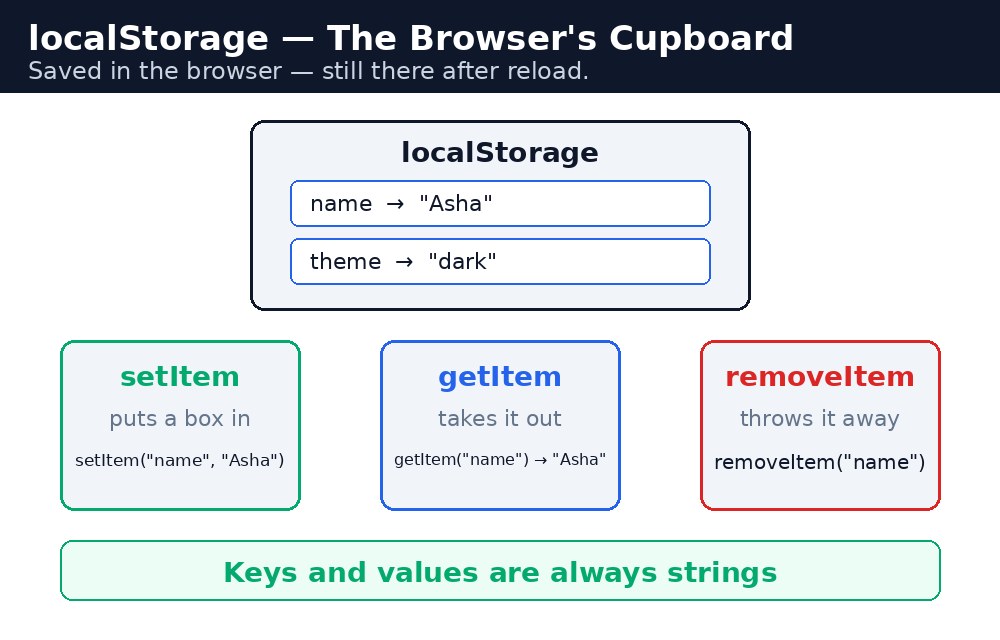
Saving and reading — setItem and getItem
localStorage.setItem("name", "Asha");
let saved = localStorage.getItem("name");
setItem takes two strings: a key (the label on the drawer) and a value (what goes inside). getItem takes the key and returns the value — or null if nothing was saved under that key. Keys and values are always strings: localStorage.setItem("age", 15) stores the text "15", not the number 15.
localStorage.setItem("user", JSON.stringify({name: "Asha", age: 15})). Read it back with JSON.parse(localStorage.getItem("user")). Forgetting this step is the most common localStorage bug — an object saved directly becomes the useless text "[object Object]".Loading a saved value when the page opens
The usual pattern: when the page loads, check localStorage first. If a value exists, show it at once; if not, show the empty form.
let saved = localStorage.getItem("name");
if (saved !== null) {
  document.getElementById("out").textContent = "Welcome back, " + saved + "!";
}
Removing is just as easy: localStorage.removeItem("name") deletes one key, and localStorage.clear() empties the whole notebook. Give the visitor a way to clear — a "Forget me" button is polite, and it teaches removeItem at the same time.
setItem saves, getItem reads, removeItem deletes. And never store passwords, OTPs, or payment details in localStorage — anyone using the same browser can read it.Common mistakes
- Saving an object directly — it becomes "[object Object]". Use
JSON.stringifyfirst. - Forgetting that
getItemreturnsnullwhen nothing is saved — check fornullbefore using the value. - Storing numbers and expecting numbers back — everything comes back as a string; convert with
Number()if you need maths. - Storing secrets — localStorage is readable by any script on the page and anyone with the browser. Passwords never belong here.
Remember
localStorage.setItem(key, value)saves a string under a key.localStorage.getItem(key)reads it back, ornullif missing.localStorage.removeItem(key)deletes one key;clear()deletes all.- Objects need
JSON.stringifyto save andJSON.parseto read. - Set it, get it, forget it — and never store secrets.
Example explained
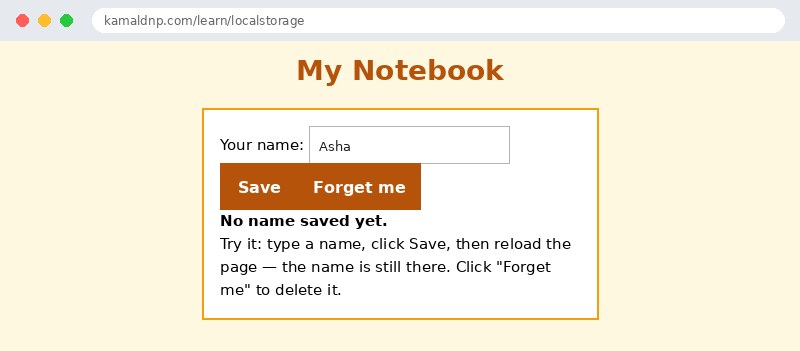
localStorage.setItem("name", name);— saves the typed name under the key "name".localStorage.getItem("name")— reads the saved name back, ornullif nothing was saved yet.if (saved !== null) { ... }— only shows the welcome message when a name really exists.document.getElementById("saved").textContent = "Saved name: " + saved;— shows the stored value on the page.localStorage.removeItem("name");— the Forget button deletes the saved name, and the page says so.
Example
<!DOCTYPE html>
<html>
<head>
<title>My Notebook — localStorage</title>
<style>
body { font-family: Verdana, sans-serif; background-color: #fff8e1; }
h1 { color: #b45309; text-align: center; }
.card { background-color: white; border: 2px solid #f59e0b; padding: 16px; width: 360px; margin: 20px auto; }
button { background-color: #b45309; color: white; border: none; padding: 10px 18px; font-size: 16px; }
input { width: 200px; padding: 6px; margin: 4px 0; }
#saved { font-weight: bold; }
</style>
</head>
<body>

<h1>My Notebook</h1>
<div class="card">
<p>Your name: <input id="name" type="text" value="Asha"></p>
<p><button onclick="saveName()">Save</button> <button onclick="forgetName()">Forget me</button></p>
<p id="saved">No name saved yet.</p>
<p>Try it: type a name, click Save, then reload the page — the name is still there. Click "Forget me" to delete it.</p>
</div>

<script>
function showSaved() {
  let saved = localStorage.getItem("name");
  let box = document.getElementById("saved");
  if (saved !== null) {
    box.textContent = "Saved name: " + saved + " (it survived the reload!)";
  } else {
    box.textContent = "No name saved yet.";
  }
}
function saveName() {
  let name = document.getElementById("name").value.trim();
  if (name === "") {
    document.getElementById("saved").textContent = "Please type a name first.";
    return;
  }
  localStorage.setItem("name", name);
  showSaved();
}
function forgetName() {
  localStorage.removeItem("name");
  showSaved();
}
showSaved();
</script>

</body>
</html>
Output
Try it yourself — live editor
Change the code below and press Run to see the result instantly. No file to save, no login needed.
Related lessons
Frequently asked questions
The questions learners ask most about this lesson — read the question, then open it to see the answer.
1. Does localStorage data survive after closing the browser?
Yes. Whatever you save is still there tomorrow, next week, even after the computer restarts.
2. Why did my saved object become "[object Object]"?
localStorage stores only strings, so an object must first be turned into JSON with JSON.stringify, and read back with JSON.parse.
3. How do I delete one saved value?
With localStorage.removeItem with the key; localStorage.clear empties the whole notebook at once.
Why learn this yourself — and not just ask AI?
AI can write code for you, but it cannot think for you. When you learn HTML yourself, your brain builds the real skill: you understand why a page looks the way it does, you can fix it when it breaks, and you can answer it in an exam or an interview without help. That is the skill that gets you a job — not a copied answer.
Get certified — just ₹10
Finish all 35 lessons, pass the test (80%), pay ₹10 and get your certificate.
Take the testPrefer watching? Video courses teach the same topics step by step.
Go further with a full course
Free tutorials teach you the basics. Our paid courses add live projects, mentorship and a certificate.
Browse all courses

