JavaScript Switch
5 min read · Free · No login needed
An if...else if chain works fine for three or four options, but what about seven — one for each day of the week? Or twelve, one for each month? The chain gets long and hard to read. That is when you use a switch: you give it one value, and it jumps straight to the matching case.
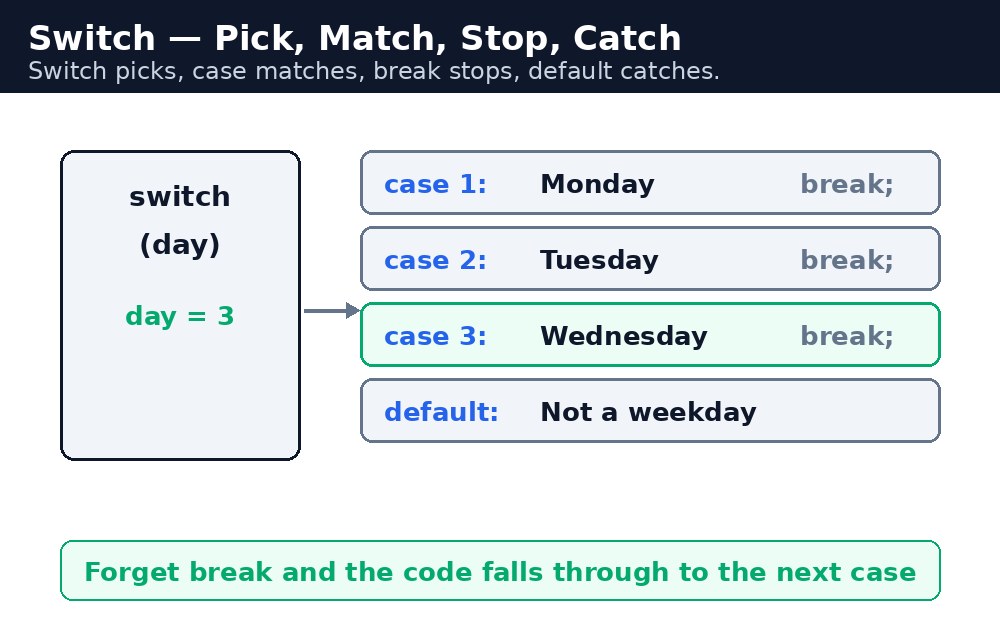
Think of a railway station enquiry counter. You say "Platform 3", and the clerk does not check platform 1, then platform 2, then platform 3 — he jumps straight to the right board. A switch works the same way: it looks at one value and goes directly to the matching case. No repeated questions, no long chain.
Remember it like this: switch picks, case matches, break stops, default catches the rest.
switch and case — jumping to the right answer
A switch statement starts with the word switch, then the value in round brackets, then a block with one case for each possible value. Each case has a colon, then the code to run.
let day = 3;
switch (day) {
  case 1:
    console.log("Monday");
    break;
  case 2:
    console.log("Tuesday");
    break;
  case 3:
    console.log("Wednesday");
    break;
  default:
    console.log("Another day");
}
// "Wednesday"
The computer compares day with each case, top to bottom, and runs the first one that matches. It compares with === — strict equality, value and type — so case 3 does not match the string "3".
break — why it matters
Here is the strange part: without a break, the computer does not stop after the matching case. It keeps running into the next case, and the next, until it hits a break or the end of the switch. This is called "fall-through", and it is the most common switch bug in the world.
let day = 2;
switch (day) {
  case 2:
    console.log("Tuesday");
  case 3:
    console.log("Wednesday");
  case 4:
    console.log("Thursday");
}
// Tuesday, Wednesday, Thursday — all three print!
Because there was no break after "Tuesday", the computer fell through and printed Wednesday and Thursday too. In almost every switch you write, every case ends with a break. The only time you skip it on purpose is when two cases should do the same thing.
break at the end. But if you leave out a break by accident, you get three answers instead of one — so check every case for its break before you run the code.default — the safety net
default is the case that runs when nothing matches. It is like the else of an if-chain: it catches everything the cases missed. It is optional, but writing one is good practice — it means your program always has an answer, even for a value you did not expect.
let grade = "Z";
switch (grade) {
  case "A":
    console.log("Excellent");
    break;
  case "B":
    console.log("Good");
    break;
  default:
    console.log("Unknown grade");
}
// "Unknown grade"
default does not need a break because it is the last block in the switch — there is nothing after it to fall through into. But some programmers add one anyway, in case a new case is added below it later.
switch when you are comparing one value against many exact options — days, months, grades, menu choices. Use if...else if when each test is different — ranges like "more than 90", "more than 60". A switch cannot test ranges; it only matches exact values.Common mistakes
- Forgetting
breakafter a case — the code falls through and runs the next cases too, printing three answers instead of one. - Using a
switchfor ranges —case marks >= 90does not work. Switch matches exact values only; ranges needif...else if. - Mixing types —
switch ("3")will not matchcase 3, because the comparison is strict. The string "3" and the number 3 are different values. - Forgetting
default— when no case matches, the switch silently does nothing. A default makes the program's answer clear. - Putting code between the cases without a
caselabel — the switch ignores it. Every line must belong to a case or todefault.
Remember
- Switch picks, case matches, break stops, default catches the rest.
- Without
break, the code falls through into the next case — almost always a bug. switchmatches exact values only, with strict===comparison. Ranges needif...else if.- Use
switchfor one value with many exact options — days, months, grades, menu choices.
Example explained
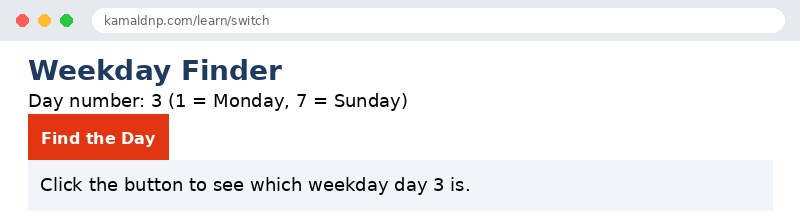
let day = 3;— the day number, where 1 is Monday and 7 is Sunday.switch (day)— the computer looks at the value ofdayand jumps to the matching case.case 3: ... break;— day is 3, so this case runs, prints "Wednesday", and thebreakstops the switch right there.default:— if day were 8 or 0 or anything else, this block would run and print "Invalid day number".document.getElementById("result").innerHTML = ...— writes the weekday name into the page when the button is clicked.
Example
<!DOCTYPE html>
<html>
<head>
<title>Weekday Finder — JavaScript Switch</title>
<style>
body { font-family: Verdana, sans-serif; padding: 20px; }
h1 { color: #1e3a5f; }
button { background-color: #e13611; color: white; border: none; padding: 10px 18px; font-size: 16px; cursor: pointer; }
p { font-size: 18px; }
.result { background-color: #f1f5f9; padding: 12px; }
</style>
</head>
<body>

<h1>Weekday Finder</h1>
<p>Day number: 3 (1 = Monday, 7 = Sunday)</p>
<button onclick="findDay()">Find the Day</button>
<p class="result" id="result">Click the button to see which weekday day 3 is.</p>

<script>
function findDay() {
  let day = 3;
  let name;
  switch (day) {
    case 1:
      name = "Monday";
      break;
    case 2:
      name = "Tuesday";
      break;
    case 3:
      name = "Wednesday";
      break;
    case 4:
      name = "Thursday";
      break;
    case 5:
      name = "Friday";
      break;
    case 6:
      name = "Saturday";
      break;
    case 7:
      name = "Sunday";
      break;
    default:
      name = "Invalid day number";
  }
  document.getElementById("result").innerHTML =
    "Day " + day + " is " + name;
}
</script>

</body>
</html>
Output
Try it yourself — live editor
Change the code below and press Run to see the result instantly. No file to save, no login needed.
Why learn this yourself — and not just ask AI?
AI can write code for you, but it cannot think for you. When you learn HTML yourself, your brain builds the real skill: you understand why a page looks the way it does, you can fix it when it breaks, and you can answer it in an exam or an interview without help. That is the skill that gets you a job — not a copied answer.
Get certified — just ₹10
Finish all 30 lessons, pass the test (80%), pay ₹10 and get your certificate.
Take the testPrefer watching? Video courses teach the same topics step by step.
Go further with a full course
Free tutorials teach you the basics. Our paid courses add live projects, mentorship and a certificate.
Browse all courses