JavaScript Variables
4 min read · Free · No login needed
A variable is a named box that holds a value. You put a number, a piece of text, or a true/false answer into the box, give the box a name, and use that name whenever you need the value again. Without variables, every program would have to repeat every number by hand — and changing one price would mean hunting through the whole program.
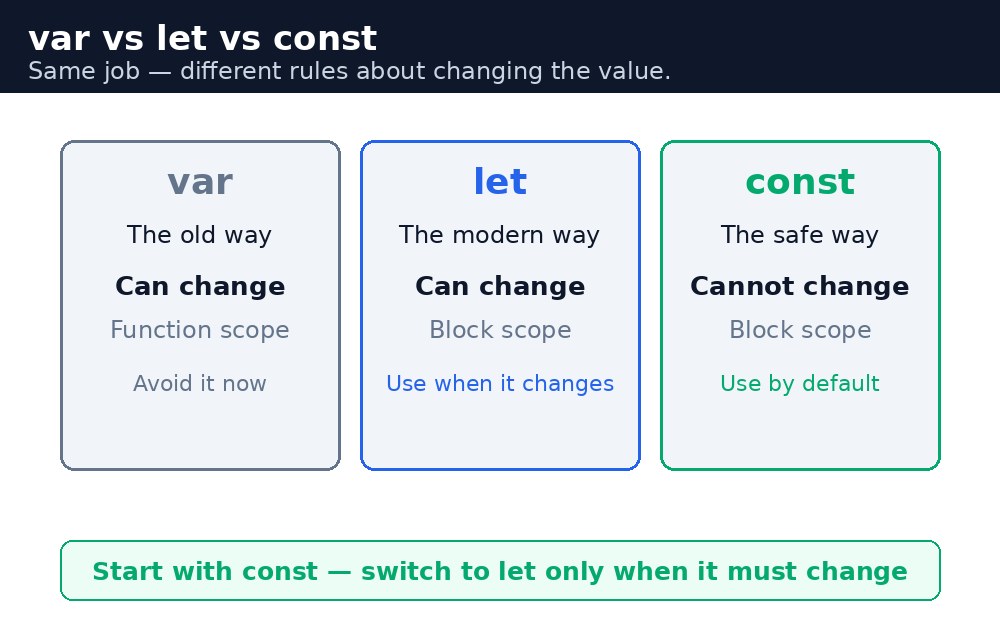
JavaScript has three ways to create a variable: var, let, and const. They look similar, but they behave differently. Modern code uses let and const almost always; var is the old way, kept around so old programs still work.
let — a box you can change
let creates a variable whose value can change later. The number of cups in an order, the marks a student scores, the name typed into a form — all of these change, so they belong in let boxes.
let cups = 2;
cups = 5; // the order grew — the same box now holds 5
const — a box you cannot change
const creates a variable whose value can never change after it is set. The price of a cup of chai, the pass marks for an exam, the name of your academy — fixed facts belong in const boxes. If you try to change a const later, JavaScript stops with an error. That is a feature, not a bug: it catches mistakes where you accidentally overwrite a value that should stay fixed.
const price = 10;
const passMarks = 33;
// price = 15;  // error! A const cannot be changed.
var — the old way
var was the only way to create variables before 2015. It still works, but it has a loose rule — a var declared inside a block can leak out of it — that causes confusing bugs. New code should use let and const. When you read old tutorials and see var, know that it means the same thing as let in most simple cases.
Naming rules — what a variable can be called
A variable name must start with a letter, an underscore _, or a dollar sign $. After that it can contain letters, digits, underscores, and dollar signs. It cannot contain spaces, and it cannot be a reserved word like let or function. The convention is camelCase: the first word lowercase, each following word starting with a capital letter — totalBill, studentName, chaiPrice. Good names describe the value: price is good, x tells nobody anything.
let or const cannot be used before the line that creates it. This is called the "temporal dead zone". A variable created with var can be used before its line, but it will hold the value undefined — another reason modern code prefers let and const.const. If you later find you need to change the value, switch that one variable to let. This habit stops a whole class of accidents before they happen.Common mistakes
- Using a variable before creating it —
alert(total); let total = 40;is an error withletandconst. - Trying to change a
const— that is the whole point ofconst, and JavaScript will stop you. - Using the same name twice with
letin the same place —let price = 10; let price = 15;is an error. Assign again instead:price = 15;. - Naming a variable with a space or a number first —
let chai price = 10;andlet 2cups = 5;are both errors.
Remember
let— a variable you can change later.const— a variable you can never change. Start here by default.var— the old way. It works, but preferletandconst.- Names use camelCase:
totalBill,studentName. No spaces, no numbers first.
Example explained
const price = 10;— the price of one cup never changes during the order, so it goes in aconstbox.let cups = 3;— the number of cups can change (the customer might add more), so it goes in aletbox.let total = cups * price;— a third variable, calculated from the first two. Change cups or price, and the total changes with them.document.getElementById("cups").value— reads the number the visitor typed into the input box. The input's value is always text, soNumber(...)turns it into a real number."Total: ₹" + total— the+joins the text with the number, producing one message for the page.
Example
<!DOCTYPE html>
<html>
<head>
<title>Chai Bill with Variables</title>
<style>
body { background-color: #fff8e1; font-family: Verdana, sans-serif; text-align: center; }
h1 { color: #b45309; }
input { padding: 10px; font-size: 16px; width: 80px; text-align: center; }
button { background-color: #e13611; color: white; border: none; padding: 12px 24px; font-size: 16px; cursor: pointer; }
#bill { color: green; font-weight: bold; font-size: 18px; }
</style>
</head>
<body>

<h1>Chai Bill with Variables</h1>
<p>Masala Chai costs ₹10 per cup. How many cups?</p>
<input id="cups" type="number" value="3">
<button onclick="showBill()">Calculate bill</button>
<p id="bill">Enter the cups and click the button.</p>

<script>
function showBill() {
  const price = 10;
  let cups = Number(document.getElementById("cups").value);
  let total = cups * price;
  document.getElementById("bill").textContent = "Total: ₹" + total;
}
</script>

</body>
</html>
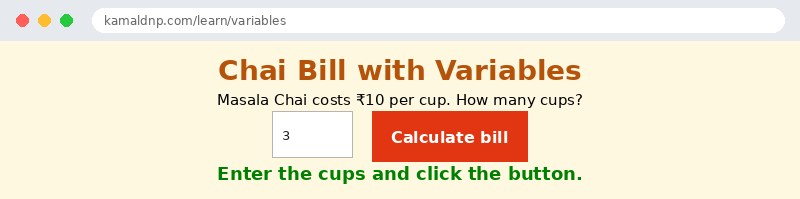
Output
Try it yourself — live editor
Change the code below and press Run to see the result instantly. No file to save, no login needed.
Why learn this yourself — and not just ask AI?
AI can write code for you, but it cannot think for you. When you learn HTML yourself, your brain builds the real skill: you understand why a page looks the way it does, you can fix it when it breaks, and you can answer it in an exam or an interview without help. That is the skill that gets you a job — not a copied answer.
Get certified — just ₹10
Finish all 30 lessons, pass the test (80%), pay ₹10 and get your certificate.
Take the testPrefer watching? Video courses teach the same topics step by step.
Go further with a full course
Free tutorials teach you the basics. Our paid courses add live projects, mentorship and a certificate.
Browse all courses