CSS Flexbox
4 min read · Free · No login needed
Before Flexbox, laying boxes out in a row was a headache. People used floats, inline-blocks, and fixed widths, and the boxes kept breaking, dropping to the next line, or refusing to line up vertically. Flexbox was made to end that struggle. With one line — display: flex — a container takes control of its children and lines them up neatly, in a row or a column.
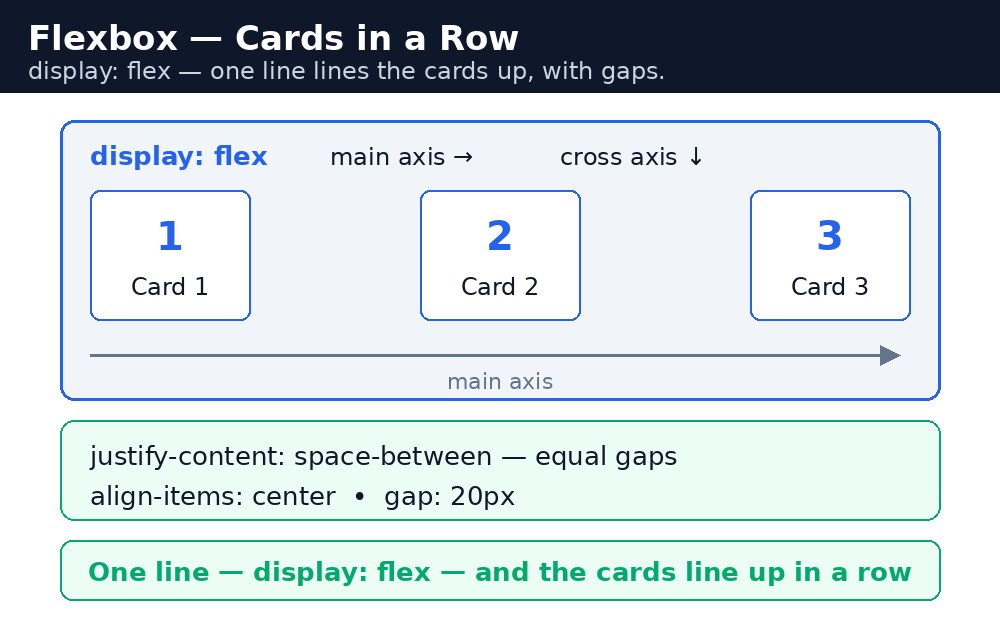
Flexbox is a one-dimensional layout method: it arranges items along one line at a time, either across (a row) or down (a column). That is exactly what most page parts need — a row of cards, a row of buttons, a menu, or a set of boxes that should share the space evenly.
The flex container and its items
Flexbox has two roles. The container is the parent box with display: flex. The items are its direct children. Properties written on the container control the whole row; properties written on an item control just that item. The most important container properties are flex-direction, justify-content, align-items, flex-wrap, and gap.
Syntax — a row of three cards
.cards {
  display: flex;
  gap: 20px;
}
.card {
  flex: 1;
  padding: 20px;
  border: 1px solid #ccc;
}
Here flex: 1 on each card means "take an equal share of the space". Three cards with flex: 1 each get one third of the row, and gap: 20px puts an even 20px space between them.
Direction, alignment, and wrapping
flex-direction chooses the direction: row (left to right, the default) or column (top to bottom). justify-content lines items up along that direction — flex-start, center, space-between, or space-around. align-items lines them up across the direction — for a row, that means top to bottom, so align-items: center centres each card vertically. If there are too many items for one line, flex-wrap: wrap lets them flow onto the next line instead of squeezing.
justify-content and align-items swap their meaning when you change flex-direction. In a row, justify works across and align works down. In a column, justify works down and align works across. The trick is to remember the main axis (the direction you chose) and the cross axis (the other one).gap instead of margins between flex items. A margin on every item also adds space at the outer edges, which you then have to remove; gap only puts space between items, never around the outside.Common mistakes
- Setting
display: flexon the items instead of the container — nothing happens, because flex only works from the parent. - Forgetting
flex-wrap: wrap— on a narrow phone screen the items squeeze into one row instead of dropping to the next line. - Mixing up
justify-contentandalign-items— remember, justify follows the direction you set withflex-direction. - Using fixed widths on flex items — the items cannot shrink or grow, so the row overflows on small screens. Use
flex: 1orflex-basisinstead. - Adding margins to every item for spacing — use
gapon the container, which is cleaner and never adds space at the edges.
Remember
- Flexbox is one-dimensional: one row or one column at a time.
- The container gets
display: flex; the children are the items. flex-directionsets row or column;justify-contentaligns along it;align-itemsaligns across it.flex: 1makes items share the space equally.flex-wrap: wraplets items move to the next line;gapspaces them evenly.
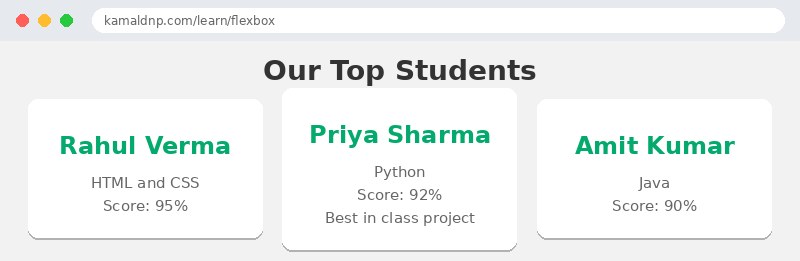
Example explained
.cards { display: flex; }— the container becomes a flex container, so the three student cards line up in a row instead of stacking.justify-content: space-between— the first card touches the left edge, the last card touches the right edge, and the leftover space is shared evenly between them.align-items: center— the cards are lined up in the middle vertically, so they look level even if one card has more text than the others..card { flex: 1; }— each card takes an equal share of the row, so all three end up the same width.gap: 20px— a clean 20px space sits between the cards, with no extra space at the outer edges.flex-wrap: wrap— on a narrow phone screen the cards drop onto the next line instead of squeezing into one row.
Example
<!DOCTYPE html>
<html>
<head>
<title>Student Cards with Flexbox</title>
<style>
* { box-sizing: border-box; }
body { font-family: Arial, sans-serif; margin: 0; padding: 20px; background-color: #f2f2f2; }
h1 { text-align: center; color: #333; }
.cards {
  display: flex;
  justify-content: space-between;
  align-items: center;
  flex-wrap: wrap;
  gap: 20px;
  max-width: 900px;
  margin: auto;
}
.card {
  flex: 1;
  min-width: 200px;
  background-color: white;
  padding: 20px;
  border-radius: 10px;
  text-align: center;
  box-shadow: 0 2px 5px rgba(0,0,0,0.1);
}
.card h2 { color: #04aa6d; margin: 10px 0; }
.card p { color: #666; }
</style>
</head>
<body>

<h1>Our Top Students</h1>

<div class="cards">
<div class="card">
<h2>Rahul Verma</h2>
<p>HTML and CSS</p>
<p>Score: 95%</p>
</div>

<div class="card">
<h2>Priya Sharma</h2>
<p>Python</p>
<p>Score: 92%</p>
<p>Best in class project</p>
</div>

<div class="card">
<h2>Amit Kumar</h2>
<p>Java</p>
<p>Score: 90%</p>
</div>
</div>

</body>
</html>
Output
Try it yourself — live editor
Change the code below and press Run to see the result instantly. No file to save, no login needed.
Why learn this yourself — and not just ask AI?
AI can write code for you, but it cannot think for you. When you learn HTML yourself, your brain builds the real skill: you understand why a page looks the way it does, you can fix it when it breaks, and you can answer it in an exam or an interview without help. That is the skill that gets you a job — not a copied answer.
Get certified — just ₹10
Finish all 30 lessons, pass the test (80%), pay ₹10 and get your certificate.
Take the testPrefer watching? Video courses teach the same topics step by step.
Go further with a full course
Free tutorials teach you the basics. Our paid courses add live projects, mentorship and a certificate.
Browse all courses