CSS Navigation Bar
4 min read · Free · No login needed
Almost every website has a navigation bar — the row of links at the top that takes you to Home, Courses, About, or Contact. Without it, a visitor would be lost on the very first page. A navigation bar is just an HTML list of links, styled with CSS until it looks like a proper menu instead of a bullet list.
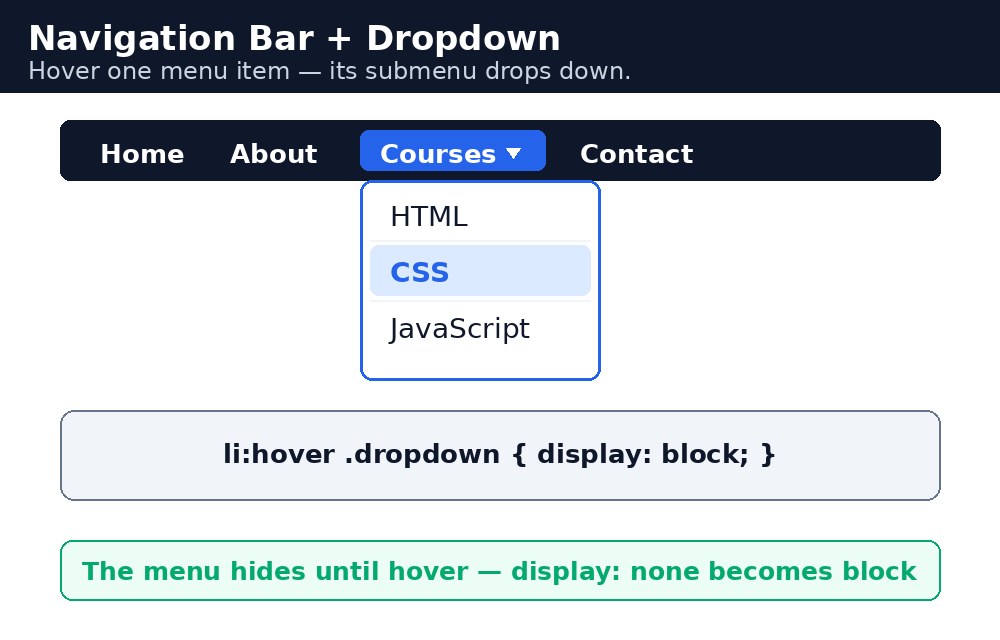
The trick is simple: take a <ul>, remove its bullets and spacing, lay its items out in a row, and style the links inside them as blocks with padding and a background colour. Once that base is in place, you can add hover effects, mark the current page, and even build dropdown menus.
Turning a list into a bar
Start with a <ul> inside a <nav> element. Remove the bullets with list-style-type: none and the default spacing with margin: 0 and padding: 0. Then give the <ul> a dark background colour and make it a flex container with display: flex — the list items line up in a row automatically.
Syntax — a horizontal bar
ul.nav {
  list-style-type: none;
  margin: 0;
  padding: 0;
  background-color: #333;
  display: flex;
}
ul.nav a {
  display: block;
  color: white;
  padding: 14px 20px;
  text-decoration: none;
}
Each link is display: block, so the whole padded area is clickable — not just the letters. That matters on phones, where a finger is much wider than a mouse pointer.
Hover and the active page
A link should react when the mouse passes over it. The :hover pseudo-class changes its background colour, which tells the visitor "you can click here". The page the visitor is currently on gets a special class, usually called active, with a different colour — often green — so they always know where they are.
ul.nav a:hover {
  background-color: #111;
}
ul.nav a.active {
  background-color: #04aa6d;
}
active class is not automatic — you add class="active" to the link of the current page in your HTML. Each page of your site marks its own link as active.Dropdown menus
A dropdown is a small menu that appears when you hover over one link, like "Courses" opening to show HTML, CSS, and Python. It works with two ideas: the parent <li> is position: relative, and the submenu is position: absolute and hidden with display: none. A :hover rule on the parent flips it to display: block, and the submenu drops down underneath.
.dropdown-content {
  display: none;
  position: absolute;
  background-color: white;
  min-width: 160px;
}
.dropdown:hover .dropdown-content {
  display: block;
}
display: flex on the <ul> instead of floating the <li> elements. Floats need a clearfix and are easy to break; flex lines the items up in a row with one line of CSS.Common mistakes
- Forgetting
list-style-type: none— the bullets stay and the bar looks like a plain list. - Forgetting
margin: 0andpadding: 0on the<ul>— the browser's default spacing pushes the bar away from the edges. - Styling the
<li>instead of the<a>— only the letters become clickable, and the padding area does nothing. - Positioning the dropdown without
position: relativeon its parent — the submenu appears in a random place on the page instead of under its link. - Making the hover colour the same as the normal colour — the visitor gets no feedback that the link can be clicked.
Remember
- A nav bar is a
<ul>with bullets and spacing removed, laid out in a row. - Make links
display: blockwith padding, so the whole area is clickable. :hoverchanges the link's background;.activemarks the current page.- A dropdown hides with
display: noneand appears on:hover. - The dropdown's parent needs
position: relativeand the menu needsposition: absolute.
Example explained
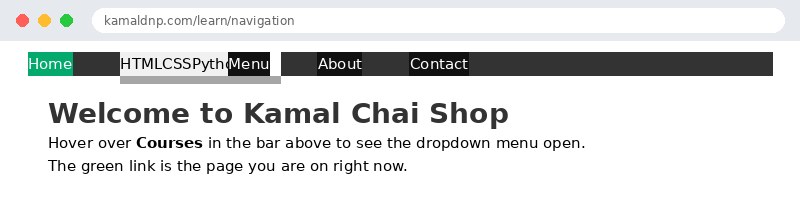
ul.nav— the whole menu: bullets and default spacing removed, a dark background, anddisplay: flexso the items sit in a row.ul.nav a— every link is a block with white text and wide padding, so the full coloured area is clickable.ul.nav a:hover— when the mouse passes over a link, its background turns darker, showing it can be clicked.ul.nav a.active— the Home link carries theactiveclass, so it is green and the visitor knows which page they are on..dropdown-content— the Courses submenu is hidden withdisplay: noneandposition: absolute;.dropdown:hover .dropdown-contentshows it when the mouse hovers over Courses.
Example
<!DOCTYPE html>
<html>
<head>
<title>Chai Shop Navigation</title>
<style>
body { font-family: Arial, sans-serif; margin: 0; }
ul.nav {
  list-style-type: none;
  margin: 0;
  padding: 0;
  background-color: #333;
  display: flex;
}
ul.nav li { position: relative; }
ul.nav a {
  display: block;
  color: white;
  padding: 14px 20px;
  text-decoration: none;
}
ul.nav a:hover { background-color: #111; }
ul.nav a.active { background-color: #04aa6d; }
.dropdown-content {
  display: none;
  position: absolute;
  background-color: white;
  min-width: 160px;
  box-shadow: 0 8px 16px rgba(0,0,0,0.2);
}
.dropdown-content a { color: black; padding: 12px 16px; }
.dropdown-content a:hover { background-color: #f1f1f1; color: black; }
.dropdown:hover .dropdown-content { display: block; }
main { padding: 20px; }
h1 { color: #333; }
</style>
</head>
<body>

<ul class="nav">
<li><a class="active" href="#">Home</a></li>
<li class="dropdown"><a href="#">Courses</a>
  <div class="dropdown-content">
  <a href="#">HTML</a>
  <a href="#">CSS</a>
  <a href="#">Python</a>
  </div>
</li>
<li><a href="#">Menu</a></li>
<li><a href="#">About</a></li>
<li><a href="#">Contact</a></li>
</ul>

<main>
<h1>Welcome to Kamal Chai Shop</h1>
<p>Hover over <strong>Courses</strong> in the bar above to see the dropdown menu open.</p>
<p>The green link is the page you are on right now.</p>
</main>

</body>
</html>
Output
Try it yourself — live editor
Change the code below and press Run to see the result instantly. No file to save, no login needed.
Why learn this yourself — and not just ask AI?
AI can write code for you, but it cannot think for you. When you learn HTML yourself, your brain builds the real skill: you understand why a page looks the way it does, you can fix it when it breaks, and you can answer it in an exam or an interview without help. That is the skill that gets you a job — not a copied answer.
Get certified — just ₹10
Finish all 30 lessons, pass the test (80%), pay ₹10 and get your certificate.
Take the testPrefer watching? Video courses teach the same topics step by step.
Go further with a full course
Free tutorials teach you the basics. Our paid courses add live projects, mentorship and a certificate.
Browse all courses