CSS Overflow
4 min read · Free · No login needed
Sometimes the content is bigger than the box that holds it. A long notice in a small box, a wide table in a narrow column, a chat message that keeps growing. The overflow property decides what the browser does with the extra content: let it spill out, cut it off, or add scrollbars.
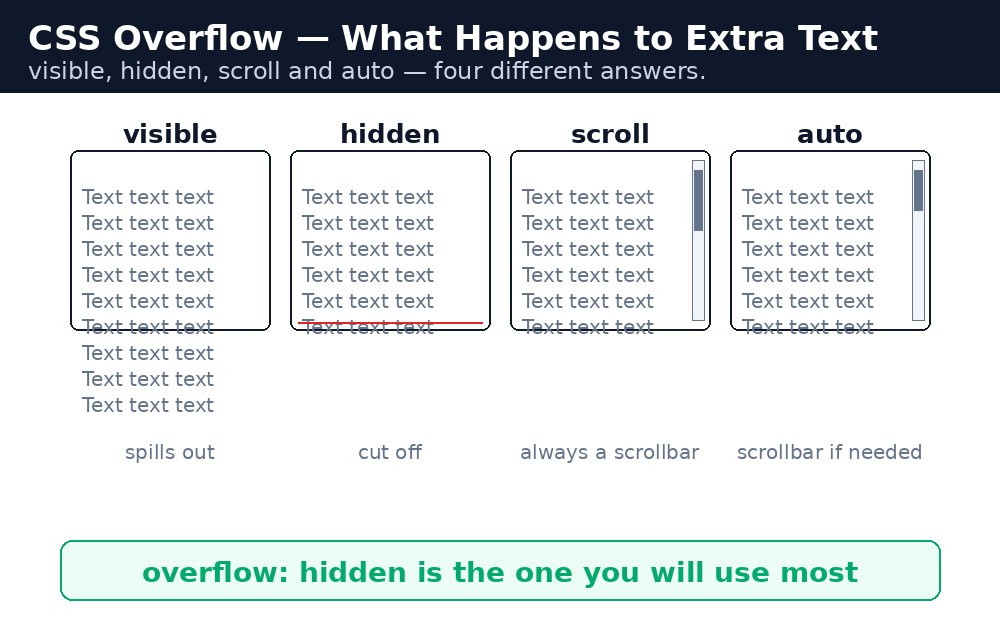
Overflow only matters when the box has a fixed size — a set width and height. If the box is allowed to grow, the content simply makes it taller and there is nothing to overflow. So the first step is always a fixed height.
Visible — the default, content spills out
overflow: visible is the default. The extra content flows out of the box and overlaps whatever is below it. Nothing is hidden, but the page can look messy — text sitting on top of other text. Use it when you want the content to escape the box on purpose, almost never by accident.
Hidden — cut it off
overflow: hidden clips the extra content at the box's edge. Whatever does not fit simply disappears, and there is no way to scroll to it. It is useful for image cards and banners, where you want a clean edge and you do not care about the cut-off part.
Scroll — always show scrollbars
overflow: scroll adds scrollbars to the box, always — even when the content fits and there is nothing to scroll. The box stays the same size and the visitor can scroll inside it. It looks heavy, so it is rarely the best choice.
Auto — scrollbars only when needed
overflow: auto is the smart one. Scrollbars appear only when the content is actually too big for the box. If everything fits, the box looks plain. This is the value you will use most — for notice boards, chat windows, and long code blocks.
Overflow-x and overflow-y — one direction at a time
Sometimes you want to control the two directions separately. overflow-x handles the sideways direction, overflow-y handles up and down. A notice board usually needs overflow-y: auto — scroll down through the notices, but never sideways.
Syntax — the overflow values
.notice-board {
  width: 300px;
  height: 120px;
  overflow-y: auto;
}
.image-card {
  width: 200px;
  height: 150px;
  overflow: hidden;
}
overflow: hidden has a useful side effect: it makes a parent box wrap around its floated children instead of collapsing. You will see why in the float lesson — but remember that the clipped content is gone for good, with no way to reach it.overflow: auto instead of overflow: scroll. Scrollbars that appear only when needed look cleaner, and on a phone they take up no space at all until the visitor actually scrolls.Common mistakes
- Setting
overflowon a box with no fixed height — the box just grows taller and nothing overflows. - Using
overflow: hiddenon text the visitor still needs, with no way to scroll to it. - Using
overflow: scrolleverywhere, so every box shows grey scrollbars even when empty. - Forgetting that
overflow-x: hiddenon the body can breakposition: stickyfurther down the page. - Expecting a horizontal scrollbar from
overflow: autowhen the real problem is a fixed-width table that needs a wrapper div.
Remember
- Visible lets content spill out; hidden cuts it off; scroll always shows scrollbars; auto shows them only when needed.
- Overflow needs a fixed height — without one, the box just grows.
overflow-xcontrols sideways,overflow-ycontrols up and down.overflow: autois the value you will use most, for notice boards and chat boxes.- Never hide content with
overflow: hiddenunless you are sure nobody needs it.
Example explained
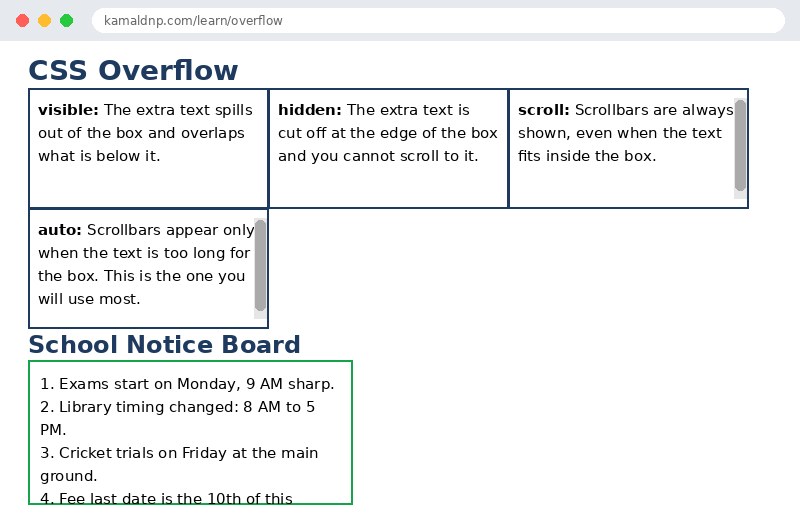
.box { width: 220px; height: 100px; display: inline-block; }— each demo box has a fixed size so the content can overflow, and the four boxes sit side by side..visible { overflow: visible; }— the extra text spills out of the first box and overlaps the text below it..hidden { overflow: hidden; }— the extra text in the second box is cut off at the edge, with no way to scroll to it..scroll { overflow: scroll; }— the third box always shows scrollbars, even though its text is short..auto { overflow: auto; }— the fourth box shows scrollbars only because its text is too long — this is the one to use in real pages..notice { width: 300px; height: 120px; overflow-y: auto; }— the notice board scrolls up and down through the notices, but never sideways.
Example
<!DOCTYPE html>
<html>
<head>
<title>Overflow Examples</title>
<style>
body {
  font-family: Arial, sans-serif;
}
h1, h2 {
  color: #1e3a5f;
}
.box {
  width: 220px;
  height: 100px;
  border: 2px solid #1e3a5f;
  margin: 16px;
  padding: 8px;
  display: inline-block;
  vertical-align: top;
}
.visible {
  overflow: visible;
}
.hidden {
  overflow: hidden;
}
.scroll {
  overflow: scroll;
}
.auto {
  overflow: auto;
}
.notice {
  width: 300px;
  height: 120px;
  overflow-y: auto;
  border: 2px solid #16a34a;
  padding: 10px;
}
</style>
</head>
<body>

<h1>CSS Overflow</h1>

<div class="box visible"><strong>visible:</strong> The extra text spills out of the box and overlaps what is below it.</div>
<div class="box hidden"><strong>hidden:</strong> The extra text is cut off at the edge of the box and you cannot scroll to it.</div>
<div class="box scroll"><strong>scroll:</strong> Scrollbars are always shown, even when the text fits inside the box.</div>
<div class="box auto"><strong>auto:</strong> Scrollbars appear only when the text is too long for the box. This is the one you will use most.</div>

<h2>School Notice Board</h2>
<div class="notice">
<p>1. Exams start on Monday, 9 AM sharp.</p>
<p>2. Library timing changed: 8 AM to 5 PM.</p>
<p>3. Cricket trials on Friday at the main ground.</p>
<p>4. Fee last date is the 10th of this month.</p>
<p>5. Science exhibition entries close next week.</p>
</div>

</body>
</html>
Output
Try it yourself — live editor
Change the code below and press Run to see the result instantly. No file to save, no login needed.
Why learn this yourself — and not just ask AI?
AI can write code for you, but it cannot think for you. When you learn HTML yourself, your brain builds the real skill: you understand why a page looks the way it does, you can fix it when it breaks, and you can answer it in an exam or an interview without help. That is the skill that gets you a job — not a copied answer.
Get certified — just ₹10
Finish all 30 lessons, pass the test (80%), pay ₹10 and get your certificate.
Take the testPrefer watching? Video courses teach the same topics step by step.
Go further with a full course
Free tutorials teach you the basics. Our paid courses add live projects, mentorship and a certificate.
Browse all courses