CSS Padding
4 min read · Free · No login needed
Padding is the space inside an element — between its content and its border. Think of a photo frame: the picture is the content, the frame is the border, and the white mount board between them is the padding. Padding makes content breathe; without it, text touches the border and looks cramped.
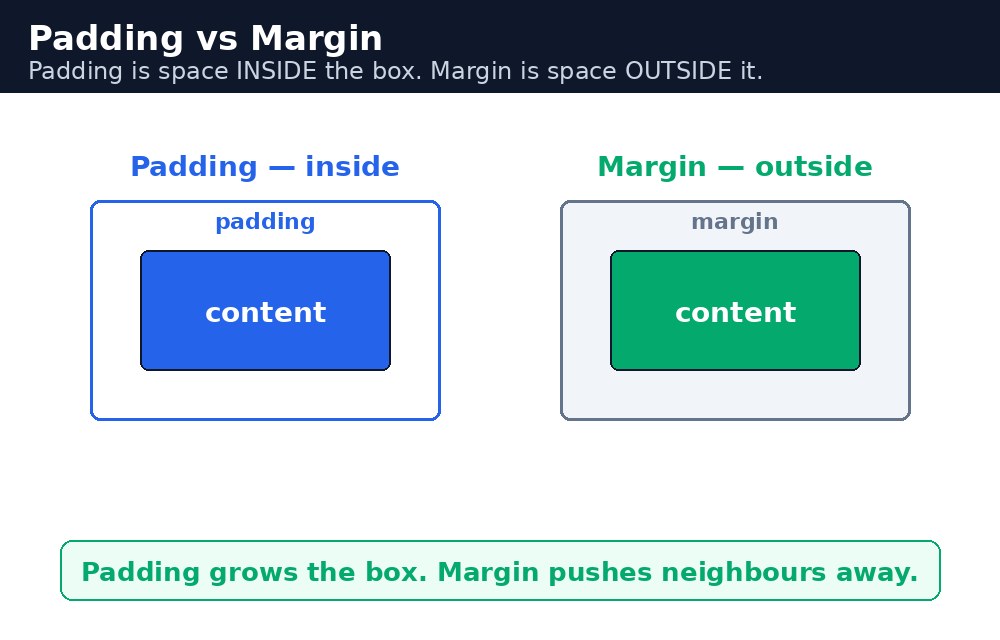
Padding is part of the element itself, so the element's background colour fills the padding area too. That is the easiest way to tell padding apart from margin: margin is outside the border and stays transparent, padding is inside the border and shows the background.
The four sides
Each side has its own property: padding-top, padding-right, padding-bottom and padding-left. Use them when only one side needs space.
h1 {
  padding-top: 20px;
  padding-bottom: 10px;
}
The padding shorthand
One property, padding, can set all four sides at once. The number of values changes the meaning:
padding: 20px;— all four sides get 20px.padding: 10px 20px;— top and bottom 10px, left and right 20px.padding: 10px 20px 30px;— top 10px, left and right 20px, bottom 30px.padding: 10px 20px 30px 40px;— top, right, bottom, left — clockwise from the top.
The four-value order is easy to remember: it goes clockwise, starting at the top — like the hands of a clock.
Syntax — padding in action
.card {
  border: 2px solid orange;
  background: lightyellow;
  padding: 20px 30px;
}
button {
  padding: 10px 24px;
}
padding: 10px 24px;. The button looks wide and easy to tap, not tall and cramped.Padding vs margin
Use padding when the space should carry the element's background — a card, a button, a coloured banner. Use margin when you want empty space between two elements, like the gap between two cards. If you are not sure, ask: "Should this space be coloured?" If yes, padding. If no, margin.
Common mistakes
- Using padding to push two elements apart — that is margin's job. Padding pushes the content away from its own border.
- Forgetting that padding adds to the width. A box of
width: 200pxwithpadding: 20pxis 240px wide on the page (with the defaultbox-sizing: content-box). - Putting top and bottom padding on an inline element like
<span>— it paints, but it does not push the lines above and below apart. - Writing the four-value shorthand in the wrong order — it is top, right, bottom, left, clockwise from the top.
Remember
- Padding is the space inside the border; the background colour fills it.
- Shorthand values go clockwise from the top: top, right, bottom, left.
- Two values mean vertical first, then horizontal:
padding: 10px 20px;. - Padding adds to the element's total size unless
box-sizing: border-boxis set.
Example explained
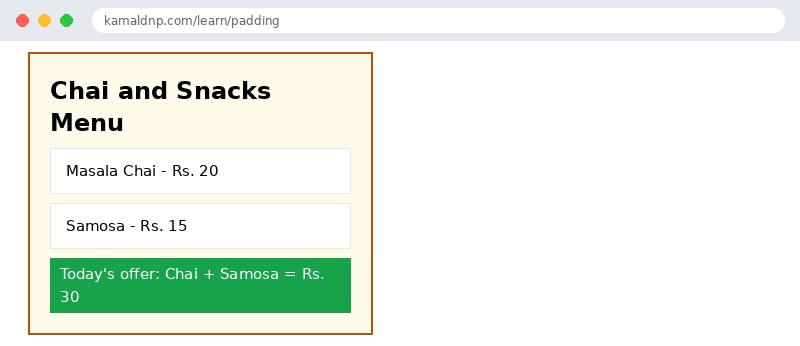
.menu { ... padding: 20px; }— the whole menu card gets 20px of space inside its border on all four sides, so the heading and the items never touch the orange border..item { ... padding: 10px 15px; }— each menu item gets 10px of space top and bottom and 15px left and right, so the text sits comfortably inside its white box.margin-bottom: 10px;on.item— this is margin, not padding: it is the empty gap between two menu items, outside their borders..price { ... padding: 4px 10px; }— the offer line is a small strip, so it needs only a little padding: 4px top and bottom, 10px left and right.background: #fffbeb;on.menu— the pale yellow fills the padding too, which is how you can see that padding is inside the element.
Example
<!DOCTYPE html>
<html>
<head>
<title>Padding - Chai Shop Menu</title>
<style>
.menu { width: 300px; border: 2px solid #b45309; background: #fffbeb; padding: 20px; }
.menu h2 { margin: 0 0 10px; }
.item { background: #fff; border: 1px solid #e5e7eb; padding: 10px 15px; margin-bottom: 10px; }
.item p { margin: 0; }
.price { padding: 4px 10px; background: #16a34a; color: #fff; }
</style>
</head>
<body>

<div class="menu">
<h2>Chai and Snacks Menu</h2>
<div class="item"><p>Masala Chai - Rs. 20</p></div>
<div class="item"><p>Samosa - Rs. 15</p></div>
<p class="price">Today's offer: Chai + Samosa = Rs. 30</p>
</div>

</body>
</html>
Output
Try it yourself — live editor
Change the code below and press Run to see the result instantly. No file to save, no login needed.
Why learn this yourself — and not just ask AI?
AI can write code for you, but it cannot think for you. When you learn HTML yourself, your brain builds the real skill: you understand why a page looks the way it does, you can fix it when it breaks, and you can answer it in an exam or an interview without help. That is the skill that gets you a job — not a copied answer.
Get certified — just ₹10
Finish all 30 lessons, pass the test (80%), pay ₹10 and get your certificate.
Take the testPrefer watching? Video courses teach the same topics step by step.
Go further with a full course
Free tutorials teach you the basics. Our paid courses add live projects, mentorship and a certificate.
Browse all courses