CSS Position
5 min read · Free · No login needed
Most elements sit where the browser puts them, one after another, top to bottom. The position property lets you break out of that flow and place an element exactly where you want it — a badge on the corner of a card, a menu that stays at the top while you scroll, a button fixed to the corner of the screen.
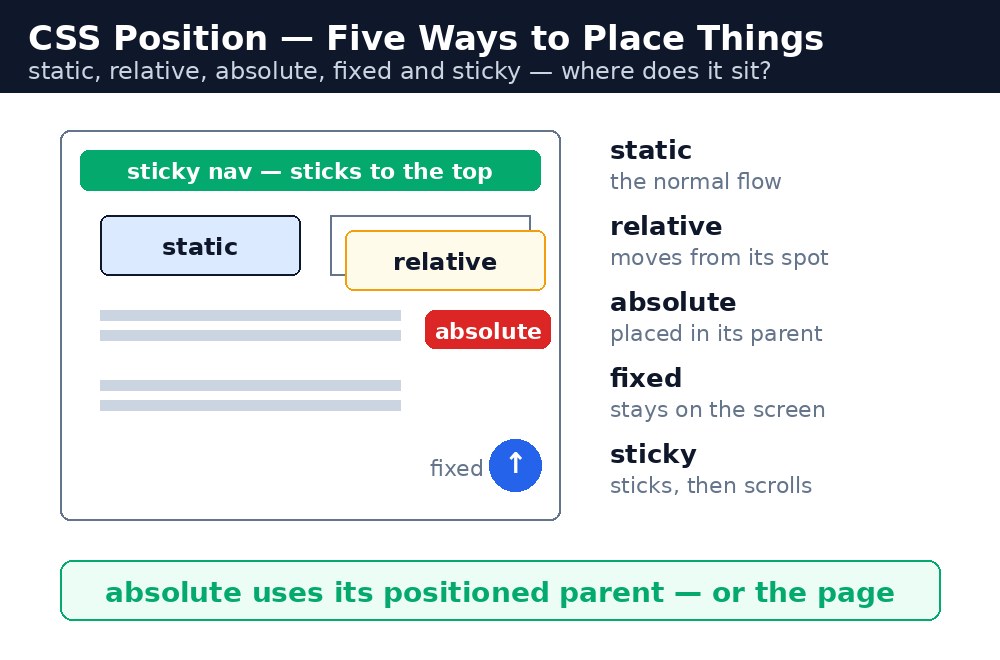
There are five position values. The default is static. The other four — relative, absolute, fixed and sticky — each move an element in a different way. Learn them one at a time, and the whole layout system starts to make sense.
Static — the default, no moving
position: static is what every element has unless you change it. The element sits in the normal flow of the page, exactly where the HTML puts it. The top, right, bottom and left properties do nothing on a static element — the browser simply ignores them.
Relative — move it, but keep its space
position: relative lets you nudge an element away from its normal spot with top, right, bottom or left. The important part: the space it came from stays reserved. The other elements do not move up to fill the gap — the page keeps the hole where the element used to be.
.badge {
  position: relative;
  top: -10px;
  left: 20px;
}
Absolute — placed against its parent
position: absolute takes the element out of the normal flow completely. Other elements behave as if it is not there at all. It is then placed against its nearest positioned ancestor — the nearest parent that has a position other than static. If no parent is positioned, it is placed against the page itself. This is how badges, labels and close buttons sit neatly in the corner of a card.
.card {
  position: relative;
}
.card .badge {
  position: absolute;
  top: 10px;
  right: 10px;
}
Fixed — stays put while you scroll
position: fixed also takes the element out of the flow, but it is placed against the browser window, not against any parent. Scroll the page up and down and the element stays in exactly the same spot on the screen. This is how "back to top" buttons and chat buttons work.
Sticky — scrolls, then sticks
position: sticky is a mix of relative and fixed. The element scrolls normally with the page — until it reaches the position you set with top. Then it sticks there and stays visible while the rest of the page scrolls past. Section headings and navigation bars use this all the time.
Z-index — which element is on top
When positioned elements overlap, z-index decides which one is on top. A higher number wins. But there is a rule beginners miss: z-index only works on elements that have a position other than static. Set z-index: 10 on a static element and nothing happens.
.popup {
  position: absolute;
  z-index: 10;
}
.card {
  position: relative;
  z-index: 1;
}
static. If you forget to give the parent position: relative, the element flies to the corner of the whole page instead of the corner of the card. This is the single most common position bug.position: relative and the badge position: absolute with top and right. The badge then sits exactly in the card's corner, whatever the card's size.Common mistakes
- Using
position: absolutewithout giving the parentposition: relative, so the element lands in the wrong corner. - Setting
z-indexon a static element and wondering why the stacking does not change. - Using
position: fixedfor a button and letting it cover the page content on a small screen. - Using
position: stickyinside a parent that hasoverflow: hidden— the sticky element then never sticks. - Moving a relative element with
topand forgetting its original space stays reserved, leaving a gap.
Remember
- Static is the default — the element sits in the normal flow and cannot be moved.
- Relative moves the element but keeps its original space reserved.
- Absolute leaves the flow and positions itself against the nearest positioned parent.
- Fixed stays in the same spot on the screen while the page scrolls.
- Sticky scrolls normally, then sticks when it reaches your
topvalue. z-indexonly works on positioned elements — higher numbers sit on top.
Example explained
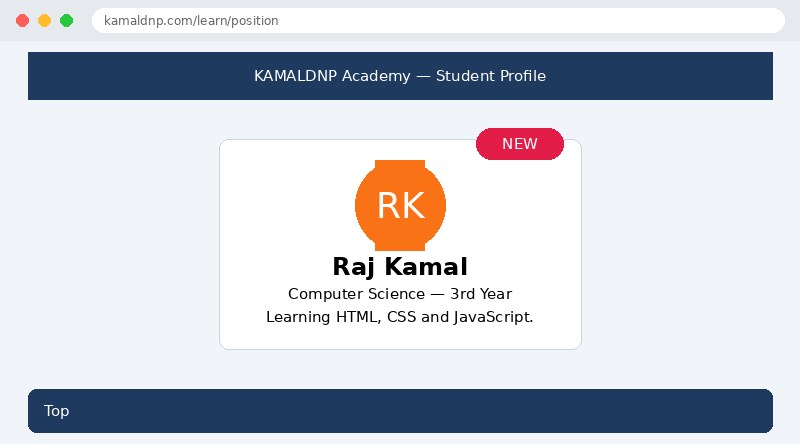
.sticky-bar { position: sticky; top: 0; }— the blue bar scrolls with the page, then sticks to the top of the screen once it reaches the top edge..card { position: relative; }— the card stays in the normal flow, but because it is positioned, the badge inside it can use it as an anchor..badge { position: absolute; top: -12px; right: 16px; }— the NEW badge is placed against the card, half hanging out of the top edge, 16px from the right..avatar { width: 90px; height: 90px; border-radius: 50%; }— a square box with fully rounded corners becomes a circle, used here for the student's initials..top-btn { position: fixed; right: 20px; bottom: 20px; }— the Top button is fixed to the browser window, so it stays in the bottom-right corner even when the page scrolls.
Example
<!DOCTYPE html>
<html>
<head>
<title>Student Profile Card</title>
<style>
body {
  font-family: Arial, sans-serif;
  background-color: #f1f5f9;
  margin: 0;
}
.sticky-bar {
  position: sticky;
  top: 0;
  background-color: #1e3a5f;
  color: white;
  padding: 12px;
  text-align: center;
  z-index: 5;
}
.card {
  position: relative;
  width: 320px;
  margin: 40px auto;
  background-color: white;
  border: 1px solid #cbd5e1;
  border-radius: 10px;
  padding: 20px;
  text-align: center;
}
.badge {
  position: absolute;
  top: -12px;
  right: 16px;
  background-color: #e11d48;
  color: white;
  padding: 4px 12px;
  border-radius: 20px;
}
.avatar {
  width: 90px;
  height: 90px;
  background-color: #f97316;
  color: white;
  border-radius: 50%;
  font-size: 36px;
  line-height: 90px;
  margin: 0 auto;
}
.top-btn {
  position: fixed;
  right: 20px;
  bottom: 20px;
  background-color: #1e3a5f;
  color: white;
  padding: 10px 16px;
  border-radius: 8px;
}
</style>
</head>
<body>

<div class="sticky-bar">KAMALDNP Academy — Student Profile</div>

<div class="card">
<div class="badge">NEW</div>
<div class="avatar">RK</div>
<h2>Raj Kamal</h2>
<p>Computer Science — 3rd Year</p>
<p>Learning HTML, CSS and JavaScript.</p>
</div>

<div class="top-btn">Top</div>

</body>
</html>
Output
Try it yourself — live editor
Change the code below and press Run to see the result instantly. No file to save, no login needed.
Why learn this yourself — and not just ask AI?
AI can write code for you, but it cannot think for you. When you learn HTML yourself, your brain builds the real skill: you understand why a page looks the way it does, you can fix it when it breaks, and you can answer it in an exam or an interview without help. That is the skill that gets you a job — not a copied answer.
Get certified — just ₹10
Finish all 30 lessons, pass the test (80%), pay ₹10 and get your certificate.
Take the testPrefer watching? Video courses teach the same topics step by step.
Go further with a full course
Free tutorials teach you the basics. Our paid courses add live projects, mentorship and a certificate.
Browse all courses