CSS Transitions and Animations
4 min read · Free · No login needed
A button that instantly snaps from grey to green feels dead. A button that smoothly fades to green over a quarter of a second feels alive. That smoothness is a transition. And a ball that bounces on its own, or a card that slides into view when the page loads, is an animation. Both are pure CSS — no JavaScript needed at all.
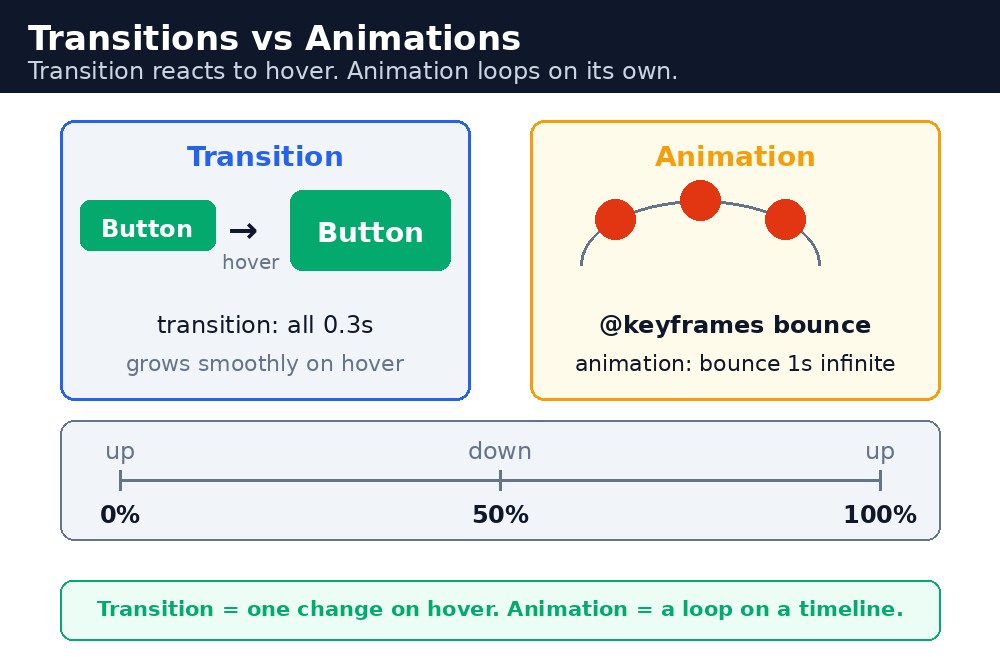
The difference is simple: a transition is a smooth change between two states, like normal and hover. An animation is a set of steps that plays on its own, like a bounce or a spin, and it can repeat forever.
Transitions — smooth changes on hover
A transition needs two things: a starting style, a different style on :hover, and the transition property telling the browser to glide between them instead of jumping. You say which property changes and how long the glide takes — transition: background-color 0.3s means "when the background colour changes, take 0.3 seconds to get there".
Syntax — a button that grows on hover
.btn {
  background-color: #04aa6d;
  color: white;
  padding: 12px 24px;
  transition: background-color 0.3s, transform 0.3s;
}
.btn:hover {
  background-color: #038857;
  transform: scale(1.1);
}
When the mouse hovers over the button, its colour darkens and it grows by 10% — both changes glide smoothly over 0.3 seconds. When the mouse leaves, the button glides back. You can list several properties in one transition, separated by commas.
Animations — @keyframes
An animation is a small movie written in CSS. The @keyframes rule describes the steps: what the element looks like at the start (from or 0%), in the middle, and at the end (to or 100%). Then the element is told which animation to play, how long it takes, and how many times to repeat it.
@keyframes bounce {
  0% { transform: translateY(0); }
  50% { transform: translateY(-40px); }
  100% { transform: translateY(0); }
}
.ball {
  animation: bounce 1s infinite;
}
The ball rises 40 pixels at the halfway point and lands again at the end, and infinite makes it bounce forever. Change infinite to a number like 3 and it bounces exactly three times.
transform (scale, translate, rotate) and opacity are the smoothest properties to animate, because the browser can move them without recalculating the whole page layout. Animating width, height, or margin works too, but it can feel jerky on slower phones.@media (prefers-reduced-motion: reduce) rule can turn your animations off for them.Common mistakes
- Writing the
:hoverstyle but forgetting thetransitionproperty — the change happens instantly instead of gliding. - Putting
transitiononly on the:hoverrule — it must be on the normal rule, so the glide works both when the mouse arrives and when it leaves. - Forgetting the
@keyframesname must match theanimationname — a spelling difference means nothing moves. - Animating
widthormarginfor a simple hover effect —transform: scale()does the same job far more smoothly. - Making animations too long or repeating everything forever — movement should guide the eye, not distract from the content.
Remember
- A transition glides between two states, like normal and
:hover. transition: background-color 0.3ssays which property changes and how long it takes.- Put
transitionon the normal rule, not on:hover. @keyframesdescribes the steps;animationplays them, for a time and a number of repeats.- Animate
transformandopacityfor the smoothest movement.
Example explained
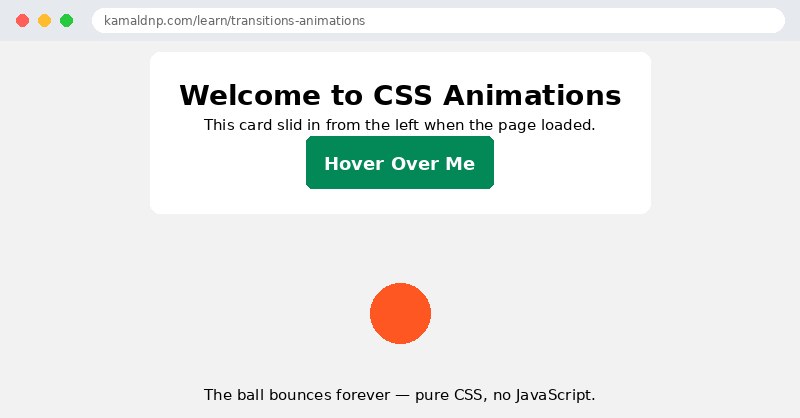
.btn { transition: background-color 0.3s, transform 0.3s; }— the button is told to glide for 0.3 seconds whenever its colour or size changes..btn:hover { transform: scale(1.1); }— on hover the button grows 10% bigger and turns a darker green, smoothly instead of snapping.@keyframes bounce— the three steps of the ball's jump: on the ground at 0%, 40 pixels up at 50%, and back on the ground at 100%..ball { animation: bounce 1s infinite; }— the ball plays the bounce animation, one second per bounce, forever..card { animation: slide-in 0.8s; }— the welcome card slides in from the left once when the page loads, usingtranslateXfrom -100px to 0.
Example
<!DOCTYPE html>
<html>
<head>
<title>Transitions and Animations</title>
<style>
body { font-family: Arial, sans-serif; margin: 0; padding: 20px; text-align: center; background-color: #f2f2f2; }
.card {
  background-color: white;
  max-width: 500px;
  margin: 0 auto 30px auto;
  padding: 25px;
  border-radius: 10px;
  animation: slide-in 0.8s;
}
@keyframes slide-in {
  from { transform: translateX(-100px); opacity: 0; }
  to { transform: translateX(0); opacity: 1; }
}
.btn {
  background-color: #04aa6d;
  color: white;
  padding: 12px 24px;
  border: none;
  border-radius: 6px;
  font-size: 18px;
  cursor: pointer;
  transition: background-color 0.3s, transform 0.3s;
}
.btn:hover { background-color: #038857; transform: scale(1.1); }
.ball {
  width: 60px;
  height: 60px;
  background-color: #ff5722;
  border-radius: 50%;
  margin: 40px auto;
  animation: bounce 1s infinite;
}
@keyframes bounce {
  0% { transform: translateY(0); }
  50% { transform: translateY(-40px); }
  100% { transform: translateY(0); }
}
</style>
</head>
<body>

<div class="card">
<h1>Welcome to CSS Animations</h1>
<p>This card slid in from the left when the page loaded.</p>
<button class="btn">Hover Over Me</button>
</div>

<div class="ball"></div>
<p>The ball bounces forever — pure CSS, no JavaScript.</p>

</body>
</html>
Output
Try it yourself — live editor
Change the code below and press Run to see the result instantly. No file to save, no login needed.
Why learn this yourself — and not just ask AI?
AI can write code for you, but it cannot think for you. When you learn HTML yourself, your brain builds the real skill: you understand why a page looks the way it does, you can fix it when it breaks, and you can answer it in an exam or an interview without help. That is the skill that gets you a job — not a copied answer.
Get certified — just ₹10
Finish all 30 lessons, pass the test (80%), pay ₹10 and get your certificate.
Take the testPrefer watching? Video courses teach the same topics step by step.
Go further with a full course
Free tutorials teach you the basics. Our paid courses add live projects, mentorship and a certificate.
Browse all courses