HTML Accessibility: alt Text, Labels, Landmarks & ARIA
4 min read · Free · No login needed
Accessibility means your page works for everyone — including a blind visitor who listens to the page through a screen reader, and a visitor who cannot use a mouse and navigates only with the keyboard. The good news: most of accessibility is just good HTML. If you use the right tags for the right jobs, you get most of it for free.
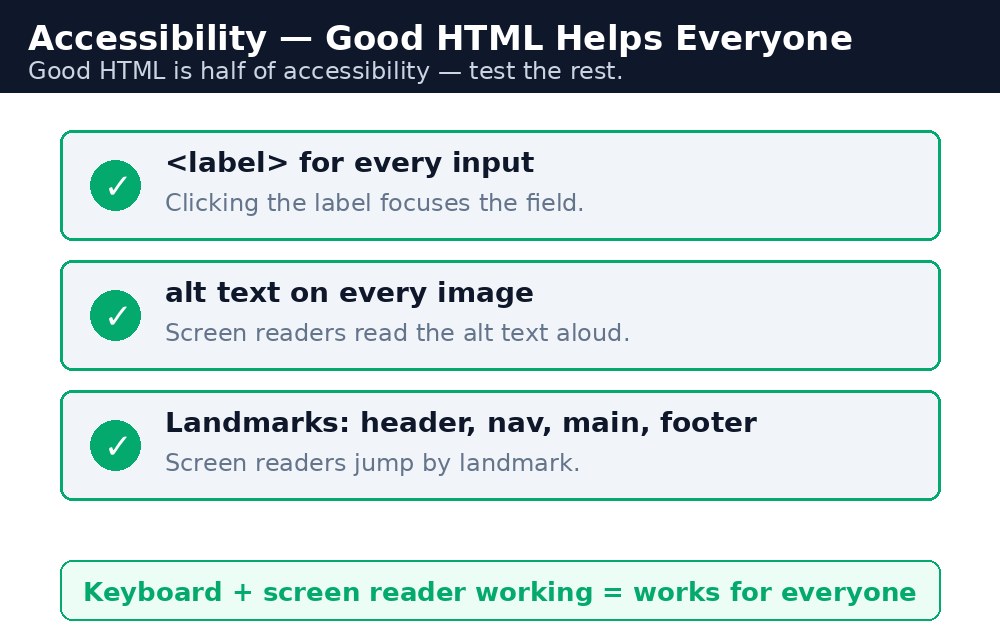
Alt text that actually describes
Every meaningful image needs an alt attribute that says what the image shows — because that text is what a screen reader reads aloud. "Students in the KAMALDNP computer lab" is good alt text. "image", "photo", or the file name "IMG_2041.jpg" are not — they tell the visitor nothing. If an image is purely decorative (a border, a background pattern), give it an empty alt="" so the screen reader skips it instead of announcing a useless file name.
Labels, landmarks, and keyboard focus
Every form control needs a <label> connected with for and id — without it, a screen reader cannot tell the visitor what to type. Semantic landmarks (<header>, <nav>, <main>, <footer>) let a screen reader user jump straight to the content instead of listening to the whole page. And keyboard users move with Tab and Enter — so use real <button> elements for things you click, never a <div> dressed up as a button, because a div cannot be focused or activated from the keyboard. Never remove the focus outline with CSS unless you replace it with a visible one — the outline is how keyboard users see where they are.
aria-label — only where native HTML falls short
ARIA attributes (like aria-label) add information for screen readers. But the first rule of ARIA is: do not use ARIA if plain HTML already does the job. A <button> already announces itself as a button; adding role="button" to it is redundant. Use aria-label only where HTML has no native answer — for example, an icon-only button (a magnifying-glass search button with no visible text) where aria-label="Search" tells the screen reader what the button does.
| Practice | Do this | Not this |
|---|---|---|
| Images | alt="Students in the computer lab" | alt="image" or no alt at all |
| Form fields | <label for="email"> on every input | Placeholder text as the only label |
| Clickable things | Real <button> and <a> tags | <div> with a click handler |
| Page structure | <header>, <nav>, <main>, <footer> | <div> for everything |
| ARIA | aria-label on an icon-only button | ARIA on elements HTML already describes |
<label> stays on screen and works for everyone — use both if you like, but never placeholder alone.Common mistakes
- Writing
alt="image"— it adds noise and no information. - Using placeholder text as the only label on a form field.
- Building buttons out of
<div>elements that keyboard users cannot reach. - Removing the focus outline with CSS and giving keyboard users nothing in return.
- Sprinkling ARIA everywhere — redundant ARIA can confuse screen readers more than no ARIA.
Example explained
<img src="lab.jpg" alt="Students in the KAMALDNP computer lab">— alt text that describes the picture, so a screen reader user knows what it shows.<label for="name">Your Name:</label>— a real label, so the field is announced and clickable by its text.<button type="submit">Send</button>— a real button, focusable and activatable from the keyboard.<button aria-label="Search">🔍</button>— an icon-only button, wherearia-labelis genuinely needed because there is no visible text.<main>— the landmark that lets screen reader users jump straight to the content.
Example
<!DOCTYPE html>
<html>
<head>
<title>Accessibility</title>
</head>
<body>

<header><h1>KAMALDNP Academy</h1></header>
<nav><a href="#">Home</a> | <a href="#">Courses</a></nav>
<main>
<img src="lab.jpg" alt="Students in the KAMALDNP computer lab">
<form action="/submit.php" method="post">
<label for="name">Your Name:</label>
<input type="text" id="name" name="name">
<button type="submit">Send</button>
<button aria-label="Search">🔍</button>
</form>
</main>
<footer><p>© 2026 KAMALDNP Academy</p></footer>

</body>
</html>
Output
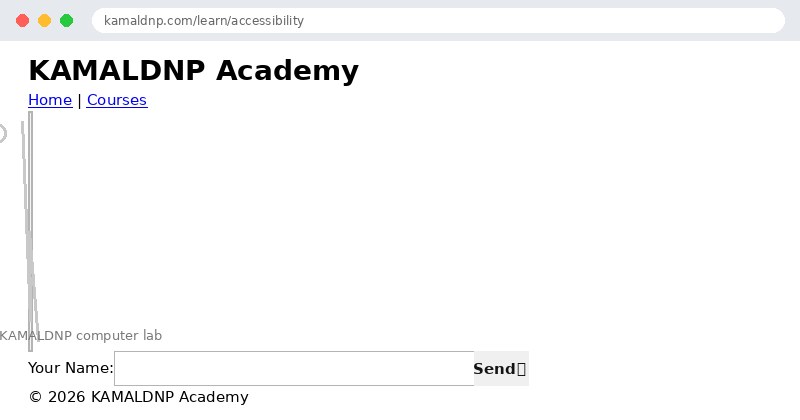
Try it yourself — live editor
Change the code below and press Run to see the result instantly. No file to save, no login needed.
Related lessons
Frequently asked questions
The questions learners ask most about this lesson — read the question, then open it to see the answer.
1. What does accessibility mean for a web page?
The page works for everyone, including a blind visitor using a screen reader and a visitor who navigates only with the keyboard.
2. What makes good alt text?
Text that says what the image shows, such as students in the computer lab, not just image, photo or a file name.
3. When should you use aria-label?
Only where HTML has no native answer, such as an icon-only button with no visible text, not on elements HTML already describes.
Why learn this yourself — and not just ask AI?
AI can write code for you, but it cannot think for you. When you learn HTML yourself, your brain builds the real skill: you understand why a page looks the way it does, you can fix it when it breaks, and you can answer it in an exam or an interview without help. That is the skill that gets you a job — not a copied answer.
Get certified — just ₹10
Finish all 35 lessons, pass the test (80%), pay ₹10 and get your certificate.
Take the testPrefer watching? Video courses teach the same topics step by step.
Go further with a full course
Free tutorials teach you the basics. Our paid courses add live projects, mentorship and a certificate.
Browse all courses

