HTML Audio & Video Tags: controls, source & Fallback
3 min read · Free · No login needed
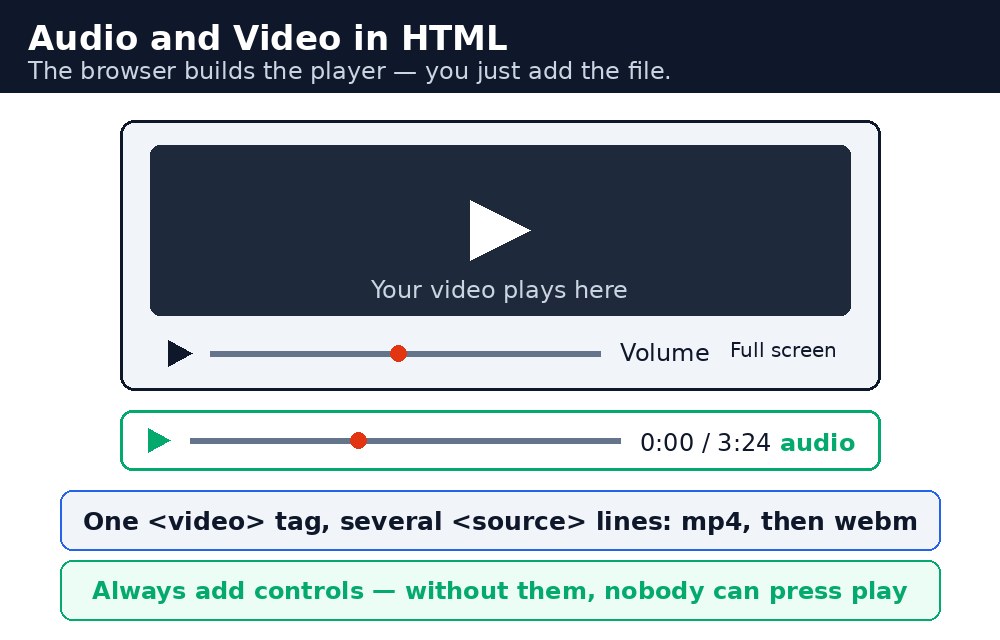
Before HTML5, playing a song or a video on a web page needed a plugin like Flash. Today it needs two tags: <audio> for sound and <video> for moving pictures. Both work the same way — you point them at a media file, add the controls attribute, and the browser draws its own player with play, pause, volume, and a seek bar. No plugin, no JavaScript, no extra work.
The controls attribute does the heavy lifting
Without controls, an audio or video element is invisible and silent — it loads but shows nothing to click. With controls, the browser draws the full player for you. Other useful attributes: loop plays the media again when it ends, muted starts it silent, and preload tells the browser whether to download the file early or wait. Note that most browsers block autoplay with sound — a page that starts blaring music on its own is something browsers deliberately prevent.
Source fallbacks — one file is rarely enough
Not every browser plays every format. MP3 works almost everywhere for audio, but some browsers prefer OGG; MP4 works almost everywhere for video, but some prefer WebM. The fix is the <source> tag: list two or three files, and the browser plays the first one it understands. The text between the tags is the fallback — it shows only if the browser supports none of the formats, so write something helpful there, like "Your browser does not support this audio."
| Tag / attribute | What it does |
|---|---|
<audio> | Plays sound — music, a podcast, a voice note. |
<video> | Plays video — a lesson, a demo, a recording. |
controls | Shows the browser's own player (play, pause, volume, seek). |
<source src="..." type="..."> | One format option. The browser picks the first it can play. |
loop | Repeats the media when it ends. |
muted | Starts silent — required by most browsers for autoplay. |
width / height (video only) | The size of the video box on the page. |
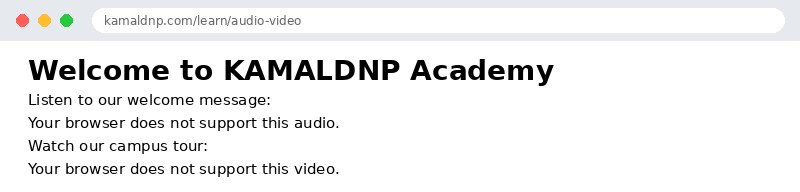
welcome.mp3, welcome.mp4) — there is no real media file behind them. On a real page you would upload your own audio or video file and point the src at it. Until then, the browser still draws its player; it just has nothing to play, which is exactly what the output screenshot shows.type attribute on each <source> (for example type="audio/mpeg"). It lets the browser skip formats it cannot play without downloading them first — faster for your visitors, cheaper for your server.Common mistakes
- Forgetting
controls— the media loads but the visitor sees nothing to click. - Offering only one format — a visitor on a browser that cannot play it gets silence.
- Using
autoplaywith sound — browsers will block it, and visitors will hate it anyway. - Leaving out the fallback text — if nothing plays, the visitor deserves to know why.
Example explained
<audio controls>— the sound player.controlsmakes the browser draw its play and volume buttons.<source src="welcome.mp3" type="audio/mpeg">— the first format option. MP3 plays in almost every browser.<source src="welcome.ogg" type="audio/ogg">— the backup format, for browsers that prefer OGG.Your browser does not support this audio.— fallback text, shown only if neither format plays.<video controls width="320">— the video player, 320 pixels wide, with the browser's own controls.<source src="welcome.mp4" type="video/mp4">— the video file. MP4 is the safest first choice for video.
Example
<!DOCTYPE html>
<html>
<head>
<title>Audio and Video</title>
</head>
<body>

<h1>Welcome to KAMALDNP Academy</h1>
<p>Listen to our welcome message:</p>
<audio controls>
<source src="welcome.mp3" type="audio/mpeg">
<source src="welcome.ogg" type="audio/ogg">
Your browser does not support this audio.
</audio>
<p>Watch our campus tour:</p>
<video controls width="320">
<source src="welcome.mp4" type="video/mp4">
<source src="welcome.webm" type="video/webm">
Your browser does not support this video.
</video>

</body>
</html>
Output
Try it yourself — live editor
Change the code below and press Run to see the result instantly. No file to save, no login needed.
Related lessons
Frequently asked questions
The questions learners ask most about this lesson — read the question, then open it to see the answer.
1. What tags play sound and video in HTML?
Audio plays sound and video plays moving pictures, and both need no plugin or JavaScript.
2. Why is the controls attribute important?
Without controls the media is invisible and silent, while with controls the browser draws its own player with play, pause, volume and seek.
3. Why list more than one source file?
Not every browser plays every format, so the browser plays the first source it understands, such as MP3 for audio or MP4 for video.
Why learn this yourself — and not just ask AI?
AI can write code for you, but it cannot think for you. When you learn HTML yourself, your brain builds the real skill: you understand why a page looks the way it does, you can fix it when it breaks, and you can answer it in an exam or an interview without help. That is the skill that gets you a job — not a copied answer.
Get certified — just ₹10
Finish all 35 lessons, pass the test (80%), pay ₹10 and get your certificate.
Take the testPrefer watching? Video courses teach the same topics step by step.
Go further with a full course
Free tutorials teach you the basics. Our paid courses add live projects, mentorship and a certificate.
Browse all courses