JavaScript Events
4 min read · Free · No login needed
An event is something that happens on a page: a click, a mouse moving over a button, a key pressed, a form submitted, a page finishing loading. JavaScript's whole job is to listen for events and answer them. Without events, a page is a poster — you can only look at it. With events, it becomes a conversation: the user does something, JavaScript answers.
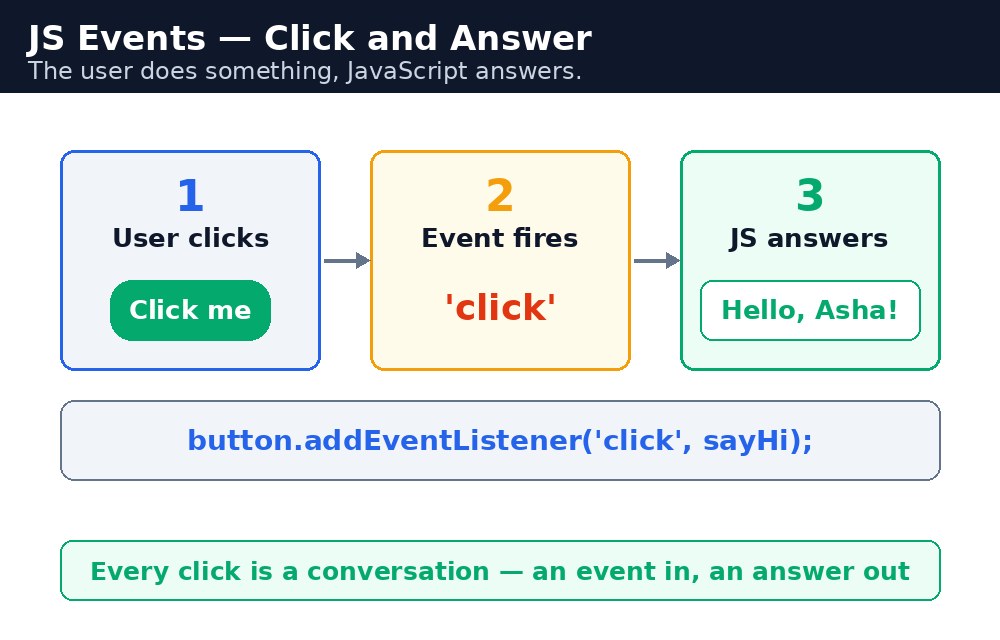
Every event has a name and a place where it happens. A click on a button is a click event on that button. Moving the mouse over a picture is a mouseover event on that picture. Your code says: "when this event happens on this element, run this function."
Handling events with HTML attributes
The simplest way is to write the handler straight into the HTML, with an attribute like onclick. The value is the JavaScript to run when the event fires.
<button onclick="sayHello()">Say Hello</button>
This works and is easy to read, which is why you will see it in many examples — including this course. But it mixes JavaScript into your HTML, and each element can only have one handler per event this way.
addEventListener — the better way
The professional way is addEventListener. You keep your HTML clean and attach the handler from your script instead. You can attach several handlers to the same event, and you can remove one later with removeEventListener.
let btn = document.getElementById("orderBtn");
btn.addEventListener("click", function() {
  alert("Your chai is on its way!");
});
Notice there is no "on" in the event name here — it is "click", not "onclick". The function you pass is called the event handler or listener, and it runs every time the event fires.
event or e. It tells you useful things: event.target is the element that was clicked, event.key is the key that was pressed. You do not need it for every handler, but it is there whenever you do.Common events to know
click— the user clicks an element. The most used event of all.mouseover/mouseout— the mouse enters or leaves an element. Good for hover effects.keydown/keyup— a key is pressed or released. Good for live search and games.submit— a form is submitted. Good for checking the form before it is sent.load— the page has finished loading. Good for code that must wait for the whole page.
<script> at the end of the <body>, or wait for the load event, before you call getElementById. If the script runs before the button exists on the page, getElementById returns null and addEventListener fails. This is one of the most common beginner errors in all of JavaScript.Common mistakes
- Attaching a listener before the element exists — the script runs before the HTML is read, so
getElementByIdfinds nothing. - Writing
addEventListener("onclick", ...)— the event name is"click", without the "on". - Calling the handler while attaching it —
addEventListener("click", sayHello())runs it immediately; writesayHellowithout brackets to pass the function itself. - Forgetting that one element can have many listeners — with
addEventListenerthey all run, in the order they were added.
Remember
- An event is something that happens: click, hover, keypress, submit, load.
onclick="..."in HTML is the simple way;addEventListener("click", ...)is the professional way.- The handler receives an event object —
event.targetis the element that was clicked. - The user does something, JavaScript answers — every click is a conversation.
Example explained
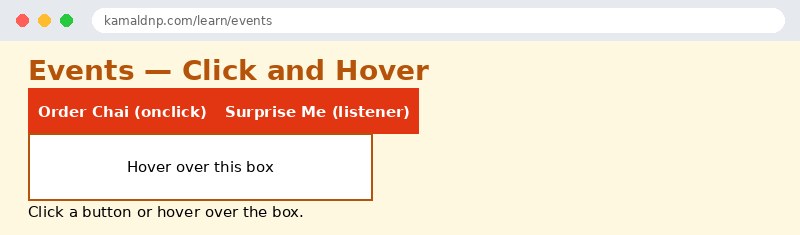
onclick="orderChai()"— the simple way: the button's HTML carries its own handler, which runsorderChai()on click.document.getElementById("surpriseBtn").addEventListener("click", ...)— the professional way: the script finds the button and attaches a handler to it, keeping the HTML clean.onmouseover="this.style.backgroundColor='orange'"— a hover event that changes the box's colour while the mouse is over it.onmouseout="this.style.backgroundColor='white'"— the matching event that changes the colour back when the mouse leaves.document.getElementById("msg").innerHTML = ...— every handler writes its message into the same paragraph, so the visitor sees what just happened.
Example
<!DOCTYPE html>
<html>
<head>
<title>Events — Click and Hover</title>
<style>
body { font-family: Verdana, sans-serif; background-color: #fff8e1; }
h1 { color: #b45309; }
button { background-color: #e13611; color: white; padding: 10px 18px; border: none; margin: 4px; }
#hoverBox { background-color: white; border: 2px solid #b45309; padding: 20px; width: 300px; text-align: center; }
</style>
</head>
<body>

<h1>Events — Click and Hover</h1>
<button onclick="orderChai()">Order Chai (onclick)</button>
<button id="surpriseBtn">Surprise Me (listener)</button>
<div id="hoverBox" onmouseover="this.style.backgroundColor='orange'" onmouseout="this.style.backgroundColor='white'">Hover over this box</div>
<p id="msg">Click a button or hover over the box.</p>

<script>
function orderChai() {
  document.getElementById("msg").innerHTML = "Your chai is on its way!";
}
document.getElementById("surpriseBtn").addEventListener("click", function() {
  document.getElementById("msg").innerHTML = "Surprise! Free kulhad chai today.";
});
</script>

</body>
</html>
Output
Try it yourself — live editor
Change the code below and press Run to see the result instantly. No file to save, no login needed.
Why learn this yourself — and not just ask AI?
AI can write code for you, but it cannot think for you. When you learn HTML yourself, your brain builds the real skill: you understand why a page looks the way it does, you can fix it when it breaks, and you can answer it in an exam or an interview without help. That is the skill that gets you a job — not a copied answer.
Get certified — just ₹10
Finish all 30 lessons, pass the test (80%), pay ₹10 and get your certificate.
Take the testPrefer watching? Video courses teach the same topics step by step.
Go further with a full course
Free tutorials teach you the basics. Our paid courses add live projects, mentorship and a certificate.
Browse all courses