JavaScript Output
4 min read · Free · No login needed
JavaScript often needs to show a result: a total, a message, a warning. There are four ways to do it, and each one is meant for a different moment. Picking the right one matters — the wrong choice can wipe your whole page or annoy your visitor with a pop-up they did not ask for.
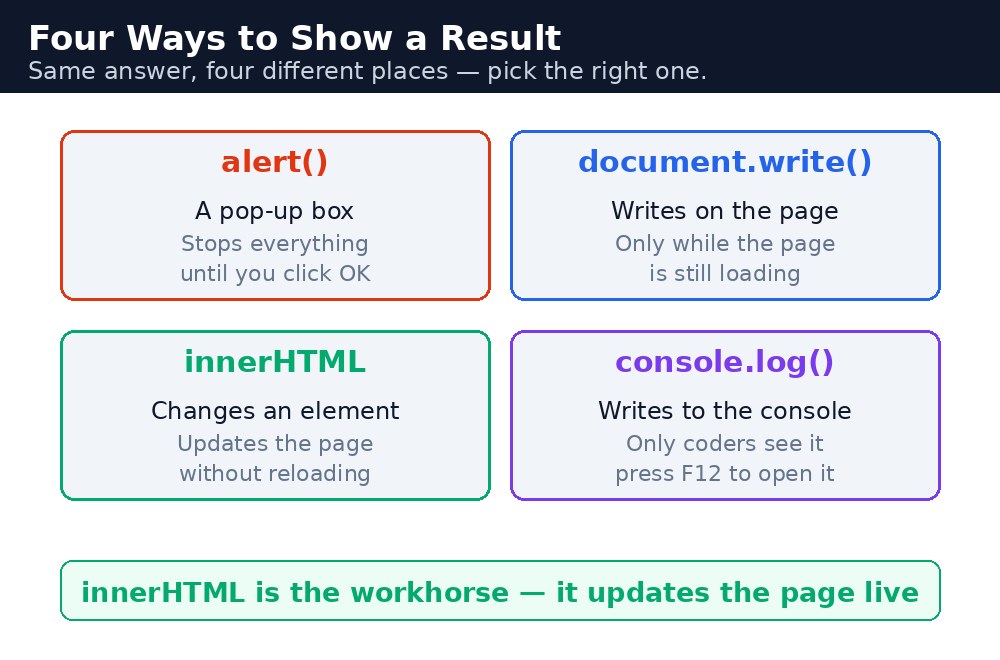
The four ways are: alert(), which pops up a small box; document.write(), which writes while the page is loading; innerHTML, which changes part of the page; and console.log(), which writes a message only you, the developer, can see in the browser's console. In real websites, innerHTML is the workhorse — it is how pages update without reloading.
alert() — the pop-up box
alert("Hello!") stops everything and shows a small box with your message and an OK button. The visitor must click OK before anything else happens. It is useful for testing and for urgent warnings, but use it sparingly — a page that pops up boxes on every click is a page people close.
alert("Your order is confirmed!");
document.write() — writing while the page loads
document.write() writes directly into the page, but only while the page is still loading. If you call it after the page has finished loading — for example, from a button click — it erases the whole page and replaces it with your text. That is almost never what you want. Use it only in tiny examples, never in real code.
<script>
  document.write("Today is a good day for chai.");
</script>
innerHTML — changing part of the page
innerHTML changes the content of one element, leaving the rest of the page alone. You find the element by its id, then set its innerHTML to the new text. This is the normal way to show results: a total, a message, a list of items. The page updates instantly, with no pop-up and no reload.
document.getElementById("total").innerHTML = "Total: ₹40";
There is a close cousin called textContent, which sets plain text only. Use textContent when the result is just words or numbers, and innerHTML when you want to put HTML tags — like <b> — into the result.
console.log() — messages for the developer
console.log() writes a message to the browser's console — a hidden panel for developers. Visitors never see it. It is the best tool for checking your own work: print a value, run the page, and look in the console to see whether the value is what you expected. Press F12 in your browser to open the console.
console.log("The total is: " + 40);
alert() blocks the page until the visitor clicks OK. If you put alert() inside a loop, the visitor has to click OK again and again. That is why real websites use it almost never — a message on the page is kinder.console.log() freely. It is the fastest way to see what your code is really doing, and it never disturbs the page. When a value looks wrong, print it and compare it with what you expected.Common mistakes
- Using
document.write()after the page has loaded — it erases the whole page. UseinnerHTMLinstead. - Using
alert()for every message — visitors find pop-ups annoying. Show results on the page instead. - Forgetting the
id—getElementById("total")finds nothing if no element on the page hasid="total". - Writing
console.logand expecting visitors to see it — only developers with the console open can see it.
Remember
alert()— a pop-up box. Good for urgent warnings, bad for everyday messages.document.write()— only while the page is loading. Never after.innerHTML— changes one part of the page. The normal way to show results.console.log()— a message for the developer, visible in the browser console (F12).
Example explained
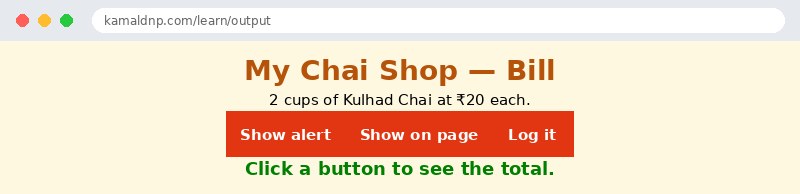
alert("Welcome to My Chai Shop!")— when the "Alert" button is clicked, a pop-up box appears with the welcome message. The page waits until OK is clicked.document.getElementById("result").innerHTML = ...— when the "Show on page" button is clicked, the paragraph withid="result"changes to show the bill total, and the rest of the page stays exactly as it was.console.log("Bill total is ₹40")— when the "Log it" button is clicked, the total is written to the browser console. Nothing changes on the page; press F12 to see it.2 * 20— the bill is 2 cups at ₹20 each. JavaScript does the maths first, then shows the answer — the buttons never contain a hard-coded total.document.write("Welcome!")in the script at the bottom — this line runs while the page is loading, so it writes its text into the page safely. It is shown here so you can see it work; in real code you would useinnerHTMLinstead.
Example
<!DOCTYPE html>
<html>
<head>
<title>Four Ways to Show a Result</title>
<style>
body { background-color: #fff8e1; font-family: Verdana, sans-serif; text-align: center; }
h1 { color: #b45309; }
button { background-color: #e13611; color: white; border: none; padding: 10px 18px; font-size: 15px; cursor: pointer; margin: 4px; }
#result { color: green; font-weight: bold; font-size: 18px; }
</style>
</head>
<body>

<h1>My Chai Shop — Bill</h1>
<p>2 cups of Kulhad Chai at ₹20 each.</p>
<button onclick="showAlert()">Show alert</button>
<button onclick="showOnPage()">Show on page</button>
<button onclick="logIt()">Log it</button>
<p id="result">Click a button to see the total.</p>

<script>
document.write("Welcome to the chai shop bill page. ");
function showAlert() {
  alert("Your bill total is ₹40");
}
function showOnPage() {
  document.getElementById("result").innerHTML = "Total: ₹40";
}
function logIt() {
  console.log("Bill total is ₹40");
}
</script>

</body>
</html>
Output
Try it yourself — live editor
Change the code below and press Run to see the result instantly. No file to save, no login needed.
Check yourself — did you get it?
Finished the lesson? Test yourself with 5 quick questions — you get the answer instantly, with the reason for each one.
1. Which way of showing a result changes one part of the page without reloading it?
2. What does alert() do?
3. What happens if you call document.write() after the page has finished loading?
4. Who can see a console.log() message?
5. What is the difference between innerHTML and textContent?
Interview questions — can you answer these?
Read the question first, try to answer it in your own words, then open it to check. These are the questions interviewers actually ask.
1. What are the four ways JavaScript can show a result, and which one do real websites use most?
alert() pops up a box, document.write() writes while the page is loading, innerHTML changes one part of the page, and console.log() writes a message only the developer can see in the console. Real websites use innerHTML most — it updates part of the page instantly, with no pop-up and no reload. For example, a bill total can appear in a paragraph with document.getElementById("total").innerHTML = "Total: ₹40".
2. What happens if you call document.write() after the page has finished loading?
It erases the whole page and replaces it with your text, because document.write() only works while the page is still loading. That is almost never what you want, so use innerHTML instead — it changes one element and leaves the rest of the page alone. document.write() belongs only in tiny examples, never in real code.
3. What is the difference between innerHTML and textContent, and what is console.log() for?
innerHTML sets content that can include HTML tags, while textContent sets plain text only — use textContent when the result is just words or numbers. console.log() writes a message to the browser's console, a hidden panel for developers that visitors never see. Press F12 to open the console, and use console.log() to check your own values while you are learning.
Try it yourself — build this
Reading is not enough — now build it yourself. Write the code in the live editor, run it, check the hint if you get stuck, and open the solution only after you have tried.
1. Three buttons, three ways to show a result
Create a chai bill page: 3 cups of Masala Chai at ₹15 each (total ₹45). Add three buttons: "Alert total" must show the total with alert(), "Show total" must write "Total: ₹45" into a paragraph with id="result" using innerHTML, and "Log total" must write "Bill total is ₹45" to the console with console.log(). Do NOT hard-code 45 in the buttons — calculate it in JavaScript as 3 * 15, then show the answer.
Show solution
<!DOCTYPE html>
<html>
<head>
<title>Three Ways to Show a Result</title>
<style>
body { background-color: #fff8e1; font-family: Verdana, sans-serif; text-align: center; }
h1 { color: #b45309; }
button { background-color: #e13611; color: white; border: none; padding: 10px 18px; font-size: 15px; cursor: pointer; margin: 4px; }
#result { color: green; font-weight: bold; font-size: 18px; }
</style>
</head>
<body>

<h1>My Chai Shop — Bill</h1>
<p>3 cups of Masala Chai at ₹15 each.</p>
<button onclick="showAlert()">Alert total</button>
<button onclick="showOnPage()">Show total</button>
<button onclick="logIt()">Log total</button>
<p id="result">Click a button to see the total.</p>

<script>
function showAlert() {
  let total = 3 * 15;
  alert("Your bill total is ₹" + total);
}
function showOnPage() {
  let total = 3 * 15;
  document.getElementById("result").innerHTML = "Total: ₹" + total;
}
function logIt() {
  let total = 3 * 15;
  console.log("Bill total is ₹" + total);
}
</script>

</body>
</html>Why learn this yourself — and not just ask AI?
AI can write code for you, but it cannot think for you. When you learn HTML yourself, your brain builds the real skill: you understand why a page looks the way it does, you can fix it when it breaks, and you can answer it in an exam or an interview without help. That is the skill that gets you a job — not a copied answer.
Get certified — just ₹10
Finish all 30 lessons, pass the test (80%), pay ₹10 and get your certificate.
Take the testPrefer watching? Video courses teach the same topics step by step.
Go further with a full course
Free tutorials teach you the basics. Our paid courses add live projects, mentorship and a certificate.
Browse all courses