JavaScript Timers — setTimeout & setInterval Examples
3 min read · Free · No login needed
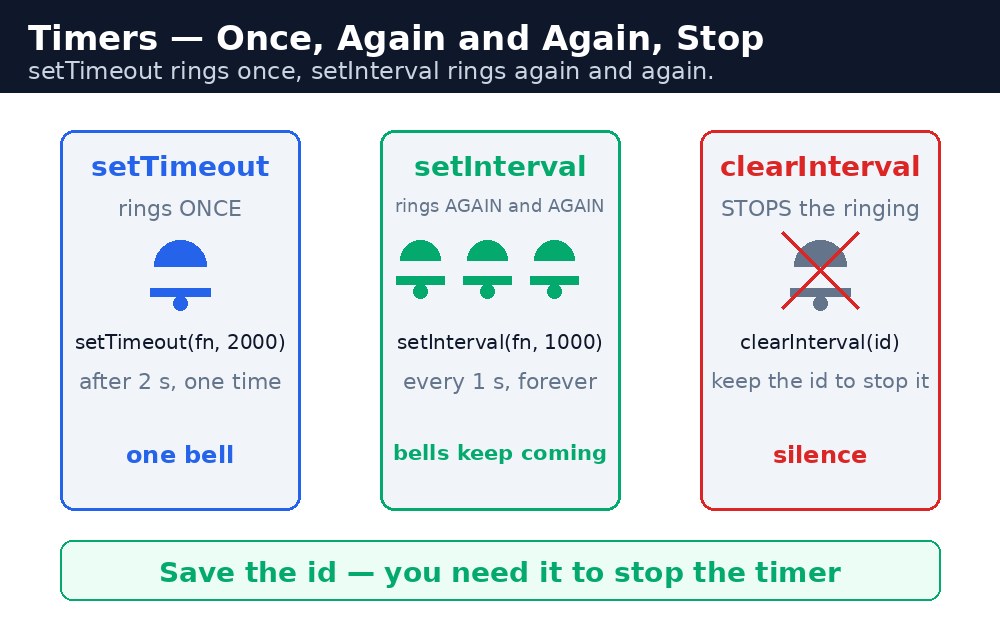
Sometimes code should not run now — it should run later. A message that appears after 3 seconds, a slideshow that changes every 5 seconds, a countdown that ticks down to zero. JavaScript has two timers for this: setTimeout runs a function once, after a delay. setInterval runs a function again and again, every so many milliseconds. Both are simple, but both have one rule beginners forget: they never stop by themselves.
setTimeout — once, later
setTimeout(() => {
  console.log("3 seconds are over!");
}, 3000);
The first argument is the function to run, the second is the delay in milliseconds: 1000 milliseconds is 1 second, so 3000 is 3 seconds. setTimeout does not pause the page — the code after it runs immediately, and the function runs later, in the background. Think of it as setting an alarm: you set it and carry on, and it rings when the time comes.
Date.now()) instead of counting ticks.setInterval — again and again
let seconds = 10;
let timerId = setInterval(() => {
  seconds = seconds - 1;
  console.log(seconds);
  if (seconds === 0) {
    clearInterval(timerId);
  }
}, 1000);
setInterval returns an id — a number that names that timer. Keep it, because it is the only way to stop the timer: clearInterval(timerId) switches it off. setTimeout has the same pattern: it returns an id, and clearTimeout(id) cancels the alarm before it rings. A timer that is never stopped keeps running forever, quietly eating the page's attention — the classic "my page got slower" bug.
Common mistakes
- Writing
setTimeout(sayHi(), 1000)— the brackets runsayHiat once; pass the function itself:setTimeout(sayHi, 1000). - Forgetting to save the id — without it,
clearIntervalcannot stop the timer. - Never clearing an interval — it runs forever, even after its job is done.
- Counting on exact timing — timers can run late; for real clocks use
Date.now().
Remember
setTimeout(fn, ms)runsfnonce aftermsmilliseconds.setInterval(fn, ms)runsfneverymsmilliseconds.- Both return an id;
clearTimeout(id)andclearInterval(id)stop them. - Pass the function, not a call:
setTimeout(sayHi, 1000), notsetTimeout(sayHi(), 1000). - Every timer needs its off switch.
Example explained
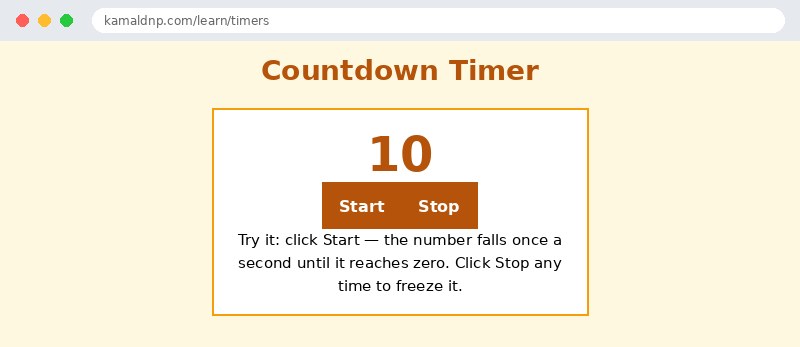
let count = 10;— the countdown starts at 10.timerId = setInterval(() => { ... }, 1000);— the function runs every 1000 milliseconds, and its id is saved.count = count - 1;— each tick takes one off the count.document.getElementById("count").textContent = count;— the page shows the new number every second.if (count === 0) { clearInterval(timerId); }— at zero the timer switches itself off, so it does not run forever. The Stop button callsclearInterval(timerId)too.
Example
<!DOCTYPE html>
<html>
<head>
<title>Countdown Timer</title>
<style>
body { font-family: Verdana, sans-serif; background-color: #fff8e1; }
h1 { color: #b45309; text-align: center; }
.card { background-color: white; border: 2px solid #f59e0b; padding: 16px; width: 340px; margin: 20px auto; text-align: center; }
button { background-color: #b45309; color: white; border: none; padding: 10px 18px; font-size: 16px; }
#count { font-size: 48px; font-weight: bold; color: #b45309; }
</style>
</head>
<body>

<h1>Countdown Timer</h1>
<div class="card">
<p id="count">10</p>
<p><button onclick="startCountdown()">Start</button> <button onclick="stopCountdown()">Stop</button></p>
<p>Try it: click Start — the number falls once a second until it reaches zero. Click Stop any time to freeze it.</p>
</div>

<script>
let count = 10;
let timerId = null;
function stopCountdown() {
  if (timerId !== null) {
    clearInterval(timerId);
    timerId = null;
  }
}
function startCountdown() {
  stopCountdown();
  count = 10;
  document.getElementById("count").textContent = count;
  timerId = setInterval(() => {
    count = count - 1;
    document.getElementById("count").textContent = count;
    if (count === 0) {
      stopCountdown();
      document.getElementById("count").textContent = "Time is over!";
    }
  }, 1000);
}
</script>

</body>
</html>
Output
Try it yourself — live editor
Change the code below and press Run to see the result instantly. No file to save, no login needed.
Related lessons
Frequently asked questions
The questions learners ask most about this lesson — read the question, then open it to see the answer.
1. What is the difference between setTimeout and setInterval?
setTimeout runs a function once after a delay; setInterval runs it again and again every so many milliseconds.
2. How do I stop a timer?
Keep the id it returns: clearInterval(timerId) stops an interval, and clearTimeout(id) cancels a timeout before it rings.
3. Is a timer delay exact?
No, it is a minimum, not a promise — if the page is busy, the function may run a little late.
Why learn this yourself — and not just ask AI?
AI can write code for you, but it cannot think for you. When you learn HTML yourself, your brain builds the real skill: you understand why a page looks the way it does, you can fix it when it breaks, and you can answer it in an exam or an interview without help. That is the skill that gets you a job — not a copied answer.
Get certified — just ₹10
Finish all 35 lessons, pass the test (80%), pay ₹10 and get your certificate.
Take the testPrefer watching? Video courses teach the same topics step by step.
Go further with a full course
Free tutorials teach you the basics. Our paid courses add live projects, mentorship and a certificate.
Browse all courses