JavaScript Where To
4 min read · Free · No login needed
JavaScript code has to live somewhere. You have three choices: inside a <script> tag in the <head>, inside a <script> tag in the <body>, or in a separate file ending in .js that the page loads. All three work, but they are not equal — where you put the code decides when it runs.
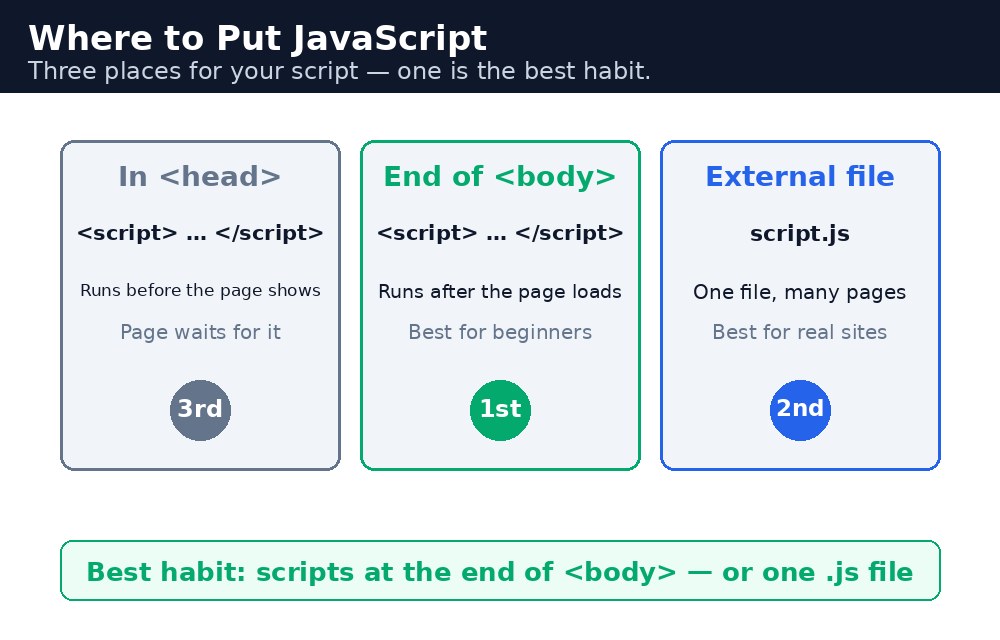
The browser reads a page from top to bottom, like you read a book. When it meets a <script> tag, it stops reading the HTML, runs the code, and only then carries on. So a script in the <head> runs before the page body exists. If that script tries to change a button that has not been read yet, it will fail — the button does not exist yet. That is the most common beginner mistake in JavaScript.
Script in the body — the safe default
Putting your <script> at the end of the <body>, just before </body>, is the safest choice for a beginner. By then the browser has already read all the HTML, so every button, input, and paragraph exists and your code can reach them. The page also appears faster, because the browser shows the content first and runs the code afterwards.
<body>
  <h1>My Chai Shop</h1>
  <button onclick="sayHello()">Say hello</button>
  <script>
    function sayHello() {
      alert("Namaste!");
    }
  </script>
</body>
The function is defined in the script, and the button calls it when clicked. Because the script sits after the button in the page, everything is in place by the time anyone can click.
Script in the head — and the defer trick
A script in the <head> runs early, which is useful for code that does not touch the page — for example, setting up a value or defining a function that will only be called later, after a click. Functions defined in the head are fine, because they only run when called. The danger is only code that runs immediately and touches page elements that do not exist yet.
For an external file, you can add the defer attribute: <script src="shop.js" defer></script>. Deferred scripts wait until the whole page has been read, then run in order. It gives you the tidiness of the head with the safety of the body.
defer.<script> tags. The browser runs them in order, top to bottom. A function defined in an earlier script can be called from a later one.External .js files — the professional way
When your code grows, move it into a separate file, for example shop.js, and load it with <script src="shop.js"></script>. The page stays clean, the same file can be shared by many pages, and the browser can cache it — so the second page loads faster. Real websites almost always use external files. For learning, inline scripts are fine; for real projects, external files are the habit to build.
Common mistakes
- Putting a script in the
<head>that immediately touches a page element — the element does not exist yet, so the code fails with an error. - Writing the
srcpath wrong —shop.jsmust be in the same folder as the page, or the path must match where the file really is. - Putting code between
<script src="...">and</script>— whensrcis present, the browser ignores anything written inside the tag. - Forgetting that scripts run in order — a function must be defined before the line that calls it runs (unless it is only called later, on a click).
Remember
- The browser reads a page top to bottom and runs each script as it meets it.
- Safest for beginners: put
<script>at the end of the<body>. defermakes a head script wait until the page is fully read.- External
.jsfiles keep pages clean and can be shared between pages.
Example explained
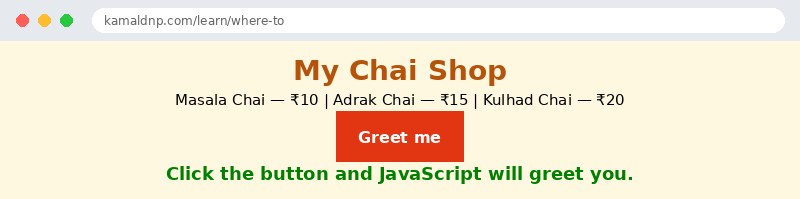
<script>at the end of the<body>— the script sits after all the HTML, so every element on the page already exists when the code runs.function greet() { ... }— defines a function called greet. Defining a function does not run it; it only stores the instructions for later.document.getElementById("message")— finds the paragraph withid="message"on the page..textContent = "Namaste! Welcome to My Chai Shop."— changes that paragraph's text. The page updates without reloading.onclick="greet()"— the button calls greet when clicked. The script was ready before the click because it loaded with the page.
Example
<!DOCTYPE html>
<html>
<head>
<title>Where To Put JavaScript</title>
<style>
body { background-color: #fff8e1; font-family: Verdana, sans-serif; text-align: center; }
h1 { color: #b45309; }
button { background-color: #e13611; color: white; border: none; padding: 12px 24px; font-size: 16px; cursor: pointer; }
#message { color: green; font-weight: bold; font-size: 18px; }
</style>
</head>
<body>

<h1>My Chai Shop</h1>
<p>Masala Chai — ₹10 | Adrak Chai — ₹15 | Kulhad Chai — ₹20</p>
<button onclick="greet()">Greet me</button>
<p id="message">Click the button and JavaScript will greet you.</p>

<script>
function greet() {
  document.getElementById("message").textContent = "Namaste! Welcome to My Chai Shop.";
}
</script>

</body>
</html>
Output
Try it yourself — live editor
Change the code below and press Run to see the result instantly. No file to save, no login needed.
Check yourself — did you get it?
Finished the lesson? Test yourself with 5 quick questions — you get the answer instantly, with the reason for each one.
1. Where is the safest place for a beginner to put a <script> tag?
2. Why can a script in the <head> fail when it touches a page element?
3. What does the defer attribute do?
4. What happens to code written between <script src="shop.js"> and </script>?
5. What is the main advantage of an external .js file?
Interview questions — can you answer these?
Read the question first, try to answer it in your own words, then open it to check. These are the questions interviewers actually ask.
1. Where can you put JavaScript code in a page, and which place is safest for a beginner?
You have three choices: a <script> tag in the <head>, a <script> tag at the end of the <body>, or a separate .js file loaded with <script src="...">. The safest for a beginner is the end of the body, because by then the browser has read all the HTML, so every button and paragraph already exists and your code can reach them.
2. Why does a script in the <head> sometimes fail to change a button?
The browser reads a page top to bottom, and when it meets a <script> tag it stops and runs the code at once. A script in the head runs before the body has been read, so the button does not exist yet and the code fails. That is why code that touches page elements must wait — either by sitting at the end of the body or by using the defer attribute.
3. What does the defer attribute do, and why would you use an external .js file?
defer makes a script wait until the whole page has been read, then runs it in order — it gives you the tidiness of the head with the safety of the body. An external .js file keeps the page clean, can be shared by many pages, and the browser can cache it, so the second page loads faster. Real websites almost always use external files.
Try it yourself — build this
Reading is not enough — now build it yourself. Write the code in the live editor, run it, check the hint if you get stuck, and open the solution only after you have tried.
1. Put the script in the right place
Create a chai shop page with a button "Order Chai" and a paragraph with id="order" that says "Click the button to place your order." Put your <script> block at the very end of the <body>, just before </body>, and write a function orderChai() in it: when the button is clicked, the paragraph must change to "Order placed! Your chai is on the way." The script must come AFTER the button and the paragraph in the page, so everything exists before the code runs.
Show solution
<!DOCTYPE html>
<html>
<head>
<title>Order Chai</title>
<style>
body { background-color: #fff8e1; font-family: Verdana, sans-serif; text-align: center; }
h1 { color: #b45309; }
button { background-color: #e13611; color: white; border: none; padding: 12px 24px; font-size: 16px; cursor: pointer; }
#order { color: green; font-weight: bold; font-size: 18px; }
</style>
</head>
<body>

<h1>My Chai Shop</h1>
<p>Masala Chai — ₹10 | Adrak Chai — ₹15 | Kulhad Chai — ₹20</p>
<button onclick="orderChai()">Order Chai</button>
<p id="order">Click the button to place your order.</p>

<script>
function orderChai() {
  document.getElementById("order").textContent = "Order placed! Your chai is on the way.";
}
</script>

</body>
</html>Why learn this yourself — and not just ask AI?
AI can write code for you, but it cannot think for you. When you learn HTML yourself, your brain builds the real skill: you understand why a page looks the way it does, you can fix it when it breaks, and you can answer it in an exam or an interview without help. That is the skill that gets you a job — not a copied answer.
Get certified — just ₹10
Finish all 30 lessons, pass the test (80%), pay ₹10 and get your certificate.
Take the testPrefer watching? Video courses teach the same topics step by step.
Go further with a full course
Free tutorials teach you the basics. Our paid courses add live projects, mentorship and a certificate.
Browse all courses