JavaScript कहाँ लिखें
5 मिनट पढ़ें · मुफ़्त · बिना लॉगिन
JavaScript code को कहीं तो रहना है। आपके पास तीन चुनाव हैं: <head> के अंदर <script> tag में, <body> के अंदर <script> tag में, या अलग file में जिसका नाम .js पर खत्म होता है और जिसे पेज load करता है। तीनों काम करते हैं, पर बराबर नहीं हैं — code कहाँ रखा है, इससे तय होता है कि वह कब चलेगा।
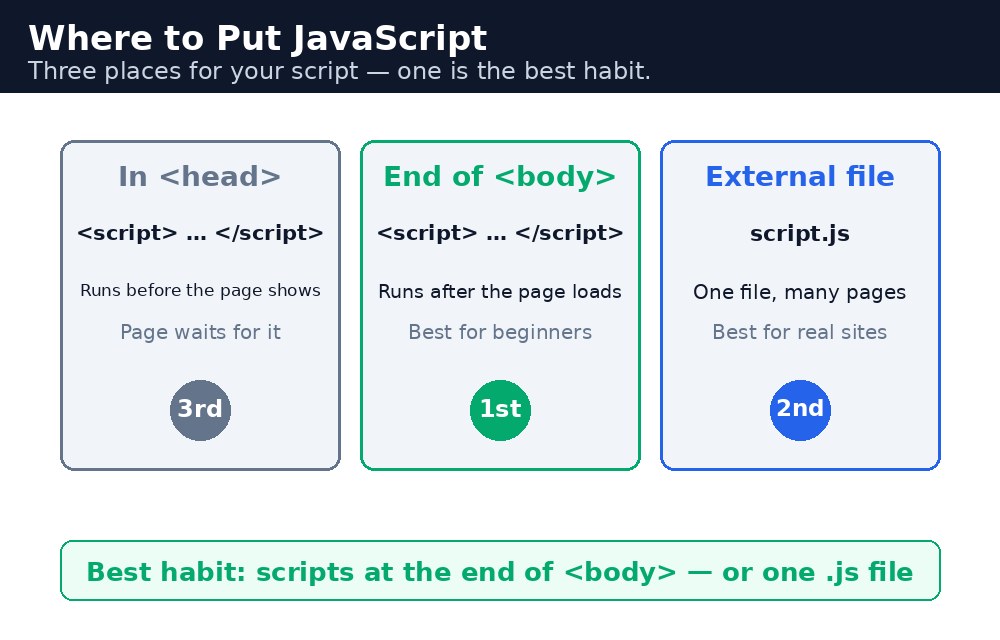
Browser पेज को ऊपर से नीचे पढ़ता है, जैसे आप किताब पढ़ते हैं। जब वह <script> tag से मिलता है, तो HTML पढ़ना रोक देता है, code चलाता है, और तब आगे बढ़ता है। इसलिए <head> में लिखा script body बनने से पहले चलता है। अगर वह script किसी button को बदलने की कोशिश करता है जो अभी पढ़ा ही नहीं गया, तो वह fail हो जाएगा — button अभी मौजूद ही नहीं है। यही JavaScript में सबसे आम शुरुआती गलती है।
Body में script — सुरक्षित चुनाव
<script> को <body> के अंत में, </body> से ठीक पहले रखना, शुरुआत करने वाले के लिए सबसे सुरक्षित चुनाव है। तब तक browser पूरा HTML पढ़ चुका होता है, इसलिए हर button, input और paragraph मौजूद होता है और आपका code उन तक पहुँच सकता है। पेज भी तेज़ दिखता है, क्योंकि browser पहले content दिखाता है और code बाद में चलाता है।
<body>
  <h1>My Chai Shop</h1>
  <button onclick="sayHello()">Say hello</button>
  <script>
    function sayHello() {
      alert("Namaste!");
    }
  </script>
</body>
Function script में define की जाती है, और button click होने पर उसे बुलाता है। क्योंकि script पेज में button के बाद बैठा है, click होने तक सब कुछ अपनी जगह पर होता है।
Head में script — और defer की तरकीब
<head> में लिखा script जल्दी चलता है, जो ऐसे code के लिए अच्छा है जो पेज को छूता नहीं है — जैसे कोई value तय करना, या कोई function define करना जिसे बाद में, click के बाद ही बुलाया जाएगा। Head में define किए गए functions ठीक होते हैं, क्योंकि वे तभी चलते हैं जब उन्हें बुलाया जाता है। खतरा सिर्फ उस code से है जो तुरंत चलता है और पेज के उन elements को छूता है जो अभी बने ही नहीं हैं।
अलग file के लिए आप defer attribute जोड़ सकते हैं: <script src="shop.js" defer></script>। Defer वाले scripts पूरा पेज पढ़े जाने तक इंतज़ार करते हैं, फिर क्रम से चलते हैं। इससे आपको head की सफ़ाई और body की सुरक्षा, दोनों मिल जाती हैं।
defer इस्तेमाल कीजिए।<script> tags हो सकते हैं। Browser उन्हें क्रम से, ऊपर से नीचे चलाता है। पहले वाले script में define किया गया function बाद वाले script से बुलाया जा सकता है।अलग .js file — पेशेवर तरीका
जब आपका code बढ़ जाए, तो उसे अलग file में ले जाइए, जैसे shop.js, और <script src="shop.js"></script> से load कीजिए। पेज साफ़ रहता है, वही file कई पेजों में इस्तेमाल हो सकती है, और browser उसे cache कर सकता है — इसलिए दूसरा पेज और तेज़ खुलता है। असली वेबसाइटें लगभग हमेशा अलग files इस्तेमाल करती हैं। सीखते समय inline scripts ठीक हैं; असली projects के लिए अलग files की आदत बनाइए।
आम गलतियाँ
<head>में script रखना जो तुरंत पेज के element को छूता है — element अभी बना ही नहीं है, इसलिए code error के साथ fail हो जाता है।srcका path गलत लिखना —shop.jsपेज वाले folder में ही होना चाहिए, या path वही होना चाहिए जहाँ file असल में है।<script src="...">और</script>के बीच code लिखना — जबsrcमौजूद हो, तो browser tag के अंदर लिखा कुछ भी नज़रअंदाज़ कर देता है।- यह भूल जाना कि scripts क्रम से चलते हैं — function को उस line से पहले define होना चाहिए जो उसे बुलाती है (जब तक वह सिर्फ बाद में, click पर बुलाया न जाए)।
याद रखें
- Browser पेज को ऊपर से नीचे पढ़ता है और हर script को मिलते ही चलाता है।
- शुरुआत करने वालों के लिए सबसे सुरक्षित:
<script>को<body>के अंत में रखिए। deferhead वाले script को तब तक इंतज़ार कराता है जब तक पेज पूरी तरह पढ़ा न जाए।- अलग
.jsfiles पेजों को साफ़ रखती हैं और कई पेजों में share की जा सकती हैं।
उदाहरण समझिए
<script><body>के अंत में — script पूरे HTML के बाद बैठा है, इसलिए code चलते समय पेज का हर element पहले से मौजूद है।function greet() { ... }— greet नाम वाला function define करता है। Function define करने से वह चलता नहीं है; वह सिर्फ निर्देशों को बाद के लिए रखता है।document.getElementById("message")— पेज परid="message"वाला paragraph ढूँढता है।.textContent = "Namaste! Welcome to My Chai Shop."— उस paragraph का text बदल देता है। पेज reload किए बिना अपडेट हो जाता है।onclick="greet()"— button click होने पर greet बुलाता है। Click से पहले ही script पेज के साथ load हो चुका था, इसलिए वह तैयार था।
उदाहरण
<!DOCTYPE html>
<html>
<head>
<title>Where To Put JavaScript</title>
<style>
body { background-color: #fff8e1; font-family: Verdana, sans-serif; text-align: center; }
h1 { color: #b45309; }
button { background-color: #e13611; color: white; border: none; padding: 12px 24px; font-size: 16px; cursor: pointer; }
#message { color: green; font-weight: bold; font-size: 18px; }
</style>
</head>
<body>

<h1>My Chai Shop</h1>
<p>Masala Chai — ₹10 | Adrak Chai — ₹15 | Kulhad Chai — ₹20</p>
<button onclick="greet()">Greet me</button>
<p id="message">Click the button and JavaScript will greet you.</p>

<script>
function greet() {
  document.getElementById("message").textContent = "Namaste! Welcome to My Chai Shop.";
}
</script>

</body>
</html>
परिणाम
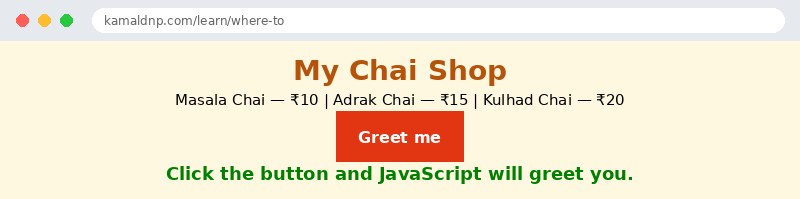
खुद करके देखें — लाइव एडिटर
नीचे दिया गया कोड बदलें और चलाएँ दबाएँ — परिणाम तुरंत दिखेगा। कोई फाइल सहेजनी नहीं है, कोई लॉगिन नहीं चाहिए।
Check yourself — did you get it?
Finished the lesson? Test yourself with 5 quick questions — you get the answer instantly, with the reason for each one.
1. Where is the safest place for a beginner to put a <script> tag?
2. Why can a script in the <head> fail when it touches a page element?
3. What does the defer attribute do?
4. What happens to code written between <script src="shop.js"> and </script>?
5. What is the main advantage of an external .js file?
Interview questions — can you answer these?
Read the question first, try to answer it in your own words, then open it to check. These are the questions interviewers actually ask.
1. Where can you put JavaScript code in a page, and which place is safest for a beginner?
You have three choices: a <script> tag in the <head>, a <script> tag at the end of the <body>, or a separate .js file loaded with <script src="...">. The safest for a beginner is the end of the body, because by then the browser has read all the HTML, so every button and paragraph already exists and your code can reach them.
2. Why does a script in the <head> sometimes fail to change a button?
The browser reads a page top to bottom, and when it meets a <script> tag it stops and runs the code at once. A script in the head runs before the body has been read, so the button does not exist yet and the code fails. That is why code that touches page elements must wait — either by sitting at the end of the body or by using the defer attribute.
3. What does the defer attribute do, and why would you use an external .js file?
defer makes a script wait until the whole page has been read, then runs it in order — it gives you the tidiness of the head with the safety of the body. An external .js file keeps the page clean, can be shared by many pages, and the browser can cache it, so the second page loads faster. Real websites almost always use external files.
Try it yourself — build this
Reading is not enough — now build it yourself. Write the code in the live editor, run it, check the hint if you get stuck, and open the solution only after you have tried.
1. Put the script in the right place
Create a chai shop page with a button "Order Chai" and a paragraph with id="order" that says "Click the button to place your order." Put your <script> block at the very end of the <body>, just before </body>, and write a function orderChai() in it: when the button is clicked, the paragraph must change to "Order placed! Your chai is on the way." The script must come AFTER the button and the paragraph in the page, so everything exists before the code runs.
Show solution
<!DOCTYPE html>
<html>
<head>
<title>Order Chai</title>
<style>
body { background-color: #fff8e1; font-family: Verdana, sans-serif; text-align: center; }
h1 { color: #b45309; }
button { background-color: #e13611; color: white; border: none; padding: 12px 24px; font-size: 16px; cursor: pointer; }
#order { color: green; font-weight: bold; font-size: 18px; }
</style>
</head>
<body>

<h1>My Chai Shop</h1>
<p>Masala Chai — ₹10 | Adrak Chai — ₹15 | Kulhad Chai — ₹20</p>
<button onclick="orderChai()">Order Chai</button>
<p id="order">Click the button to place your order.</p>

<script>
function orderChai() {
  document.getElementById("order").textContent = "Order placed! Your chai is on the way.";
}
</script>

</body>
</html>खुद क्यों सीखें — AI से पूछने के बजाय?
AI आपके लिए कोड लिख सकता है, लेकिन वह आपके लिए सोच नहीं सकता। जब आप HTML खुद सीखते हैं, तो आपका दिमाग असली कौशल बनाता है: आप समझते हैं कि पेज ऐसा क्यों दिखता है, टूटने पर उसे ठीक कर सकते हैं, और परीक्षा या इंटरव्यू में बिना मदद के जवाब दे सकते हैं। यही कौशल नौकरी दिलाता है — कॉपी किया हुआ जवाब नहीं।
सर्टिफिकेट पाएँ — सिर्फ ₹10
सभी 30 पाठ पूरे करें, टेस्ट पास करें (80%), ₹10 दें और अपना सर्टिफिकेट पाएँ।
टेस्ट देंदेखकर सीखना पसंद है? वीडियो कोर्स में वही विषय एक-एक करके सिखाए जाते हैं।
Go further with a full course
Free tutorials teach you the basics. Our paid courses add live projects, mentorship and a certificate.
Browse all courses