CSS Keyframes Tutorial — Bouncing Ball Animation
4 min read · Free · No login needed
Think of a flipbook: you draw a ball at the bottom of the page, then a little higher, then at the top — and when you flip the pages fast, the ball bounces. You did not draw every in-between position; your eyes filled them in. CSS keyframes work the same way. You describe the important moments — the start, the middle, the end — and the browser draws everything in between, smoothly, all by itself.
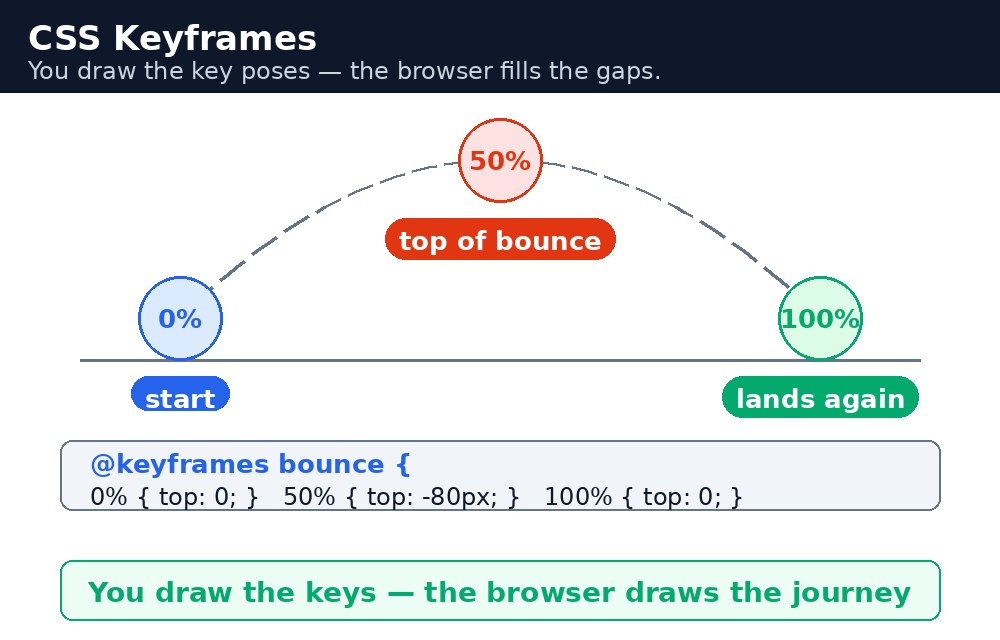
Keyframes and the animation properties
An animation has two parts. First, the @keyframes rule, which names the animation and lists its stops. Second, the animation properties on the element, which say which keyframes to play and how: animation-name, animation-duration (how long one run takes), animation-timing-function (the speed curve), animation-delay (wait before starting), animation-iteration-count (how many times — or infinite), animation-direction, and animation-fill-mode.
@keyframes bounce {
  0%   { top: 0; }
  50%  { top: 180px; }
  100% { top: 0; }
}
.ball { animation: bounce 2s ease-in-out infinite; }
The shorthand animation: bounce 2s ease-in-out infinite; packs the name, duration, timing function, and iteration count into one line — the same order as the longhand properties.
From and to, or percentages
Simple animations use from and to — just a start and an end, like fading from nearly invisible to fully visible. When you need stops in the middle, use percentages: 0% is the start, 100% is the end, and 50% is halfway through. The bouncing ball above uses three stops: top, bottom, top. Percentages also let one property change at a different time from another — the colour can change at 25% while the position changes at 50%.
Animation versus transition
A transition needs a trigger — usually a hover — and it moves between two states. An animation needs no trigger: it runs on its own as soon as the page loads, it can have many stops, and it can repeat forever. That makes animations right for things that should move by themselves — a bouncing ball, a pulsing notification dot, a loading spinner — while transitions stay right for hover effects.
animation-fill-mode: forwards;, which keeps the final keyframe's values. Without it, a box that slid in from the left will snap back to the left the moment the animation finishes.animation-direction: alternate; with an infinite count. The animation plays forward, then backward, then forward again — so a fading box never snaps from fully visible back to invisible.Common mistakes
- Forgetting
animation-duration— without a duration the animation defaults to 0 seconds and nothing appears to happen. - Writing the keyframes name differently from
animation-name— the names must match exactly, or the browser finds no animation to play. - Animating
toporlefton an element that is not positioned — those properties only move elements withposition: relative,absolute, orfixed. - Expecting the element to stay at its final keyframe — without
animation-fill-mode: forwards;it snaps back to its normal style. - Using
animation: infinite;alone — the shorthand needs at least a name and a duration; a bare iteration count is not enough.
Remember
@keyframeslists the important stops; the browser draws everything in between.from/tois two stops; percentages give you as many stops as you need.animation: name duration timing-function iteration-count;is the shorthand order.- Animations run on their own; transitions need a trigger like hover.
animation-fill-mode: forwards;keeps the final keyframe after the animation ends.
Example explained
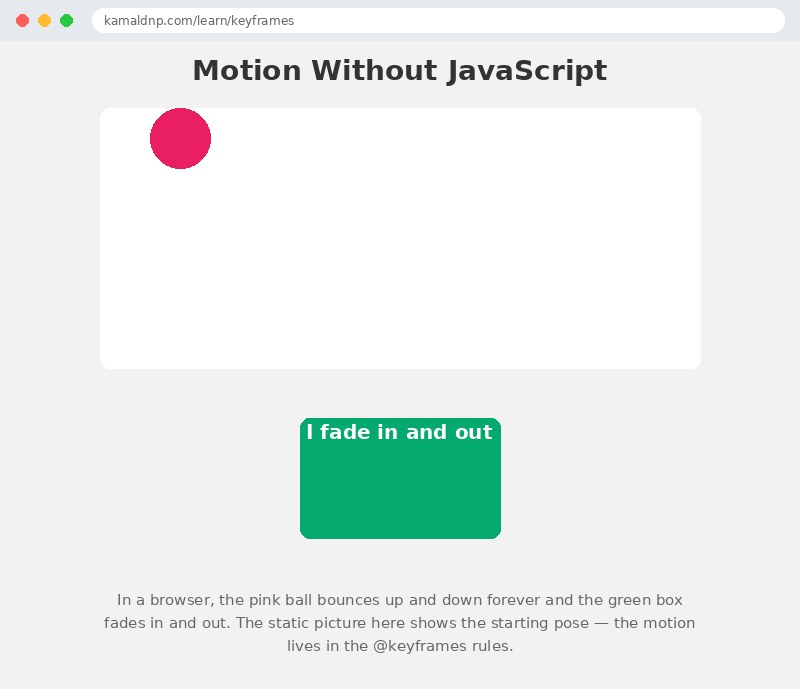
@keyframes bounce { 0% { top: 0; } 50% { top: 180px; } 100% { top: 0; } }— the ball starts at the top, drops to the bottom halfway through, and returns to the top at the end..ball { animation: bounce 2s ease-in-out infinite; }— the bounce runs for 2 seconds, eases in and out, and repeats forever.@keyframes fadein { from { opacity: 0.2; } to { opacity: 1; } }— the green box fades from nearly invisible to fully visible, using just two stops..fade-box { animation: fadein 3s ease-in-out infinite alternate; }— the fade lasts 3 seconds and plays forward then backward, so it never snaps..ball { position: absolute; }— the ball is positioned inside the white stage, which is why animatingtopmoves it at all.
Example
<!DOCTYPE html>
<html>
<head>
<title>Bouncing Ball and Fading Box</title>
<style>
* { box-sizing: border-box; }
body { font-family: Arial, sans-serif; margin: 0; padding: 20px; background-color: #f2f2f2; text-align: center; }
h1 { color: #333; }
.stage { max-width: 600px; height: 260px; margin: 20px auto; background-color: white; border-radius: 10px; position: relative; }
.ball {
  width: 60px; height: 60px; background-color: #e91e63; border-radius: 50%;
  position: absolute; left: 50px; top: 0;
  animation: bounce 2s ease-in-out infinite;
}
@keyframes bounce {
  0% { top: 0; }
  50% { top: 180px; }
  100% { top: 0; }
}
.fade-box {
  width: 200px; height: 120px; margin: 30px auto; background-color: #04aa6d;
  color: white; display: flex; align-items: center; justify-content: center;
  font-size: 20px; font-weight: bold; border-radius: 10px;
  animation: fadein 3s ease-in-out infinite alternate;
}
@keyframes fadein {
  from { opacity: 0.2; }
  to { opacity: 1; }
}
p.note { color: #666; max-width: 600px; margin: 20px auto; }
</style>
</head>
<body>

<h1>Motion Without JavaScript</h1>

<div class="stage">
<div class="ball"></div>
</div>

<div class="fade-box">I fade in and out</div>

<p class="note">In a browser, the pink ball bounces up and down forever and the green box fades in and out. The static picture here shows the starting pose — the motion lives in the @keyframes rules.</p>

</body>
</html>
Output
Try it yourself — live editor
Change the code below and press Run to see the result instantly. No file to save, no login needed.
Related lessons
Frequently asked questions
The questions learners ask most about this lesson — read the question, then open it to see the answer.
1. What is a keyframes rule?
A rule that names an animation and lists its important stops. The browser draws everything in between, smoothly, by itself.
2. What is the difference between from/to and percentages?
from/to gives just two stops, a start and an end. Percentages give as many stops as you need, like 0%, 50%, and 100%.
3. Why does an animation need a duration?
Without a duration it defaults to 0 seconds, so nothing appears to happen.
Why learn this yourself — and not just ask AI?
AI can write code for you, but it cannot think for you. When you learn HTML yourself, your brain builds the real skill: you understand why a page looks the way it does, you can fix it when it breaks, and you can answer it in an exam or an interview without help. That is the skill that gets you a job — not a copied answer.
Get certified — just ₹10
Finish all 35 lessons, pass the test (80%), pay ₹10 and get your certificate.
Take the testPrefer watching? Video courses teach the same topics step by step.
Go further with a full course
Free tutorials teach you the basics. Our paid courses add live projects, mentorship and a certificate.
Browse all courses