CSS Keyframes — Bouncing Ball Animation बनाएँ
4 मिनट पढ़ें · मुफ़्त · बिना लॉगिन
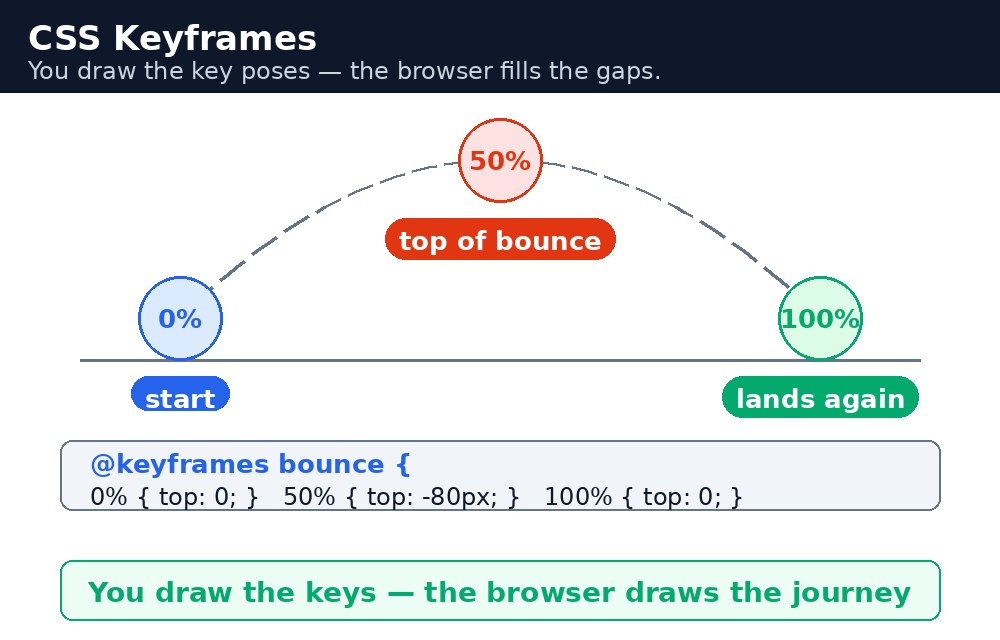
flipbook सोचिए: आप page के नीचे एक गेंद बनाते हैं, फिर थोड़ी ऊपर, फिर सबसे ऊपर — और जब pages को तेज़ी से पलटते हैं, गेंद उछलने लगती है। आपने बीच की हर position नहीं बनाई; आपकी आँखों ने उन्हें भर दिया। CSS keyframes बिल्कुल ऐसे ही काम करते हैं। आप ज़रूरी पल बताते हैं — शुरुआत, बीच, अंत — और browser बीच का सब कुछ खुद, आराम से, बना देता है।
कीफ़्रेम और animation की properties
animation के दो हिस्से हैं। पहला, @keyframes rule, जो animation का नाम देता है और उसके stops गिनाता है। दूसरा, element पर animation properties, जो बताती हैं कौनसे keyframes चलाने हैं और कैसे: animation-name, animation-duration (एक run कितनी देर चलेगा), animation-timing-function (speed का curve), animation-delay (शुरू होने से पहले इंतज़ार), animation-iteration-count (कितनी बार — या infinite), animation-direction, और animation-fill-mode।
@keyframes bounce {
  0%   { top: 0; }
  50%  { top: 180px; }
  100% { top: 0; }
}
.ball { animation: bounce 2s ease-in-out infinite; }
shorthand animation: bounce 2s ease-in-out infinite; नाम, duration, timing function और iteration count को एक line में समेट देता है — वही order, जैसे लंबी properties का है।
from और to, या percentages
सादे animations from और to इस्तेमाल करते हैं — बस शुरुआत और अंत, जैसे लगभग अदृश्य से पूरा दिखने तक fade होना। जब बीच में stops चाहिए, percentages इस्तेमाल कीजिए: 0% शुरुआत है, 100% अंत है, और 50% आधा रास्ता है। ऊपर वाली उछलती गेंद तीन stops इस्तेमाल करती है: ऊपर, नीचे, ऊपर। Percentages से एक property दूसरी से अलग वक़्त पर भी बदल सकती है — रंग 25% पर बदल सकता है जबकि position 50% पर बदलती है।
animation बनाम transition
transition को trigger चाहिए — आम तौर पर hover — और वह दो states के बीच चलती है। animation को किसी trigger की ज़रूरत नहीं: page load होते ही खुद चलती है, उसके कई stops हो सकते हैं, और वह हमेशा दोहराती रह सकती है। इसलिए animations उन चीज़ों के लिए सही हैं जो खुद हिलनी चाहिए — उछलती गेंद, धड़कता notification dot, loading spinner — जबकि transitions hover effects के लिए सही रहती हैं।
animation-fill-mode: forwards; न लगाएँ, जो आख़िरी keyframe की values को बनाए रखता है। इसके बिना, बाईं ओर से slide करके आया box animation ख़त्म होते ही वापस बाईं ओर कूद जाएगा।animation-direction: alternate; इस्तेमाल कीजिए। animation आगे चलती है, फिर पीछे, फिर आगे — इसलिए fade होता box पूरा दिखने से एकदम अदृश्य पर कभी नहीं कूदता।आम गलतियाँ
animation-durationभूलना — बिना duration के animation 0 second की होती है और कुछ होता हुआ दिखाई नहीं देता।- keyframes का नाम
animation-nameसे अलग लिखना — नाम बिल्कुल एक जैसे होने चाहिए, वरना browser को चलाने के लिए कोई animation नहीं मिलता। topयाleftको ऐसे element पर animate करना जो positioned नहीं है — वह properties सिर्फ़position: relative,absolute, याfixedवाले elements को हिलाती हैं।- यह उम्मीद करना कि element आख़िरी keyframe पर रुका रहेगा — बिना
animation-fill-mode: forwards;के वह वापस अपनी आम style पर कूद जाता है। animation: infinite;अकेला लिखना — shorthand को कम से कम नाम और duration चाहिए; सिर्फ़ iteration count काफ़ी नहीं।
याद रखें
@keyframesज़रूरी stops गिनाता है; browser बीच का सब कुछ खुद बना देता है।from/toदो stops हैं; percentages जितने चाहिए उतने stops देते हैं।animation: नाम duration timing-function iteration-count;shorthand का order है।- animations खुद चलती हैं; transitions को hover जैसे trigger की ज़रूरत होती है।
animation-fill-mode: forwards;animation ख़त्म होने के बाद आख़िरी keyframe को बनाए रखता है।
उदाहरण समझिए
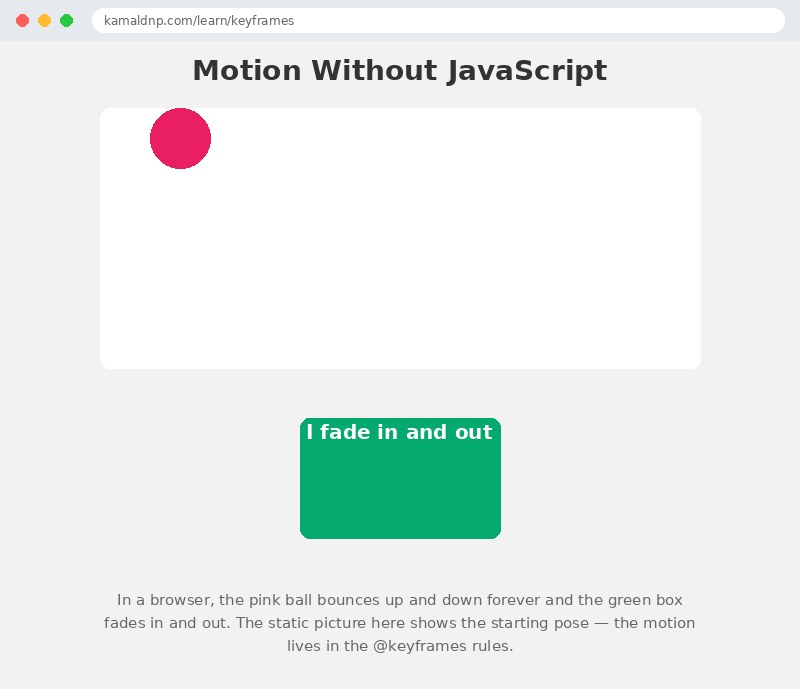
@keyframes bounce { 0% { top: 0; } 50% { top: 180px; } 100% { top: 0; } }— गेंद शुरुआत में ऊपर है, आधे रास्ते नीचे जाती है, और अंत में वापस ऊपर आ जाती है।.ball { animation: bounce 2s ease-in-out infinite; }— उछाल 2 second चलती है, आराम से शुरू और ख़त्म होती है, और हमेशा दोहराती है।@keyframes fadein { from { opacity: 0.2; } to { opacity: 1; } }— हरा box लगभग अदृश्य से पूरा दिखने तक fade होता है, सिर्फ़ दो stops से।.fade-box { animation: fadein 3s ease-in-out infinite alternate; }— fade 3 second चलता है और आगे फिर पीछे खेलता है, इसलिए कभी एकदम नहीं कूदता।.ball { position: absolute; }— गेंद सफ़ेद stage के अंदर positioned है, इसलिएtopanimate करने पर वह हिलती भी है।
उदाहरण
<!DOCTYPE html>
<html>
<head>
<title>Bouncing Ball and Fading Box</title>
<style>
* { box-sizing: border-box; }
body { font-family: Arial, sans-serif; margin: 0; padding: 20px; background-color: #f2f2f2; text-align: center; }
h1 { color: #333; }
.stage { max-width: 600px; height: 260px; margin: 20px auto; background-color: white; border-radius: 10px; position: relative; }
.ball {
  width: 60px; height: 60px; background-color: #e91e63; border-radius: 50%;
  position: absolute; left: 50px; top: 0;
  animation: bounce 2s ease-in-out infinite;
}
@keyframes bounce {
  0% { top: 0; }
  50% { top: 180px; }
  100% { top: 0; }
}
.fade-box {
  width: 200px; height: 120px; margin: 30px auto; background-color: #04aa6d;
  color: white; display: flex; align-items: center; justify-content: center;
  font-size: 20px; font-weight: bold; border-radius: 10px;
  animation: fadein 3s ease-in-out infinite alternate;
}
@keyframes fadein {
  from { opacity: 0.2; }
  to { opacity: 1; }
}
p.note { color: #666; max-width: 600px; margin: 20px auto; }
</style>
</head>
<body>

<h1>Motion Without JavaScript</h1>

<div class="stage">
<div class="ball"></div>
</div>

<div class="fade-box">I fade in and out</div>

<p class="note">In a browser, the pink ball bounces up and down forever and the green box fades in and out. The static picture here shows the starting pose — the motion lives in the @keyframes rules.</p>

</body>
</html>
परिणाम
खुद करके देखें — लाइव एडिटर
नीचे दिया गया कोड बदलें और चलाएँ दबाएँ — परिणाम तुरंत दिखेगा। कोई फाइल सहेजनी नहीं है, कोई लॉगिन नहीं चाहिए।
संबंधित पाठ
अक्सर पूछे जाने वाले सवाल
इस पाठ के बारे में सबसे ज़्यादा पूछे जाने वाले सवाल — सवाल पढ़ें, फिर खोलकर जवाब देखें।
1. Keyframes रूल क्या होता है?
एक रूल जो animation को नाम देता है और उसके ज़रूरी stops बताता है। बीच का सब कुछ ब्राउज़र अपने आप smoothly बना देता है।
2. From/to और percentages में क्या फ़र्क है?
From/to सिर्फ़ दो stops देता है, शुरुआत और अंत। Percentages जितने चाहिए उतने stops देते हैं, जैसे 0%, 50% और 100%।
3. Animation को duration क्यों चाहिए?
बिना duration के यह 0 seconds पर डिफ़ॉल्ट हो जाता है, तो कुछ होता हुआ दिखता ही नहीं।
खुद क्यों सीखें — AI से पूछने के बजाय?
AI आपके लिए कोड लिख सकता है, लेकिन वह आपके लिए सोच नहीं सकता। जब आप HTML खुद सीखते हैं, तो आपका दिमाग असली कौशल बनाता है: आप समझते हैं कि पेज ऐसा क्यों दिखता है, टूटने पर उसे ठीक कर सकते हैं, और परीक्षा या इंटरव्यू में बिना मदद के जवाब दे सकते हैं। यही कौशल नौकरी दिलाता है — कॉपी किया हुआ जवाब नहीं।
सर्टिफिकेट पाएँ — सिर्फ ₹10
सभी 35 पाठ पूरे करें, टेस्ट पास करें (80%), ₹10 दें और अपना सर्टिफिकेट पाएँ।
टेस्ट देंदेखकर सीखना पसंद है? वीडियो कोर्स में वही विषय एक-एक करके सिखाए जाते हैं।
Go further with a full course
Free tutorials teach you the basics. Our paid courses add live projects, mentorship and a certificate.
Browse all courses