

BTEUP ESeva Student Registration & Login: How to Register, Login, Download Admit Card & Check Result — Step by Step
Almost everything in your BTEUP exam life happens through one login — the ESeva Student Login on the board's website, bteup.ac.in. Your admit card comes from there. Your result opens from there. But many students get stuck at the very first step and keep asking: "How do I register? Where do I create my account?" This guide answers that question in simple words. The short answer is: there is no sign-up form for students on the ESeva page — your login is created through your institute. Read the four steps below and you will never be stuck at the login page again.
Keep These Things Ready
Before you touch the login page, keep four things with you:
- Your enrolment number — the board's number that identifies you in every exam. If you do not know it yet, the next section tells you where to get it.
- Your date of birth — exactly as it is written in your institute and board records (it is the same date as on your high-school certificate).
- Your password — if you have logged in before and set one, or if your institute gave you one.
- A phone or computer with internet — and a few quiet minutes. Do not do this in a hurry on the last day.
First Understand This: How Your BTEUP Login Is Created
On most websites, you create your own account. BTEUP does not work like that. When you take admission in a polytechnic, your institute enrols you with the board. From that enrolment, the board issues your enrolment number, and your student record is created in the board's system. That is your "registration". There is no separate form for you to fill on the ESeva page, and there is no fee for it.
So if you are a new student, your first job is not on any website — it is at your own institute. Go to your institute office or exam cell and ask for your enrolment number. Carry your admission slip or college ID card. If you are in the 3rd or 5th semester, your enrolment number is also printed on your previous admit card and marksheet, and it appears on your fee receipts — check those first, it will save you a trip.
One confusion to clear today itself: URISE (urise.up.gov.in) is a different government portal with its own sign-up. It is not the page for your BTEUP admit card. For admit card and board exam work, always use bteup.ac.in.
The Official Login Page — Use Only This
This is the board's one official student login. Bookmark it, and do not open look-alike pages that reach you through random links or messages:
Open the Official ESeva Student Login →
The login is free. BTEUP never charges any money for logging in or for downloading the admit card.
How to Register — First-Time Students, Step by Step
If you have never logged in before, follow these steps in order:
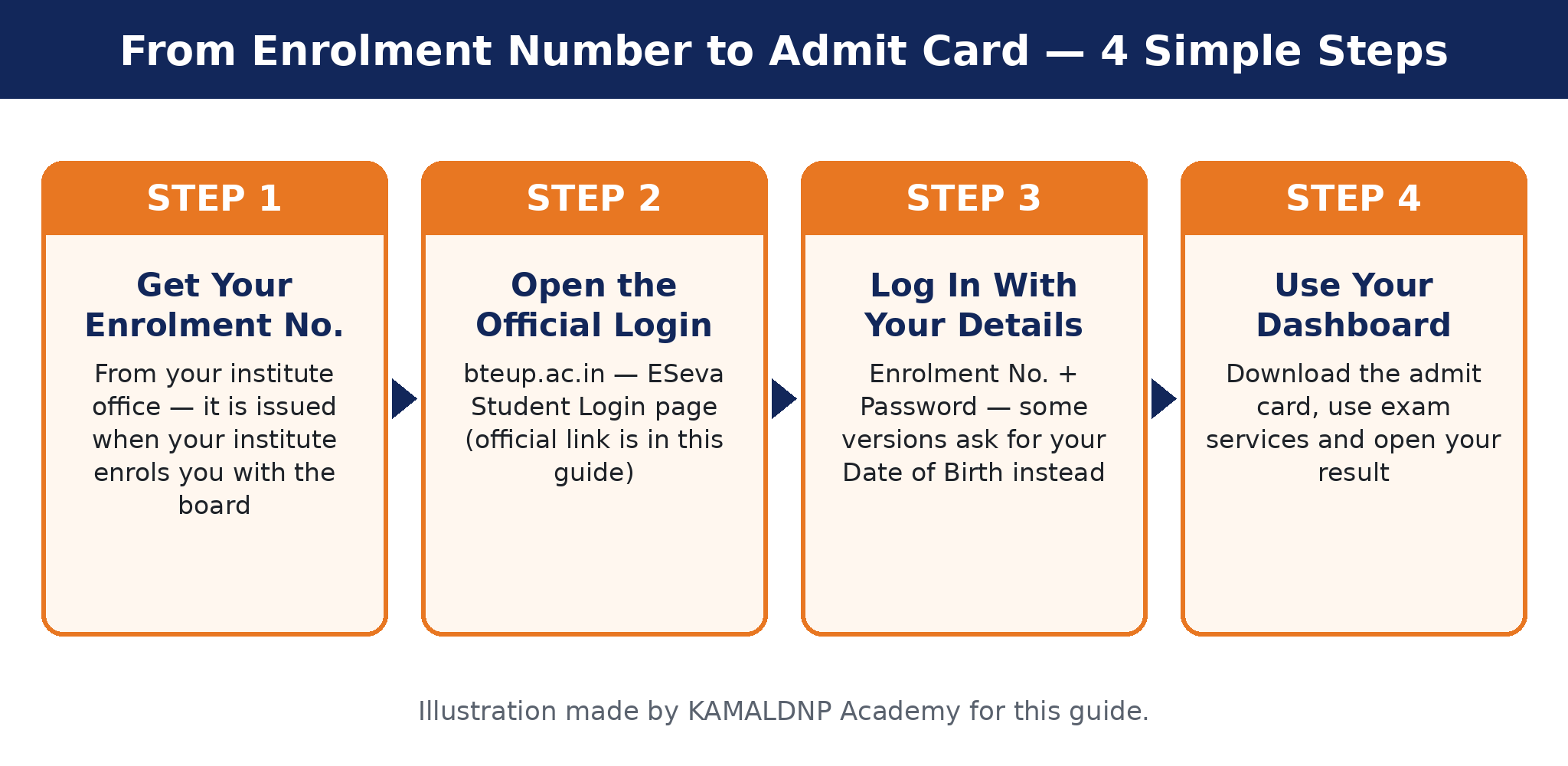
Step 1. Get your enrolment number from your institute office or exam cell (or from your previous admit card / marksheet, if you have one).
Step 2. Open the official ESeva Student Login from the button above.
Step 3. Type your enrolment number carefully. Check every digit — one wrong digit and the page will say the number is not found.
Step 4. Now look at what the page asks next. On the current login page it asks for a password. On some versions of the board's login, it asks for your date of birth instead (day, month and year). The board has used both in different exam cycles, so both are normal. Fill exactly what your page asks for — nothing more, nothing less.
Step 5. If the page shows a captcha or security code, type the same letters and numbers you see in the picture.
Step 6. Press Login. Your student dashboard opens. You are in — this was your first login, and there was nothing else to "register".
Step 7. If the page asks you to set or change a password, choose a strong password that you can remember, write it down in a safe place at home, and never share it with anyone.
If Step 4 does not work: if you never received a password and your date of birth is also not accepted, stop guessing. Too many wrong tries help nobody. Go to your institute's exam cell with your ID card or admission slip — they can get your login details corrected or reset. This is a normal, everyday job for them.
How to Login — Every Time, Step by Step
Once your first login is done, every later login is the same two-minute job:
Step 1. Open the official ESeva Student Login (button above). Step 2. Enter your enrolment number. Step 3. Enter your password — or your date of birth, if that is what your page asks. Step 4. Type the captcha/security code if one is shown. Step 5. Press Login and wait for your dashboard. Step 6. When your work is done, log out — this matters most when you use a shared computer or a cyber café.
Forgot Your Password? Do This
Do not panic, and do not pay anyone. Follow these steps in order:
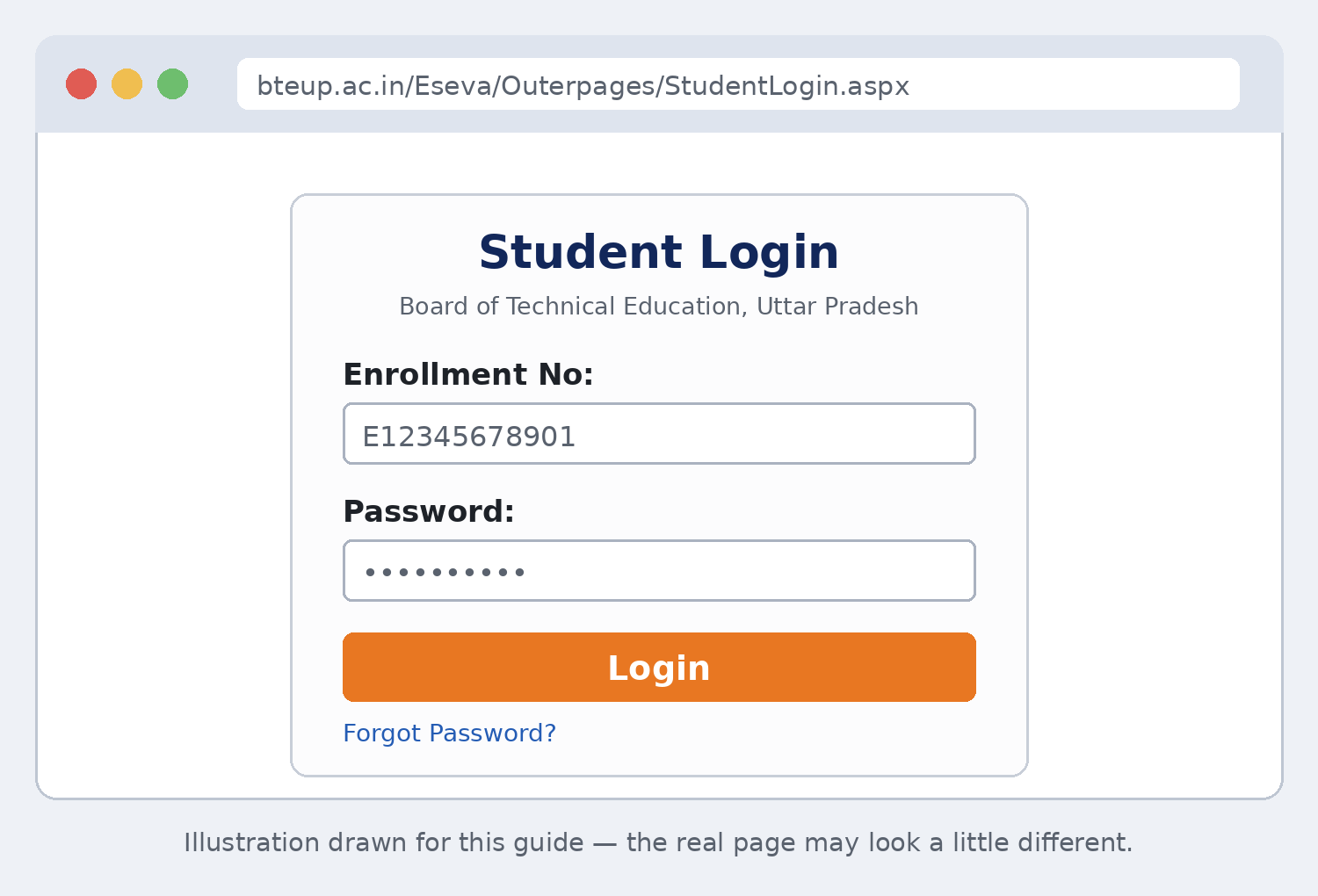
Step 1. On the login page, look for a "Forgot Password" option. If it is there, open it and follow the steps the page shows you — the board has an official password-reset procedure.
Step 2. If there is no such option, or it does not work for you, go to your institute's exam cell or IT cell. They can get your password reset or tell you your correct login details. Carry your college ID card or admission slip.
Step 3. After the reset, log in yourself and, if the page offers it, set a new password that only you know.
That is all. A password reset is free, always. Any person or website asking for money for this is cheating you.
What You Can Do After Login
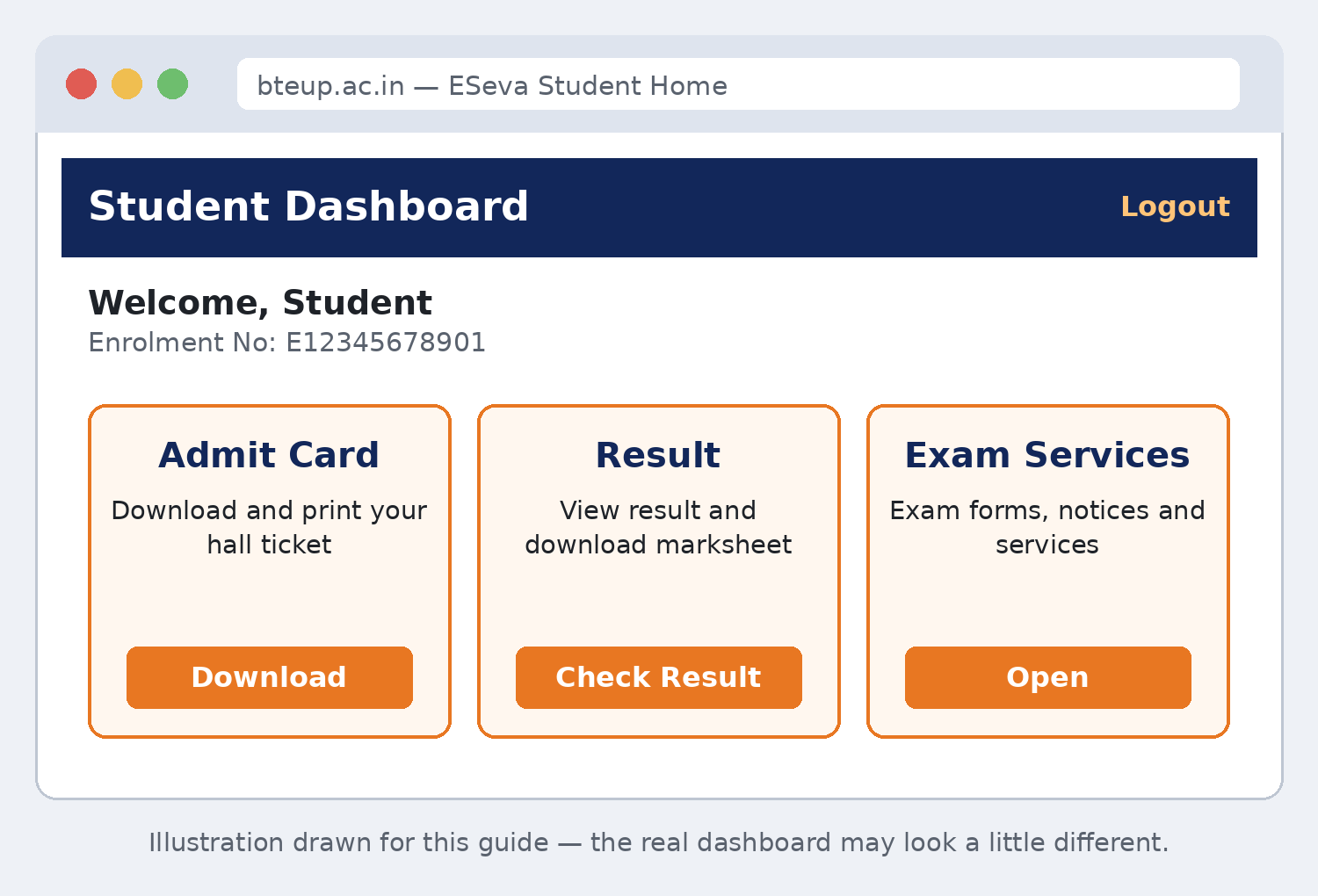
- Download your admit card — when the board releases it (for the odd semester 2026-27 it is expected between 1 and 5 November 2026), it appears in this same login. Our admit card guide walks you through the download, the details to check, and what to carry to the centre.
- Use the exam services the board opens — exam-related forms and notices reach you through this login and the board's website during the session.
- Check your result — after the exams, the result is checked on the board's website with your enrolment number and date of birth. The full method, with the marksheet download and rechecking, is in our result guide; the expected result window is in the result overview.
- Keep your details right — if your name, date of birth or any detail in your record is wrong, tell your institute at once and get it corrected in good time, not on the exam day.
Common Problems — and the Simple Fix
"Enrolment number not found." You are probably typing a wrong digit, or typing your class roll number by mistake — the enrolment number is a different number, given by the board. Copy it slowly from your previous admit card, marksheet or fee receipt. If it still fails, your institute office will confirm the correct number.
"Date of birth is wrong." Use the date of birth that is in the board's records — the one from your high-school certificate that your institute used at admission. Mind the format the page wants (dd/mm/yyyy). If the record itself is wrong, only your institute can start the correction — go to them.
"Password is wrong" — again and again. Stop after two or three tries. Use the Forgot Password route given above, or visit your institute's exam cell. Guessing all day will not open it.
The website is not opening, or is very slow. This is normal on the day the admit card or the result comes out, when lakhs of students try together. Wait for some time, or try early in the morning. Use the direct official link in this guide instead of searching again and again. Remember: your institute can also download your admit card through its own login if you are truly stuck.
My name or details are wrong in the record. Tell your institute immediately and get it corrected before the examination. Do not wait until the exam day — a wrong name on the admit card is a problem at the centre gate.
Stay Safe — 5 Simple Rules
1. Log in only on bteup.ac.in. Check the address before you type anything. 2. Never share your enrolment number, password or any OTP/code with any person or website — no teacher, shop or "agent" needs it. 3. No website — including kamaldnp.com — can download your admit card for you; it opens only inside your own login. Anyone who offers to do it for money is misleading you. 4. Registration, login and the admit card download are free. Never pay for them. 5. Always log out when you finish, above all on a shared or shop computer.
Frequently Asked Questions
Is there a registration form for students on the ESeva website?
No. There is no student sign-up form on the ESeva login page. Your record is created when your institute enrols you with the board — that enrolment is your registration. Your job is only to get your enrolment number and log in.
Where do I get my enrolment number?
From your institute office or exam cell. If you are in the 3rd or 5th semester, it is also printed on your previous admit card and marksheet, and it appears on fee receipts.
My login page asks for my date of birth, not a password. Is that right?
Yes, it can be. The board's login pages have used both — a password on the current page, and date of birth on some versions and cycles. Fill exactly what your page asks for.
I forgot my password. What should I do?
First try the Forgot Password option on the login page, if it is shown. If that does not work, go to your institute's exam cell or IT cell — they can get it reset. It is free; never pay anyone for a reset.
Can a cyber café or another website download my admit card for me?
The admit card opens only inside your own login. If you hand your enrolment number and password to a stranger, you are handing over your exam record. Log in yourself using this guide, or take your institute's help — both are free and safe.
Is the ESeva login the same as the URISE login?
No. URISE (urise.up.gov.in) is a different government portal with its own sign-up. For your BTEUP admit card and board exam work, use the ESeva Student Login on bteup.ac.in.
Related Posts
- BTEUP Odd Semester Exam 2026-27 (1st, 3rd, 5th Sem): Expected Dates, Admit Card, Date Sheet, Exam Pattern
- BTEUP Admit Card 2026: How to Download the Odd Semester Hall Ticket (1st, 3rd, 5th Sem)
- BTEUP Exam Preparation 2026-27 (Odd Semester): Admit Card, Date Sheet, Previous Papers, Notes & Practice Papers
- BTEUP Previous Year Question Papers (Old Scheme): How to Download & Practise — 1st, 3rd, 5th Sem
- BTEUP Odd Semester Result 2026-27 (1st, 3rd, 5th Sem): Expected Date, How to Check, Marksheet & Rechecking
- How to Check BTEUP Result Online & Download the Marksheet: Step-by-Step Guide with Scrutiny & Re-evaluation




Comments (0)
Share your question or experience about this syllabus. Your comment will appear after review.
No comments yet — be the first to share your thoughts!