HTML File Paths
2 min read · Free · No login needed
Every time you link to a page, an image, or a CSS file, you write a path — the address of that file. Paths come in two kinds: relative and absolute. Getting them right is one of the most common beginner problems, so it is worth learning properly.
Relative paths
A relative path describes where the file is from the current page. If the image sits in the same folder: src="photo.jpg". In a subfolder: src="images/photo.jpg". In the parent folder (one level up): src="../photo.jpg". Each ../ goes up one level. Relative paths are what you should use inside your own website — the site keeps working even if you move it to a different domain.
Absolute paths
An absolute path is the full address: https://kamaldnp.com/images/photo.jpg. Use it only for files on other websites. Never use it for your own files — if the domain changes, every link breaks.
Common mistakes
- Wrong capital letters —
Photo.jpgandphoto.jpgare different files on a Linux server. Keep file names lowercase. - Spaces in file names —
my photo.jpgcauses trouble. Use hyphens:my-photo.jpg. - Forgetting
../— a page inside a folder that links to a file in the main folder needs to go up one level first.
Example
<!DOCTYPE html>
<html>
<head>
<title>File Paths</title>
</head>
<body>

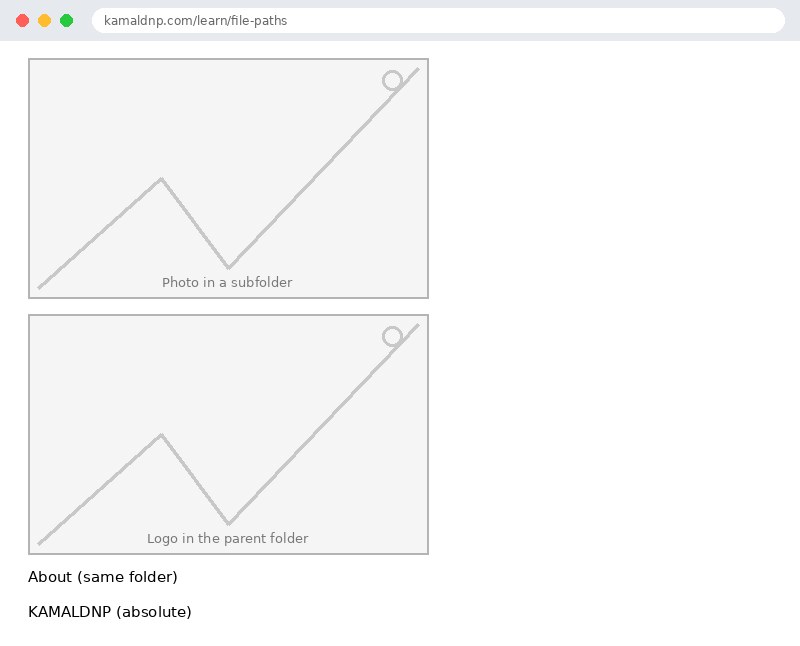
<img src="images/photo.jpg" alt="Photo in a subfolder">
<img src="../logo.png" alt="Logo in the parent folder">
<a href="about.html">About (same folder)</a>
<a href="https://kamaldnp.com">KAMALDNP (absolute)</a>

</body>
</html>
Output
test.html, open it in your browser, and change the text to see what happens. That is how you learn — by changing things and watching the result.Get certified — just ₹10
Finish all 30 lessons, pass the test (80%), pay ₹10 and get your certificate.
Take the testGo further with a full course
Free tutorials teach you the basics. Our paid courses add live projects, mentorship and a certificate.
Browse all courses