HTML Images
2 min read · Free · No login needed
Images make a page feel alive. The <img> tag adds an image to a page. It is an empty element — no closing tag — and it needs two attributes to work well: src (the image file) and alt (a text description).
src and alt
src is the path to the image file: <img src="photo.jpg" alt="Students in a class">. The path can be relative (images/photo.jpg) or a full URL. alt is shown if the image fails to load, and it is read aloud by screen readers and read by Google. Never leave alt empty on a meaningful image — write a short, honest description of what the picture shows.
Width and height
Always set width and height. They reserve the space before the image loads, so the page does not jump around while loading. You can also set the size in CSS — that is the modern way — but the attributes still help the browser plan the layout.
Which image format?
- JPG — photos. Small file size, good quality.
- PNG — graphics, logos, and anything needing transparency.
- WebP — the modern choice: smaller than JPG and PNG at the same quality.
- GIF — simple animations only.
- SVG — icons and logos that must stay sharp at any size.
Keep images as small as you can — resize them to the size they will actually appear, and compress them. A 5 MB photo slows the whole page down, and visitors on mobile data will leave before it loads.
loading="lazy" to images below the fold. The browser then loads them only when the visitor scrolls near them, so the page opens faster.Example
<!DOCTYPE html>
<html>
<head>
<title>Images</title>
</head>
<body>

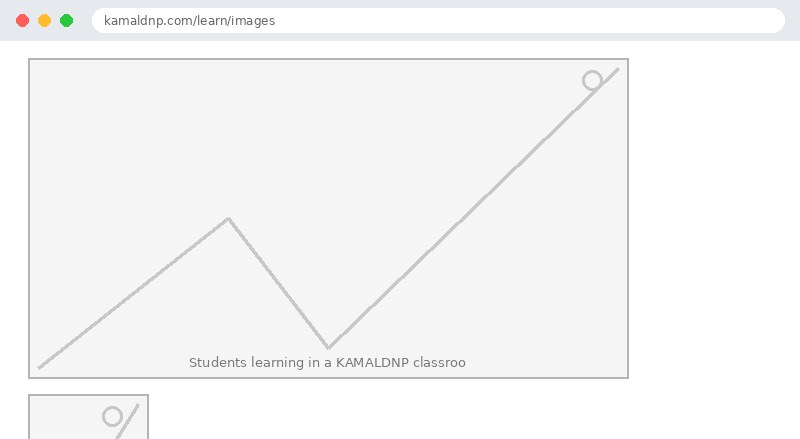
<img src="classroom.jpg" alt="Students learning in a KAMALDNP classroom" width="600" height="400">
<p><img src="logo.png" alt="KAMALDNP logo" width="120" height="120"></p>

</body>
</html>
Output
test.html, open it in your browser, and change the text to see what happens. That is how you learn — by changing things and watching the result.Get certified — just ₹10
Finish all 30 lessons, pass the test (80%), pay ₹10 and get your certificate.
Take the testGo further with a full course
Free tutorials teach you the basics. Our paid courses add live projects, mentorship and a certificate.
Browse all courses