HTML Responsive
2 min read · Free · No login needed
Responsive design means one website that looks good on every screen — a phone, a tablet, a laptop, a TV. Today more than half of all web traffic comes from phones, so a page that only works on a desktop is a page that loses half its visitors.
Step 1: the viewport tag
Add <meta name="viewport" content="width=device-width, initial-scale=1.0"> to the head. Without it, phones pretend to be 980 pixels wide and shrink your page to fit — everything becomes tiny.
Step 2: flexible images
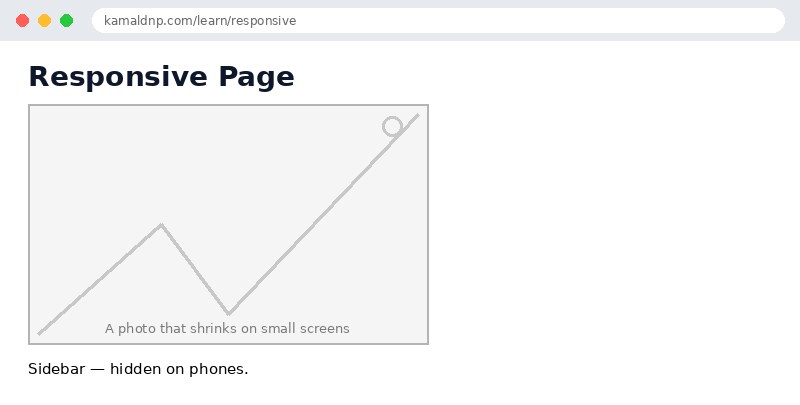
Set images to max-width: 100%; height: auto; in CSS. The image then shrinks to fit a narrow screen instead of overflowing and forcing a sideways scroll. Never use a fixed pixel width on an image that must work on phones.
Step 3: media queries
A media query applies CSS only when the screen is a certain size. For example: @media (max-width: 600px) { .sidebar { display: none; } } hides the sidebar on phones, where there is no room for it. You write the desktop layout first, then add queries that adjust it for smaller screens — or the other way round, starting mobile-first.
Test on a real phone
Resize your browser window to check the layout, but also open the page on a real phone. Touch targets (buttons, links) need to be big enough for a finger — at least 44 pixels tall — and text must stay readable without pinching to zoom.
Example
<!DOCTYPE html>
<html>
<head>
<title>Responsive</title>
<meta name="viewport" content="width=device-width, initial-scale=1.0">
<style>
img { max-width: 100%; height: auto; }
@media (max-width: 600px) {
  .sidebar { display: none; }
}
</style>
</head>
<body>

<h1>Responsive Page</h1>
<img src="photo.jpg" alt="A photo that shrinks on small screens">
<div class="sidebar">Sidebar — hidden on phones.</div>

</body>
</html>
Output
test.html, open it in your browser, and change the text to see what happens. That is how you learn — by changing things and watching the result.Get certified — just ₹10
Finish all 30 lessons, pass the test (80%), pay ₹10 and get your certificate.
Take the testGo further with a full course
Free tutorials teach you the basics. Our paid courses add live projects, mentorship and a certificate.
Browse all courses